
How To: Setting Up Peppol E-Invoicing

Harpoon now supports sending invoices via the Peppol e-invoicing network. This guide walks you through enabling Peppol on your account, verifying your clients, and sending your first Peppol invoice.
Note: Peppol e-invoicing is only required for European customers. If you don't invoice clients in Europe, you can continue using Harpoon's standard invoicing features.
Step 1: Configure Your Account
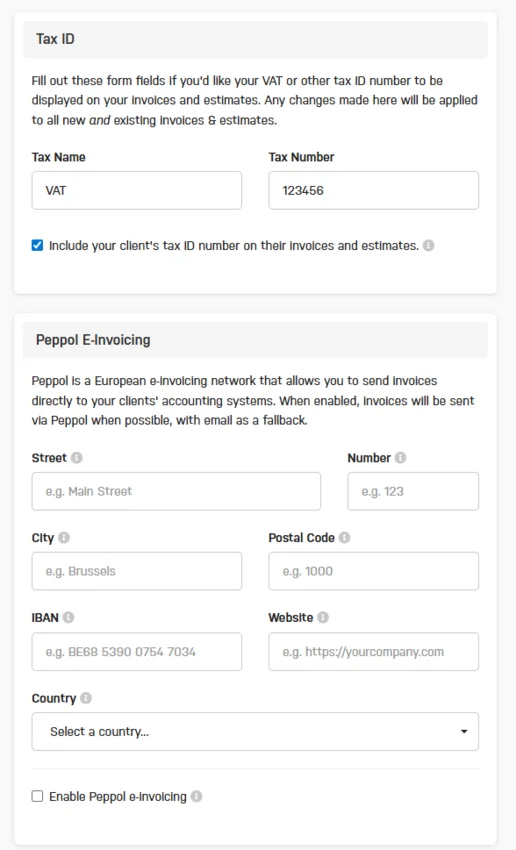
Navigate to your Invoice & Estimates Settings page. Fill in the following:
- Tax ID — Enter your tax identification number (e.g., your VAT number).
- Business Information — Complete all required business details.
Once everything is filled in, click Save Changes. You must save before proceeding to the next step.
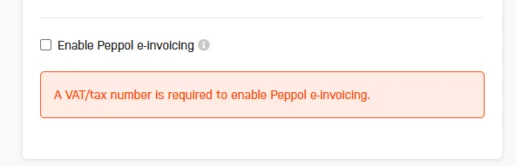
Now check the Enable Peppol e-invoicing checkbox. If the toggle returns an error, it will tell you exactly what's missing or incorrect — fix the issue, save your changes again, and then re-enable the checkbox.
Step 2: Verify Your Clients
With Peppol enabled on your account, you'll need to verify each client you want to send Peppol invoices to.
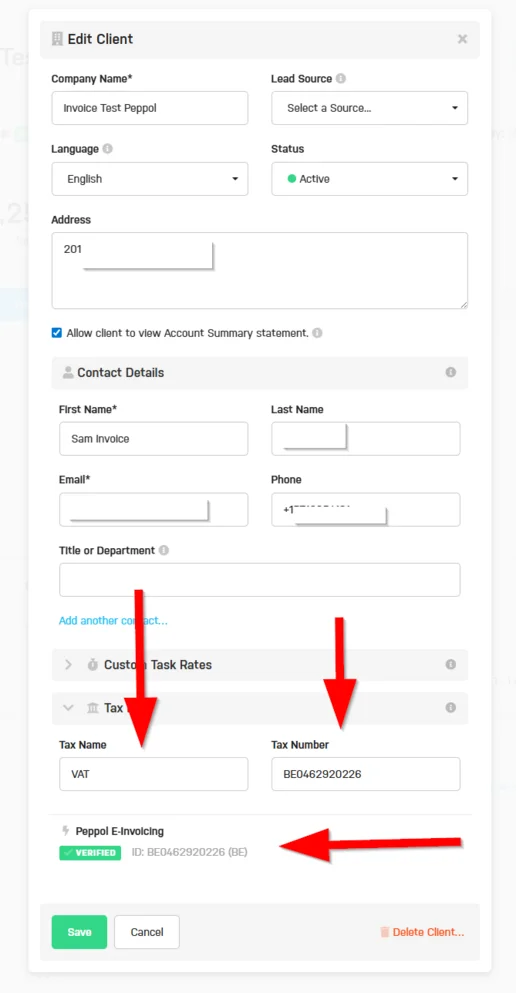
Open the client you want to configure and click Edit Client. Expand the Tax ID section. Because your account has Peppol enabled, you'll see a Verify for Peppol button. Enter the client's VAT number and click Verify. If the client is registered on the Peppol network, the status indicator will turn green.
Step 3: Send an Invoice via Peppol
After creating an invoice for a Peppol-verified client:
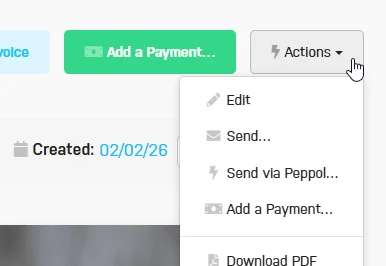
- Open the invoice and go to the Actions tab.
- You'll see a new option: Send Via Peppol.
- Click it to submit the invoice to the Peppol network.
Confirming Delivery
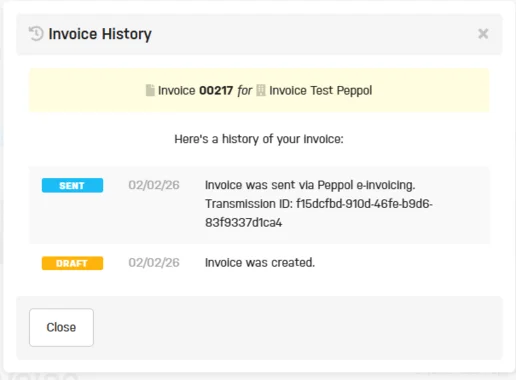
After sending, you'll see a success message — but this only confirms that the invoice was submitted to the network. It takes approximately 1–3 minutes for the Peppol network to fully accept the invoice.
You'll know the invoice has been accepted when a Transaction ID appears in the invoice's history. Once you see that, the invoice has been delivered to your customer via Peppol.
This new feature is part of our ongoing effort to improve your experience. We value your feedback, so let us know what you think! Stay tuned for more updates.