
New Feature: Manage Harpoon from Your AI Assistant

If you've started using AI assistants in your day-to-day work — whether it's Claude, ChatGPT, Cursor, or something else — you've probably noticed how natural it feels to just ask for what you need instead of clicking through screens — drafting an email, summarizing a document, answering a quick question. It's becoming a regular part of how freelancers and agencies get things done.
But when it comes to your business tools, there's usually a wall. You can ask your AI assistant to help you write a proposal, but you can't ask it to log your time or check which invoices are overdue. You end up copying and pasting between your assistant and the apps where your real data lives.
Starting today, that wall is gone. Harpoon now connects directly to AI assistants through MCP (Model Context Protocol) — an open standard that lets AI tools work with apps like Harpoon using your real account data. Once connected, you can track time, manage clients and projects, create invoices, and more — all by asking in plain English.
What You Can Do
Harpoon's AI integration includes 24 tools spanning every major area of the app. Here's what you can manage through conversation:
Dashboard and Team Overview
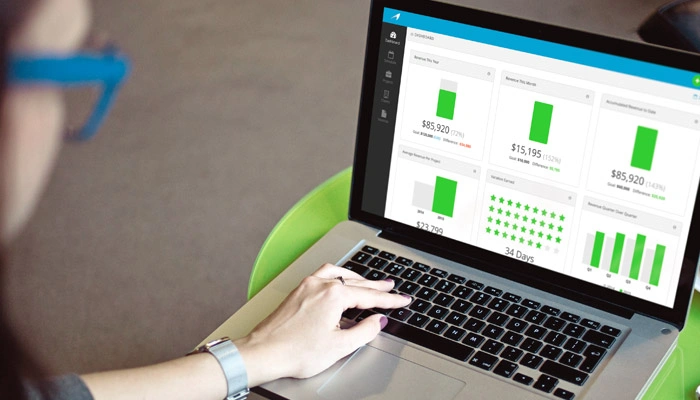
Get an instant snapshot of your business — hours logged today, this week, and this month, outstanding and overdue invoices, unbilled time, active timers, and draft invoices. If you belong to multiple teams, you can see them all and switch between them.
Clients
- List, search, and view clients with financial summaries
- Create new clients with contact information
- Update client details and status
Projects
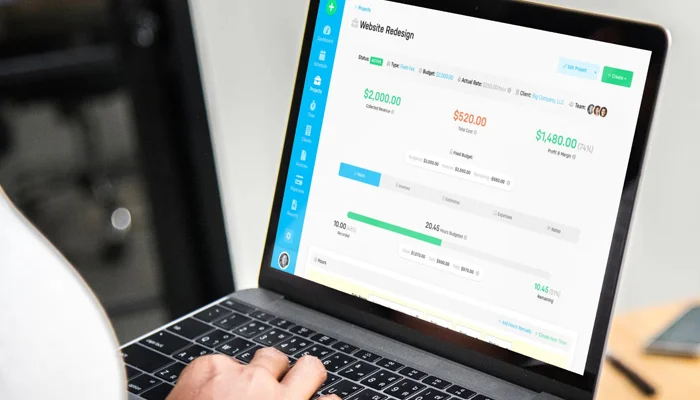
- List and search projects with budget and hours tracking
- Create new projects for a client
- Update project status, budget, and dates
- View tasks and hourly rates for any project
Time Tracking
- Log time entries against a project and task
- Start and stop a running timer — just like the timer in the Harpoon app
- Edit or delete time entries
- View time entries filtered by date range, project, client, or billed status
Invoicing
- List and view invoices with full financial detail
- Create draft invoices with line items
- Mark invoices as sent
- Record payments — invoice status updates automatically
Expenses
- List and filter expenses by date, category, vendor, or status
What It Feels Like
The best way to understand this feature is to see the kinds of things you can say to your assistant once Harpoon is connected:
- "How many hours did I log this week?"
- "Log 2 hours of Design work on the Acme Website project for today."
- "Start a timer on the Acme Website project, Development task."
- "Create a draft invoice for Acme Corp with 40 hours of Development at $150/hr."
- "What invoices are overdue?"
- "Record a $5,000 payment on invoice #00042."
No menus, no forms, no switching tabs. Just ask, and it's done.
How to Connect
Setting this up takes just a few minutes. For full setup instructions, visit our MCP documentation.
Step 1: Get your API token. Head to your Harpoon account settings and grab your API token. This is the secure credential that lets your AI assistant access your account — treat it like a password.
Step 2: Add Harpoon to your AI assistant. Each AI client has its own way to add connections. Here's an example for Claude Desktop — add this to your claude_desktop_config.json file:
{
  "mcpServers": {
    "harpoon": {
      "type": "streamable-http",
      "url": "https://app.harpoonapp.com/mcp/harpoon",
      "headers": {
        "Authorization": "Bearer YOUR_API_TOKEN"
      }
    }
  }
}
Replace YOUR_API_TOKEN with the token from your account settings. Other AI clients like Cursor, VS Code with Copilot, and ChatGPT have a similar configuration — you just need the URL and your token.
That's it. Once connected, your assistant will have access to all 24 Harpoon tools.
Working with Multiple Teams
If you belong to more than one team in Harpoon — common for freelancers managing multiple businesses or agencies with sub-teams — switching context is simple:
- When first connected, your assistant uses your default team
- Ask "What teams do I have?" to see all available teams
- Say "Switch to Johnson Agency" to change context
- All actions from that point forward use the selected team until you switch again
- Your team selection is remembered for 24 hours
You can also configure your AI client to default to a specific team every time you connect. See our MCP documentation for details.
Security
All communication between your AI assistant and Harpoon is encrypted over HTTPS. Your assistant can only access data you have permission to see — the same role-based permissions as the Harpoon app apply. Staff members will only see their own time entries, for example. Your connection uses token-based authentication, and you can revoke your API token at any time from your account settings to immediately disconnect access.
To keep things running smoothly for everyone, the MCP server includes built-in rate limits:
- 5 requests per second with short bursts of up to 10
- 15 concurrent connections at a time
For typical usage — logging time, checking your dashboard, creating an invoice — you'll never come close to these limits. They're in place to protect the system from runaway automation or misconfigured tools.
Just the Beginning
This is our first step into AI-powered workflows, and we're excited about where it's heading. We have more AI features on the roadmap, and your feedback will help shape what comes next.
Have questions, ideas, or feedback? Drop us a line at support@harpoonapp.com.