
How do I set up an expense budget for my business?
Not sure which one you're using? The new interface has a dark sidebar and /app/ in the web address; the classic interface has a bright blue sidebar. You can switch at any time: in the new interface, click your name (top right) and choose Switch back to classic; in the classic interface, hover your avatar (bottom left) and choose Try the new Harpoon.
Budgeting your expenses is a proven way of bringing discipline and control to your spending habits. The amount of money coming in is somewhat meaningless if there isn’t a plan in place for how that money is ultimately spent. A budget is a powerful tool to help you plan and set limits on the expense categories your business spends money on.
Since you’re already tracking your business expenses in Harpoon, budgeting for those expense categories is easy to do. Go to Expenses in the left sidebar and choose Budget, or click the Budget tab at the top of your Expenses screen. This opens your Expense Budget screen.
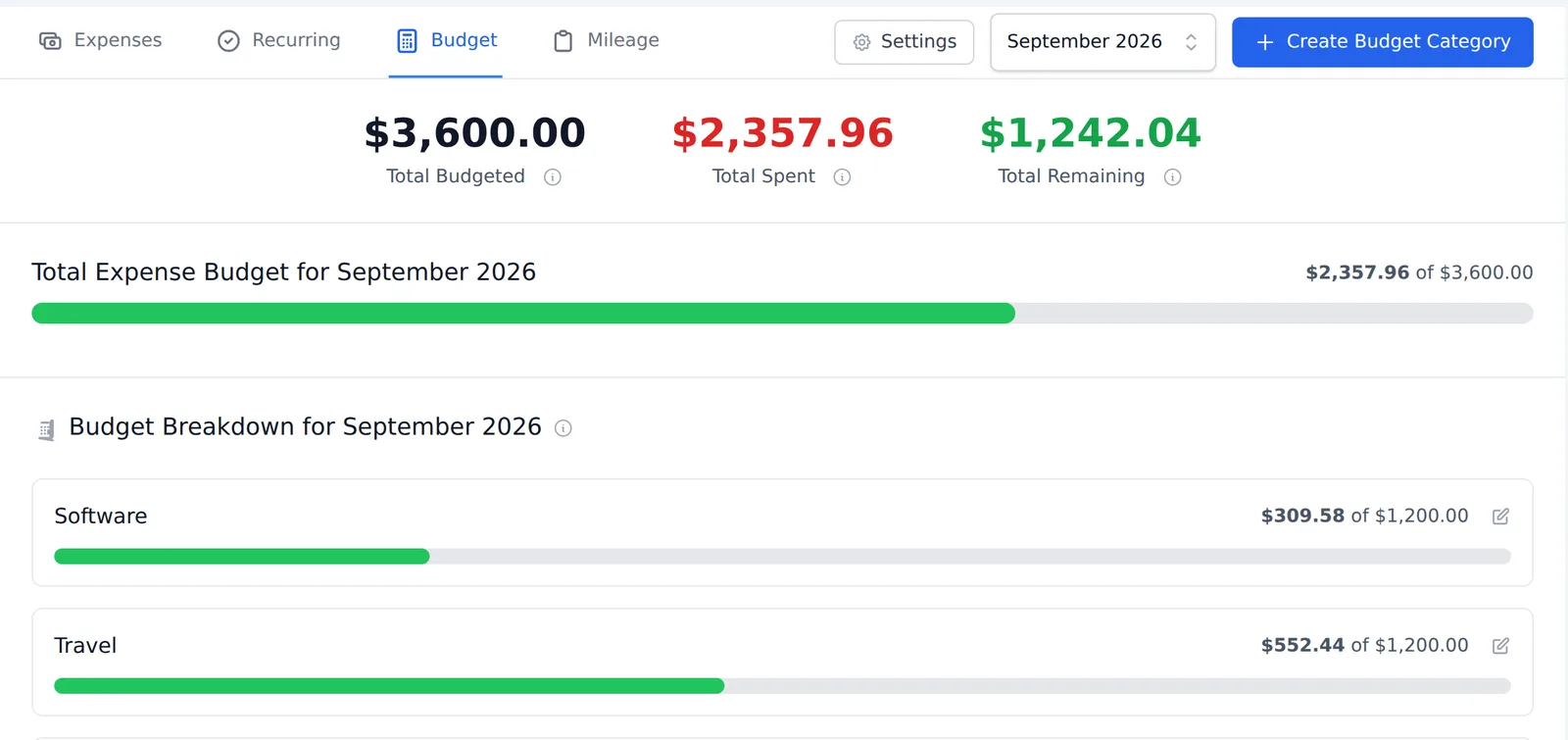
The Expense Budget screen is a monthly view where you plan the amount of money you’d like to spend in any of your expense categories. Harpoon then shows the amount you’ve actually spent in each category compared to how much you planned to spend. Progress bars make it easy to see at a glance which categories are close to being maxed out (a bar turns red when you go over budget). At the top you’ll see your Total Budgeted, Total Spent and Total Remaining for the month.
You’ll need to decide which expense categories you’d like to budget for. Start budgeting for a category by clicking the Create Budget Category button at the top of the screen (or New → Budget). The form is quick and easy to fill out:
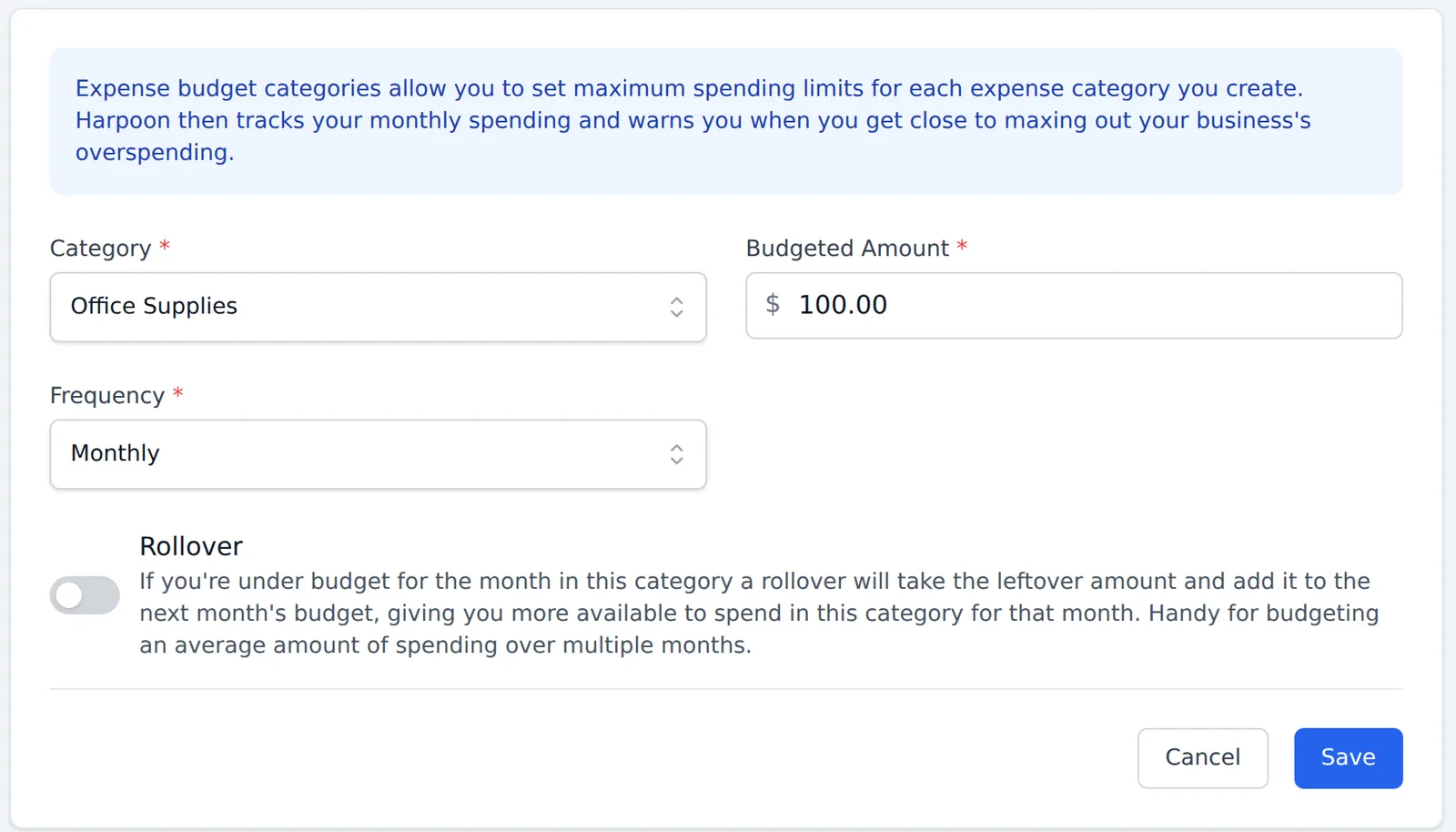
- Category: Your budget categories are based on the expense categories you already have set up in your account. Select which category you’d like to budget for. Categories that already have a budget aren’t listed.
- Budgeted Amount: How much money do you want to budget for this category?
- Frequency: How often do you need to budget this amount: Daily, Weekly, Monthly, Quarterly or Yearly? Since the Expense Budget screen is a monthly view, Harpoon calculates a monthly average for you based on the frequency you select. For example, if the category is a weekly expense of $10, set the Budgeted Amount to $10 and the Frequency to Weekly, and Harpoon will set a monthly budget of about $43 for that category.
- Rollover: If you’re under budget for the month in this category, a rollover takes the leftover amount and adds it to the next month’s budget, giving you more to spend in this category that month. This is handy for budgeting an average amount of spending over multiple months. When you turn it on, choose a Rollover Start Date: the month (past, present or future) the rollover should start.
Click Save and you’ll see your new budget category on the Expense Budget screen, already tracking any spending for the month.
You can move backwards and forwards in time using the month drop down at the top of the screen. This lets you review your spending habits over time. If you need to adjust a budget category, click the Edit (pencil) icon next to the category’s spending figures. The edit form also has a Remove Budget Category option, which removes the budget but keeps the category and its expenses.
At the bottom of the Expense Budget screen you might notice an Unbudgeted Spending table.
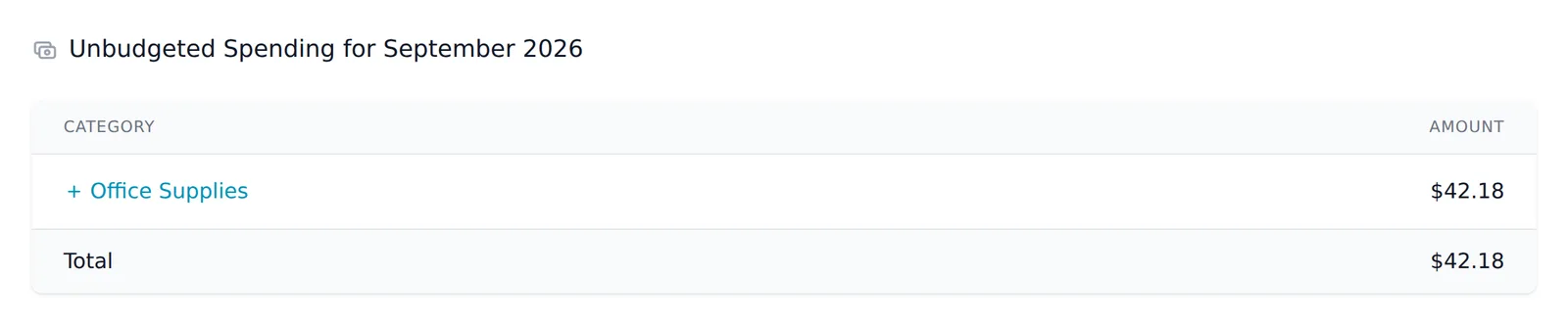
This lists any spending recorded for the month in categories that don’t have a budget yet. For example, maybe you haven’t created a budget for Office Supplies, but you notice your business consistently spends money in that category from month to month. It might be wise to budget for it. Click the category name in the Unbudgeted Spending table to open the budget category form with that category already selected, then fill in the amount and frequency and click Save.
As the month goes on, check in on your budget a few times a week. See if your actual spending is within the limits you planned. Look back in time to see if there are any categories where you’re consistently overspending. Maybe you need to increase the budget for that category, or be more disciplined with your spending. You might even notice you’re consistently underspending in a category and can lower its budget.
Ultimately your budget isn’t meant to be a burden. It’s a tool to help you plan a ballpark monthly amount of spending for your business, and to see how well you’re sticking to that plan. Then it’s up to you to adjust your plan or your behavior accordingly.
Budgeting your expenses is a proven way of bringing discipline and control to your spending habits. The amount of money coming in is somewhat meaningless if there isn’t a plan in place for how that money is ultimately utilized or spent. The lack of a spending plan is why so many businesses struggle to stay profitable, even when making what appears to be plenty of revenue. A budget is a powerful tool to help you plan and set limits on the expense categories your business spends money on.
Since you’re already tracking all of your business expenses in Harpoon, budgeting for those expense categories is easy to do. First, you’ll find a Budget screen within the Expenses section of Harpoon:
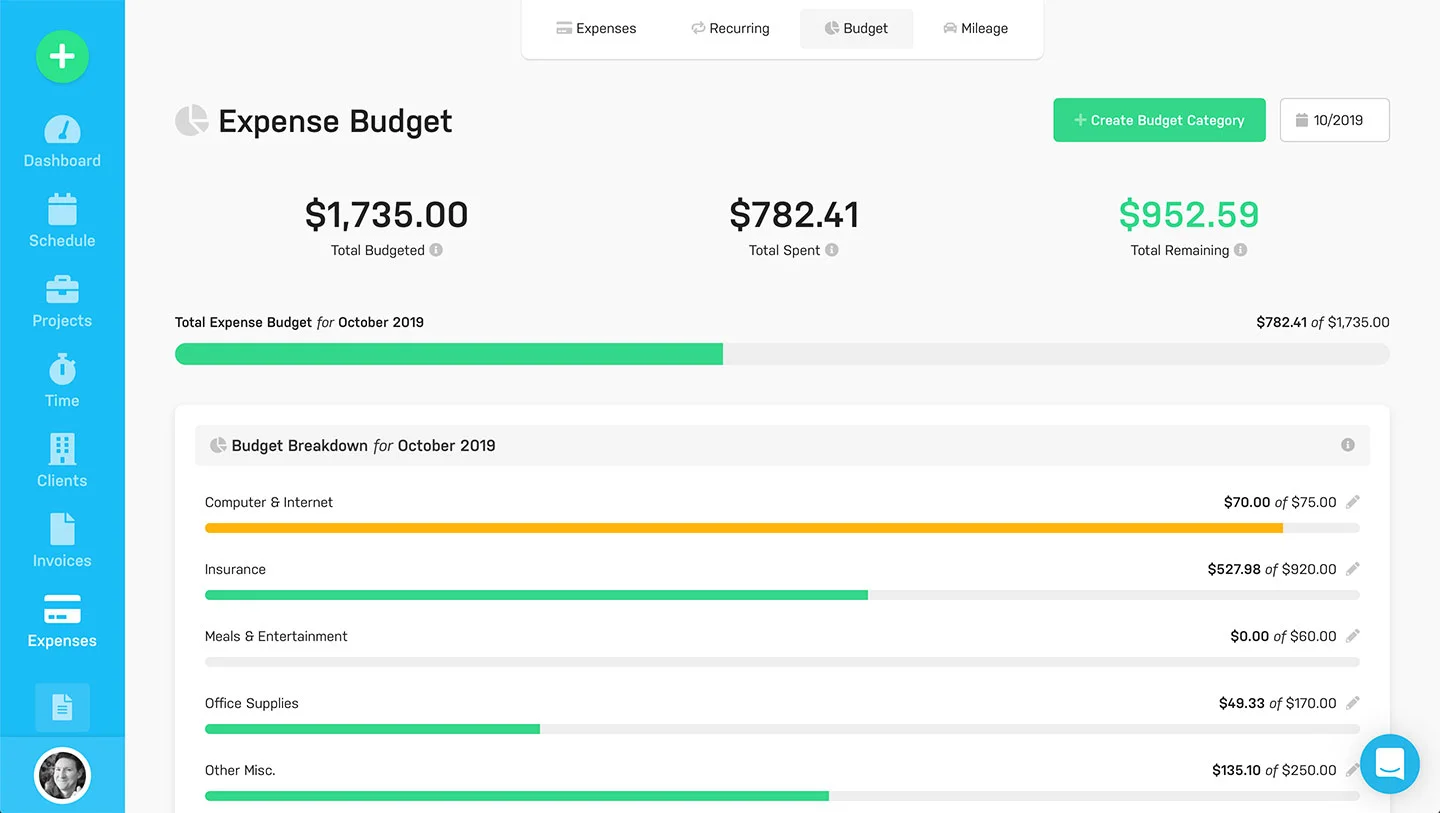
The Budget screen is a monthly view where you can plan the amount of money you’d like to spend for any of your expense categories. Harpoon will then display the amount of money you’ve actually spent in each category compared to how much you planned to spend. Progress bars make it easy to see at a glance which categories are close to being maxed out.
You’ll need to decide which expense categories you’d like to budget for. You can start budgeting for a category by clicking the “Create Budget Category” button at the top of the screen.
This triggers the New Budget Category form which is quick and easy to fill out.
Here are a few quick tips when filling out the form:
- Category: Your budget categories are based on the expense categories you already have set up in your Harpoon account. Select which category you’d like to budget for.
- Amount: How much money do you want to budget for this category?
- Frequency: How often do you need to budget for the amount of this category? Since the Budget screen is a monthly view Harpoon will calculate a monthly average amount for you based on the frequency you select. For example, if the category is a weekly expense in the amount of $10, you can set the Amount to $10, the Frequency to Weekly, and Harpoon will set a monthly budget of $43 for that category.
- Rollover: If you're under budget for the month in this category a Rollover will take the leftover amount and add it to the next month's budget, giving you more available to spend in this category for that month. This is handy for budgeting an average amount of spending over multiple months.
After saving the form you’ll see your new budget category displayed on the page, already being tracked with any spending for the month.
You can move forwards and backwards in time using the date picker at the top of the Budget screen.
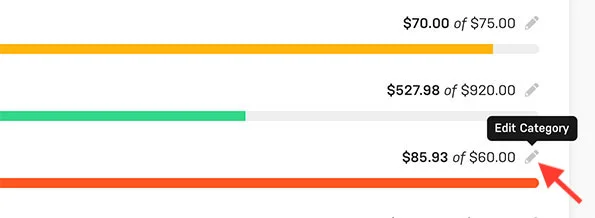
This allows you to view your spending habits over time. If at any point you need to make an adjustment to a budget category you can click the Edit icon next to the category’s spending stats.
Tip: Clicking any of the progress bars on your Budget will take you to your main Expenses screen and show you the expense transactions associated with the progress bar.
At the bottom of your Budget screen you might notice an "Unbudgeted Spending" table.
This represents any expenses recorded for the month that haven’t yet been budgeted for. For example, maybe you haven’t yet created a budget category for Office Supplies. But you notice by looking at the Unbudgeted Spending table that your business seems to consistently spend money in that category from month to month. It might be wise to budget for that category. You can easily do so by clicking the name of the category in the Unbudgeted Spending table and adding this expense category to your list of other budget categories higher up on the page.
As the days of the month roll on check in on your Budget a few times a week. See if your actual spending is within the limits of what you planned. Look back in time to see if there are any categories in which you’re consistently overspending. Maybe you need to increase your budget amount for that category. Or maybe you need to be more disciplined with your spending. You might even notice you’re consistently underspending in a category and can afford to lower its budget amount.
Ultimately your Budget isn’t meant to be an overly legalistic burden. Instead it’s a tool to help you plan a ballpark, monthly amount of spending required for your business, with the ability to monitor your success (or failure) of sticking to that plan. Then it's up to you to adjust your plan or behavior accordingly.