
How do I track my business mileage?
Not sure which one you're using? The new interface has a dark sidebar and /app/ in the web address; the classic interface has a bright blue sidebar. You can switch at any time: in the new interface, click your name (top right) and choose Switch back to classic; in the classic interface, hover your avatar (bottom left) and choose Try the new Harpoon.
Chances are you drive your vehicle for business purposes throughout the year. Maybe just a little. Or maybe a lot. Whether it’s visiting a client for a project kickoff meeting, or changing office locations during the day, the business mileage you put on your vehicle should be tracked and recorded. Otherwise you could be missing out on a healthy tax deduction. Here’s how to track your mileage in Harpoon.
Mileage settings
First, make sure your mileage settings are correct for your situation. Go to your Expense Settings screen (Settings → Expenses) and scroll down to the mileage sections.
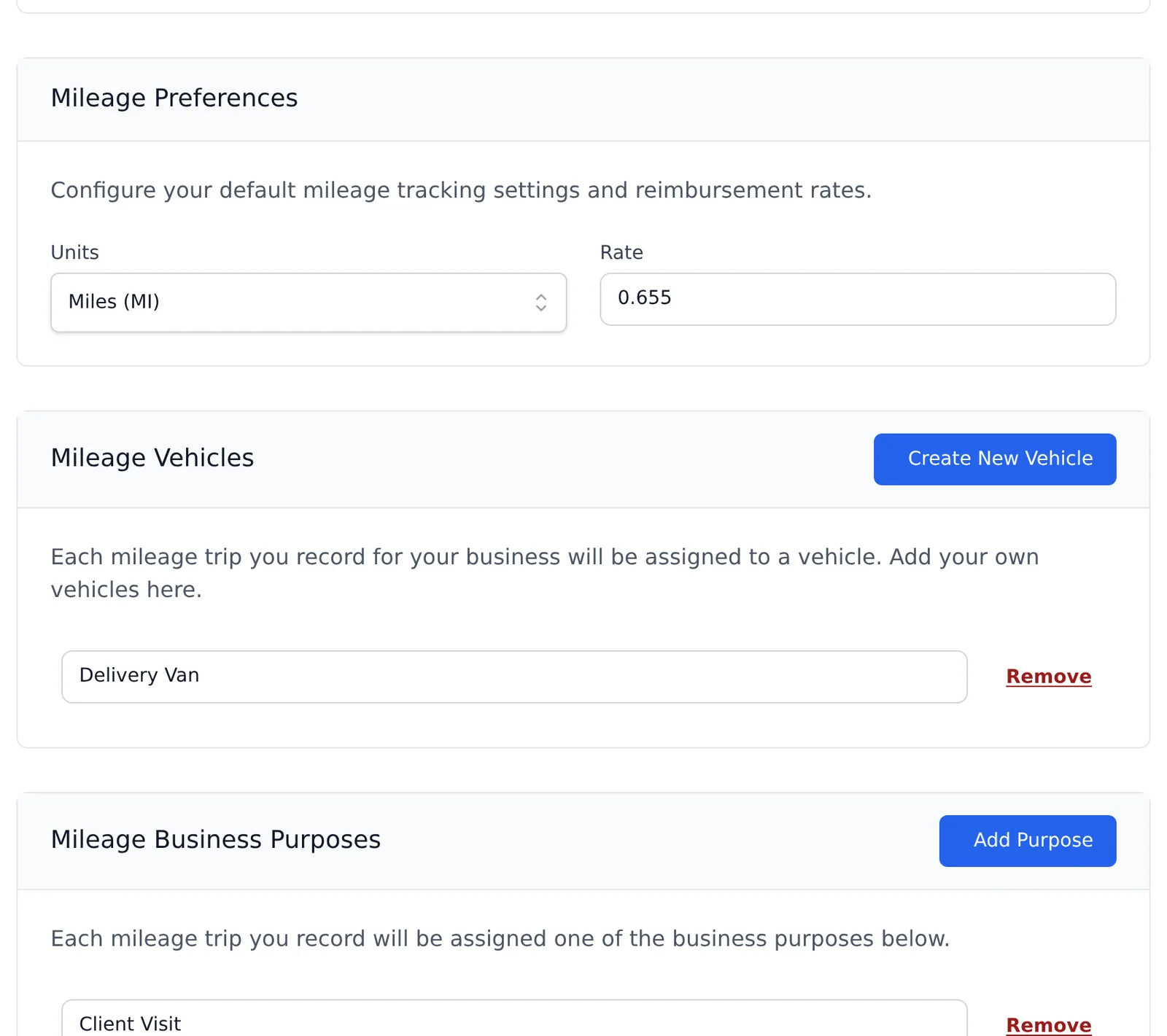
- Mileage Preferences: Set your Units (miles or kilometers) and your mileage Rate. The rate varies from country to country, so check with your accountant on the right rate for the current year.
- Mileage Vehicles: Your recorded mileage should be associated with the vehicle you actually used, so add any vehicles you use for business with Create New Vehicle.
- Mileage Business Purposes: Manage the list of business purposes you can choose from when recording a trip. Click Add Purpose to add one, or Remove to delete one.
Click Save Changes when you’re done.
Recording mileage
To record and review your mileage, go to Expenses in the left sidebar and choose Mileage, or click the Mileage tab at the top of your Expenses screen. To record a new trip click Create New Mileage (or New → Mileage).
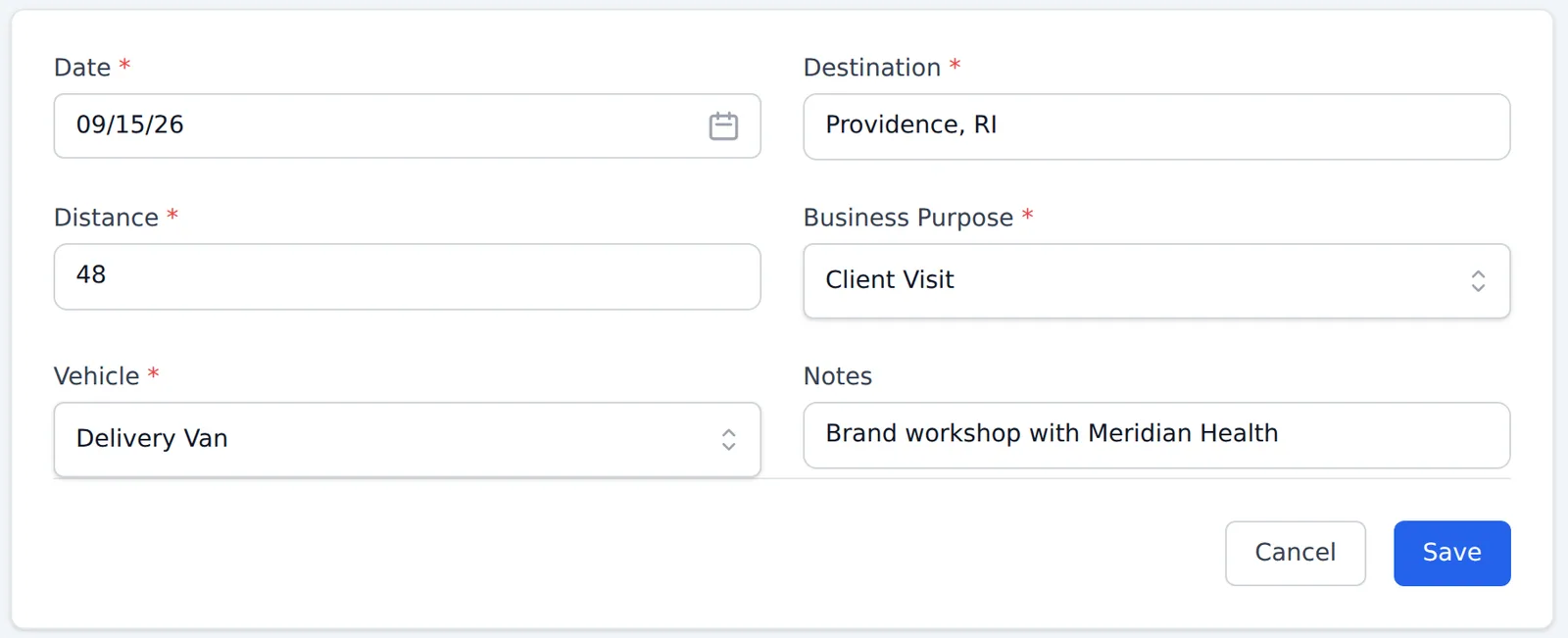
You’ll be asked for a few details about your drive. These cover what most countries require when keeping mileage records: the Date, Destination, Distance, Business Purpose, Vehicle, and any Notes you’d like to jot down. Click Save when you’re done.
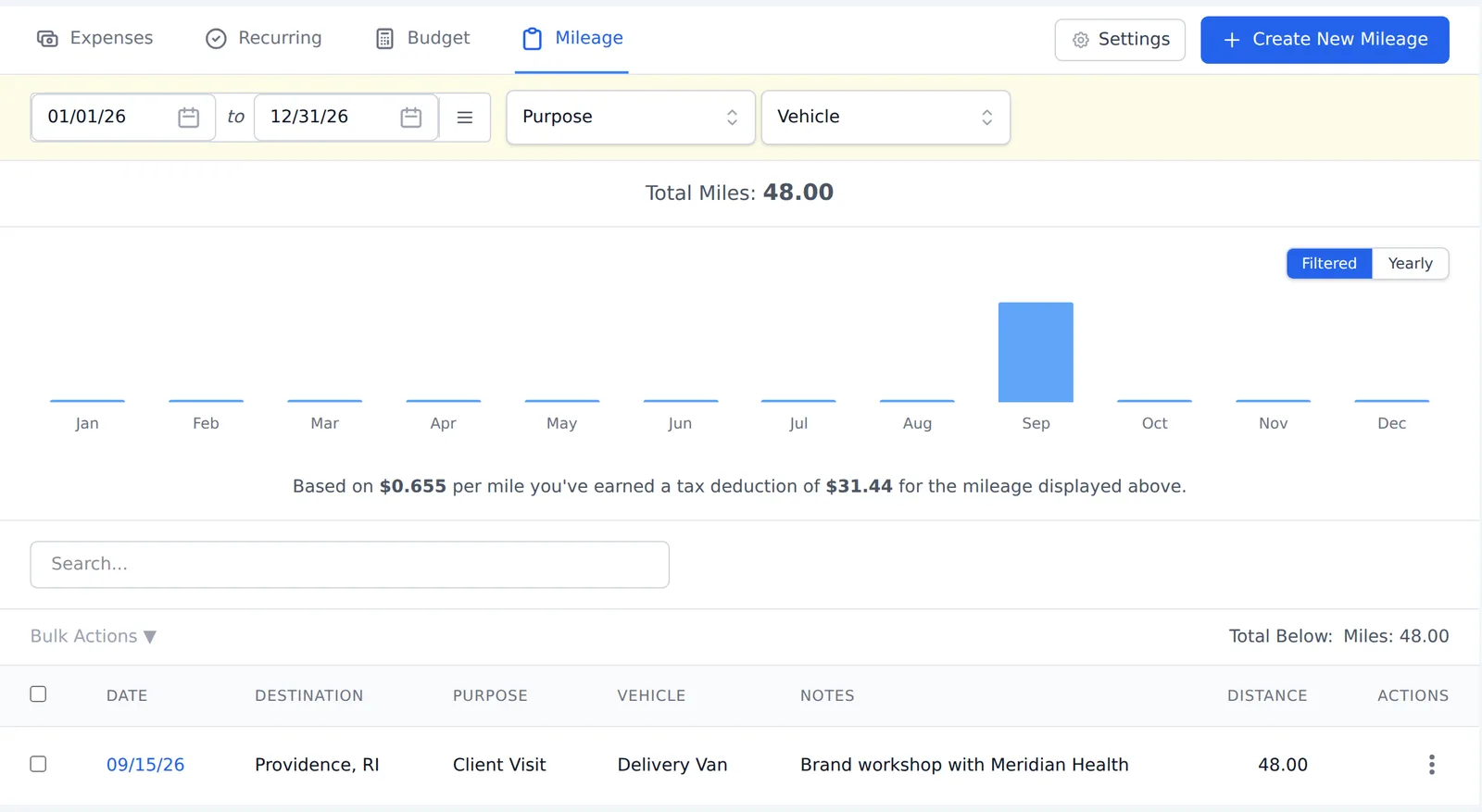
On the Mileage screen you can filter your trips by date range, purpose and vehicle. Harpoon also tells you how much of a tax deduction you’ve earned for the mileage shown, based on your mileage rate. Distances, totals and the rate are shown in the units (miles or kilometers) and currency set in your settings.
And when it’s tax time your accountant will appreciate the Mileage report (Reports → Mileage), which you can download and send to them so you receive a proper tax deduction.
Chances are you drive your vehicle for business purposes throughout the year. Maybe just a little. Or maybe a lot. Whether it’s visiting a client for a project kickoff meeting, or changing office locations during the day, the business mileage you put on your vehicle should be tracked and recorded. Otherwise you could be missing out on a healthy tax deduction. Here’s how easy it is to track your mileage in Harpoon:
First you'll want to make sure your mileage settings are correct for your specific situation. When you visit your Expenses Settings screen you’ll notice a few options for mileage, starting with your general Mileage Preferences.
Here you can set your Units preference (miles or kilometers) and also your mileage rate. This rate will vary from country to country so check with your accountant on the appropriate rate for the current year.
You can also manage your Mileage Vehicles as part of your settings. You’ll want your recorded mileage to be associated with the vehicle you actually used. So any vehicles you use for business throughout the year should be added to this list.
And finally as part of your settings you’re able to manage a list of Mileage Business Purposes. The default list is based on the main purposes allowed by US tax laws, but feel free to edit this list as needed.
When it comes to recording and tracking your mileage visit your Mileage screen within the Expenses section of the app.
Here you can filter and display your mileage by date range, purpose, and vehicle. Harpoon will even tell you how much of a tax deduction you’ve earned based on the mileage you’ve recorded.
When recording a new mileage entry you’ll be asked to enter a few details about about your drive.
These details cover what most countries require when keeping mileage records, including the date, destination, distance, business purpose, vehicle, and any additional notes you might want to jot down.
And when it’s tax time your accountant will appreciate Harpoon’s Mileage Report they’ll receive from you, ensuring you receive a proper tax deduction.