
How do I import clients into my Harpoon account?
Not sure which one you're using? The new interface has a dark sidebar and /app/ in the web address; the classic interface has a bright blue sidebar. You can switch at any time: in the new interface, click your name (top right) and choose Switch back to classic; in the classic interface, hover your avatar (bottom left) and choose Try the new Harpoon.
You can import clients from a CSV file. Go to your Clients screen and click the Import button at the top of the screen.

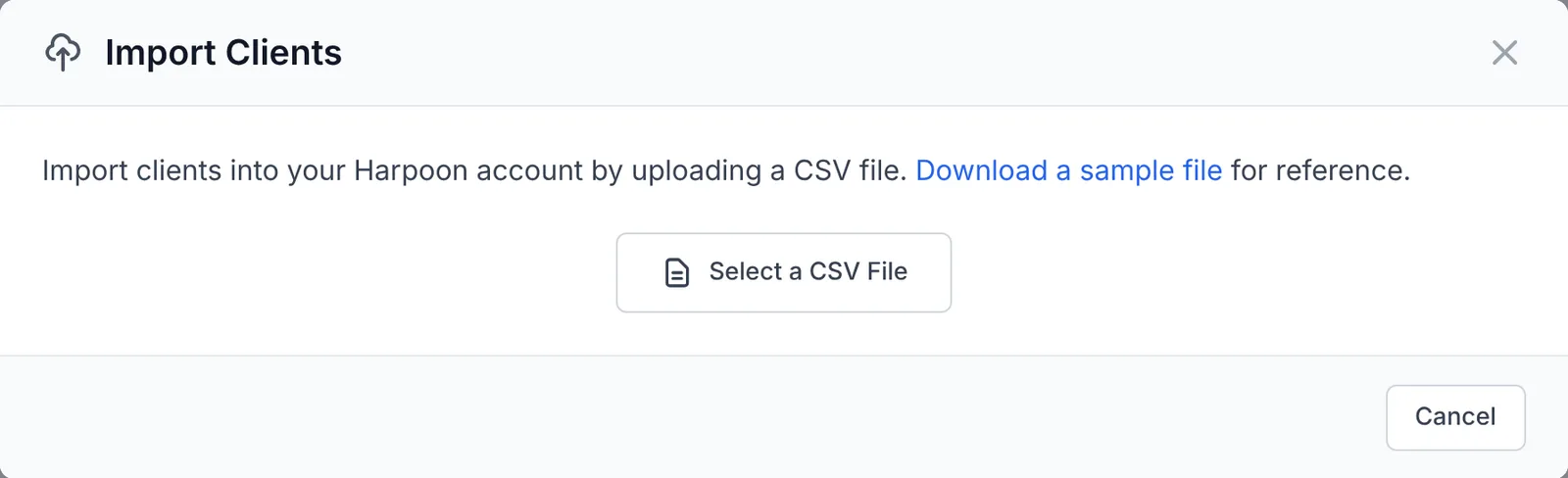
In the Import Clients window, click Download a sample file if you'd like an example of how to format your file. Then click Select a CSV File and choose your file. Excel files (.xls and .xlsx) are accepted too.
Next, match the columns in your file to Harpoon's fields using the dropdowns. Harpoon fills in any columns it recognizes for you. Company Name, First Name and Email are required. Address, tax name and number, last name and phone are optional.
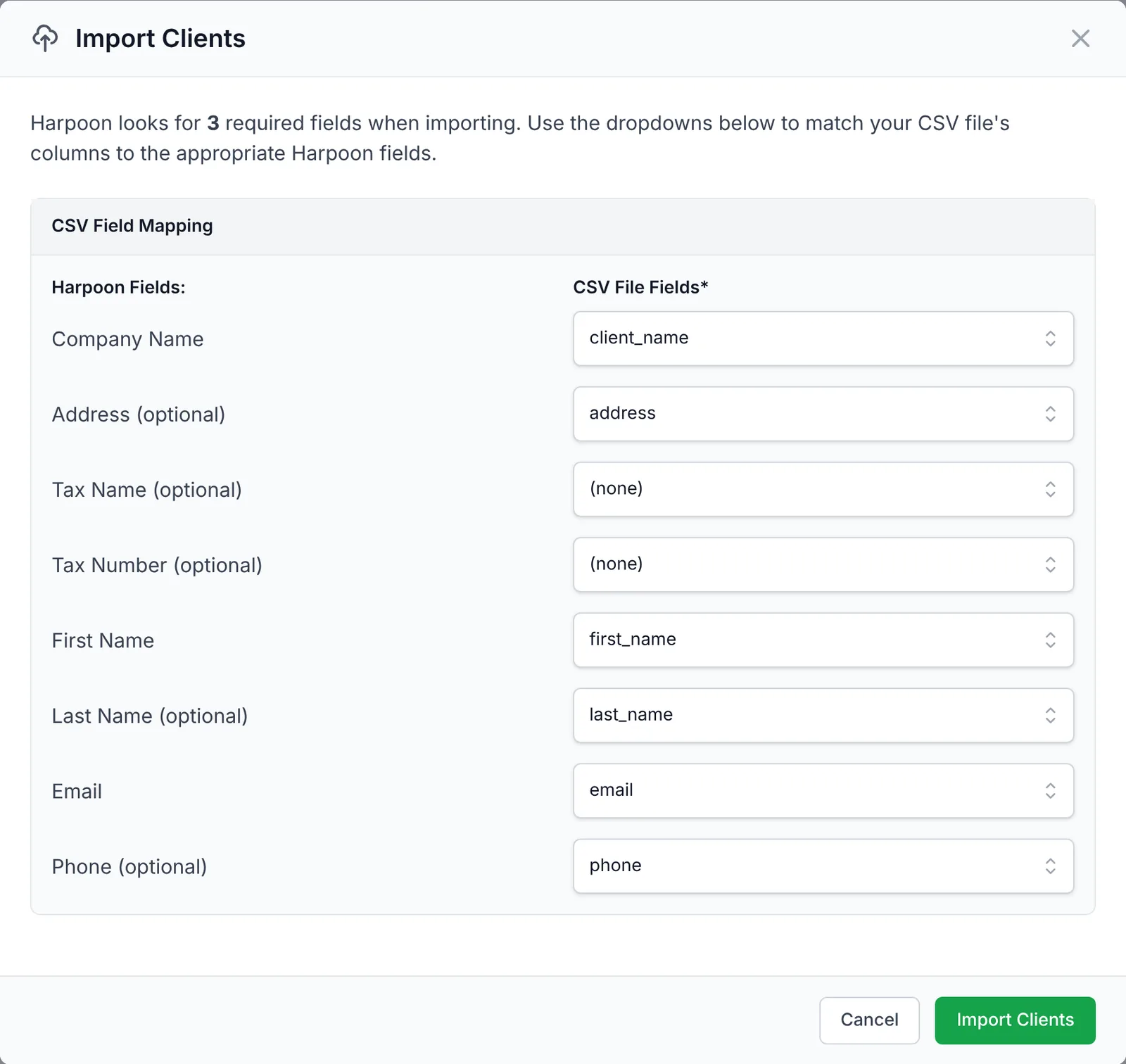
Click Import Clients and your new clients will appear on your Clients screen.
You can import clients by visiting your main Clients screen and clicking the "Import" button at the top of the screen.
This will allow you to upload a CSV file of your clients. A sample file will also be available to help you correctly format your CSV file before uploading.