
How do I send an invoice to my client?
Not sure which one you're using? The new interface has a dark sidebar and /app/ in the web address; the classic interface has a bright blue sidebar. You can switch at any time: in the new interface, click your name (top right) and choose Switch back to classic; in the classic interface, hover your avatar (bottom left) and choose Try the new Harpoon.
To send an invoice to your client, open the invoice, click the actions menu (the three dots at the top right) and choose Send.
You'll see the Send Invoice screen:
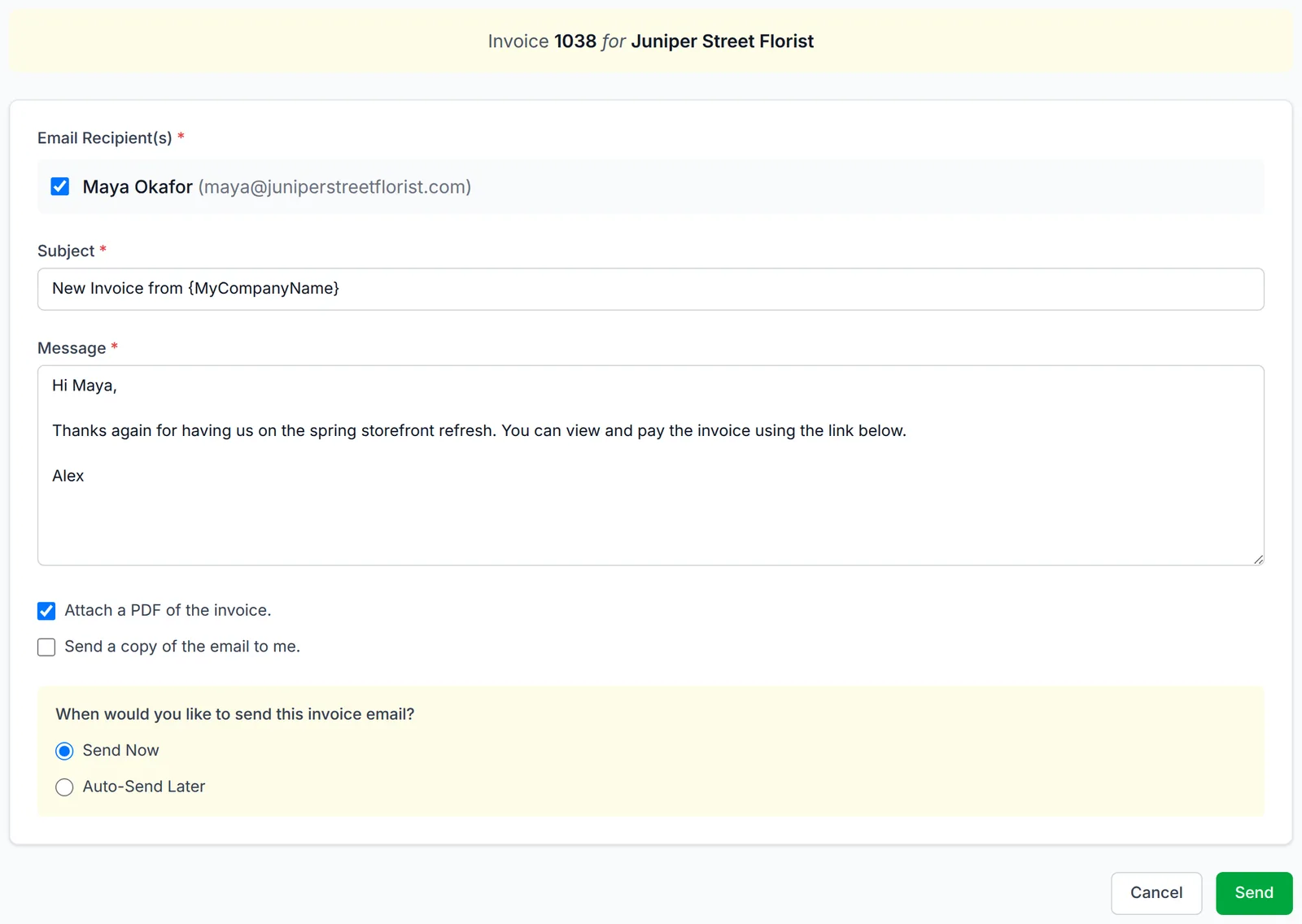
- Email Recipient(s): Check the client contacts who should receive the invoice.
- Subject and Message: The email's subject and message. Edit them as needed.
- Attach a PDF of the invoice.: Attaches a PDF copy of the invoice to the email. Note: Harpoon can't tell whether your client has opened a PDF. If you want the best chance of knowing when your client has viewed the invoice, leave this unchecked so your client views the invoice online.
- Send a copy of the email to me.: Sends you a copy of the email.
- When would you like to send this invoice email?: Choose Send Now, or Auto-Send Later and pick a date. Learn more about auto-sending on a future date.
Click Send (or Schedule Send if you chose a later date). When the email goes out, an invoice with a status of Draft changes to Sent. When your client clicks the link in the email and views the invoice online, its status changes to Viewed.
To learn more about invoicing, visit the Invoices support articles.
You can send an invoice to your client by visiting the Invoice Details screen for the invoice and clicking on the Send action in the Actions menu.
You’ll then be presented with the Send Invoice form.
Here you can select the recipients (client contacts) the invoice will be sent to, along with optionally editing email’s Subject and Message.
You can also choose to attach a PDF of the invoice to the email being sent. Note: Harpoon cannot track whether or not your client has viewed a PDF. If you'd like to increase your chances of tracking when a client has viewed your invoice then it's recommended you do not attach a PDF which will then necessitate your client viewing the invoice online.
You can also choose whether you'd like the email to send now or select a date to have the email auto-send later.
After clicking Send an email will be sent to your client (or be scheduled to auto-send later). If the invoice previously had a status of Draft it will now have a status of Sent.
After your client receives the email and clicks on the link to view the invoice online the invoice will be given a status of Viewed.
To learn more about invoicing visit the Invoices support articles.