
How does recurring auto-billing work?
Not sure which one you're using? The new interface has a dark sidebar and /app/ in the web address; the classic interface has a bright blue sidebar. You can switch at any time: in the new interface, click your name (top right) and choose Switch back to classic; in the classic interface, hover your avatar (bottom left) and choose Try the new Harpoon.
Recurring auto-billing lets Harpoon automatically charge your client's credit or debit card (or US bank account) for the amount due on each recurring invoice. It's ideal for subscriptions, retainers, or any repeating service or product fee.
How it works
Auto-billing requires a connected Stripe account. Learn how to collect online payments.
When creating or editing a recurring invoice, click the Customize button at the bottom of the form. Under Online Payments:, check Accept credit & debit cards. and/or Accept ACH bank transfers. A new option, Allow client to activate auto-billing., then appears. Check it and click Update.
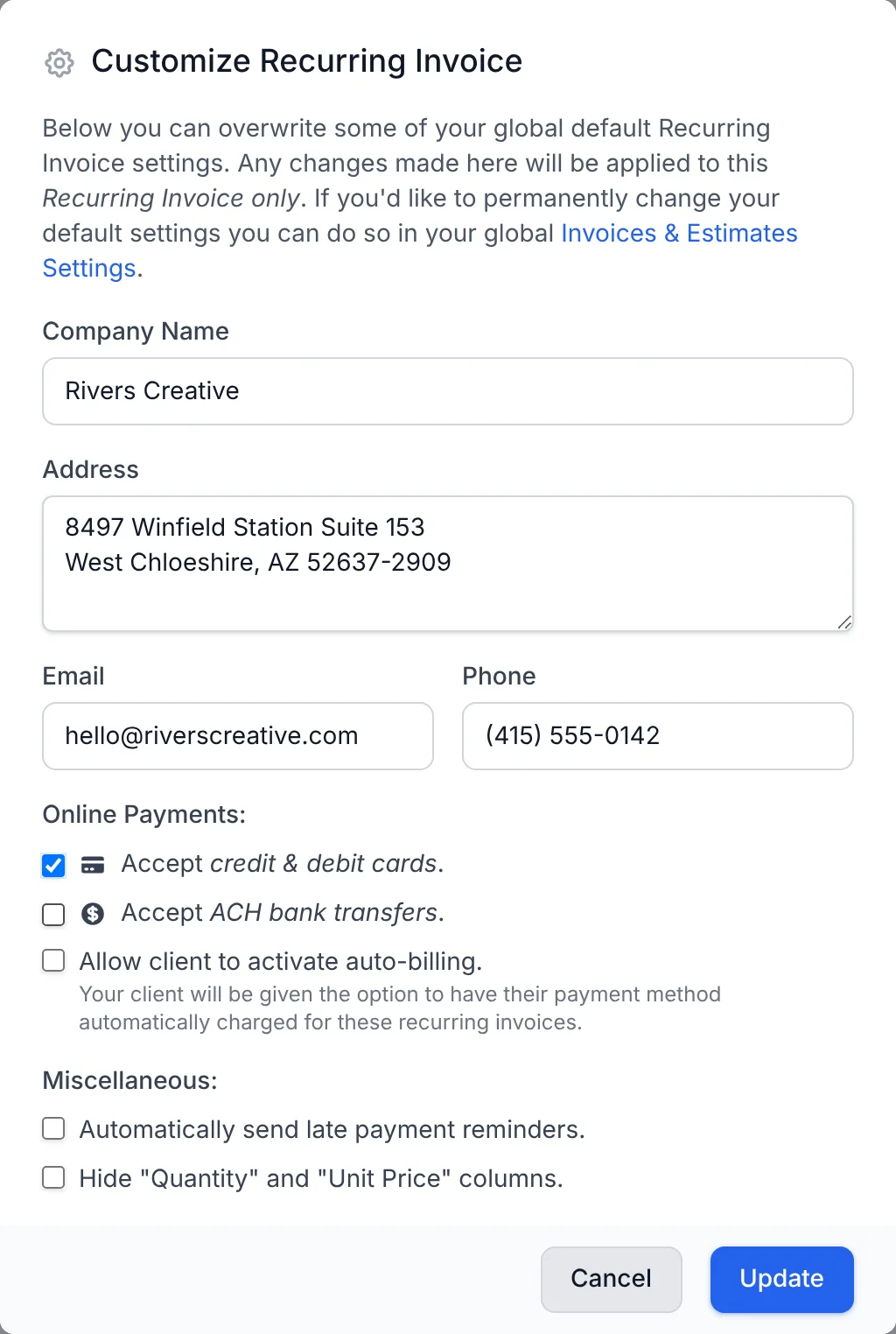
Your client will then see an option on the online payment form to save their payment method and automate future payments. Once they turn it on, their card or bank account is charged automatically for this recurring invoice, and they can update their payment details at any time.
After your client turns on auto-billing, the recurring invoice's Delivery option shows Bill client automatically, and the recurring invoice's details screen shows its Auto-Billing status.
Notifications
After each successful charge, both you and your client get an email about the payment, with a quick link for your client to view the paid invoice online.
If an automatic payment fails (for example, because a card expired or was declined), Harpoon emails your client on your behalf so they can update their payment details.
Recurring auto-billing makes it possible to automatically charge your client’s credit or debit card for the amount due of each recurring invoice they receive. It’s perfect for things like subscriptions, ongoing retainer fees, or any kind of repeating service or product fees you might offer your clients.
How It Works
It’s simple to take advantage of recurring auto-billing. When creating a recurring invoice template click on the “Customize” button in the upper right of the screen and you’ll find an option for allowing your client to activate auto-billing:

(Tip: In order to see this option you’ll want to make sure you’ve already checked the option to allow your client to pay the invoices online.)
Your client will then see a new option on their online payment form for saving their card and automating future payments:
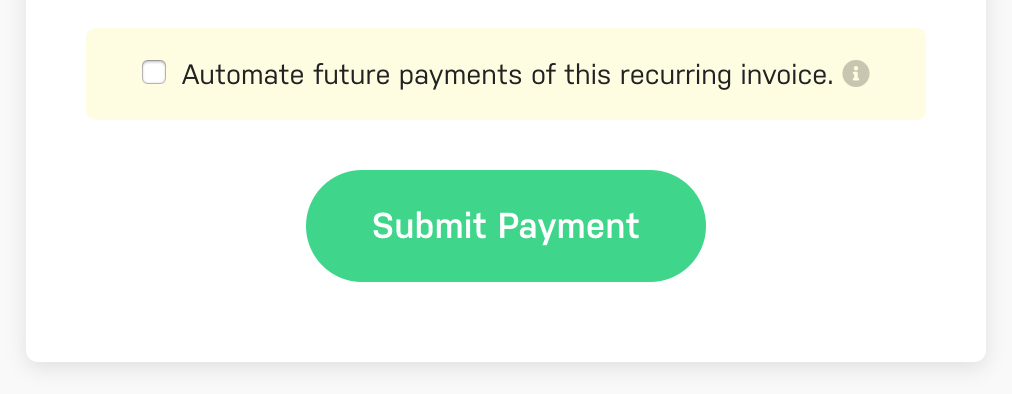
After selecting this option your client’s credit or debit card will be automatically charged in the future for this recurring invoice, and they’ll have access to update their card information at any time.
Notifications
After each card charge both you and your client will receive an email notification of the successful payment, giving your client quick access to view the paid invoice online.
And if an automatic payment fails (e.g. due to an expired or rejected card) Harpoon will even notify your client via email on your behalf, giving your client the opportunity to easily update their card information. It’s one less thing you need to follow up on.