
How do I know the status of a project that’s on my Schedule?
Not sure which one you're using? The new interface has a dark sidebar and /app/ in the web address; the classic interface has a bright blue sidebar. You can switch at any time: in the new interface, click your name (top right) and choose Switch back to classic; in the classic interface, hover your avatar (bottom left) and choose Try the new Harpoon.
On your Schedule, the small colored square to the left of each project name shows the project's status:
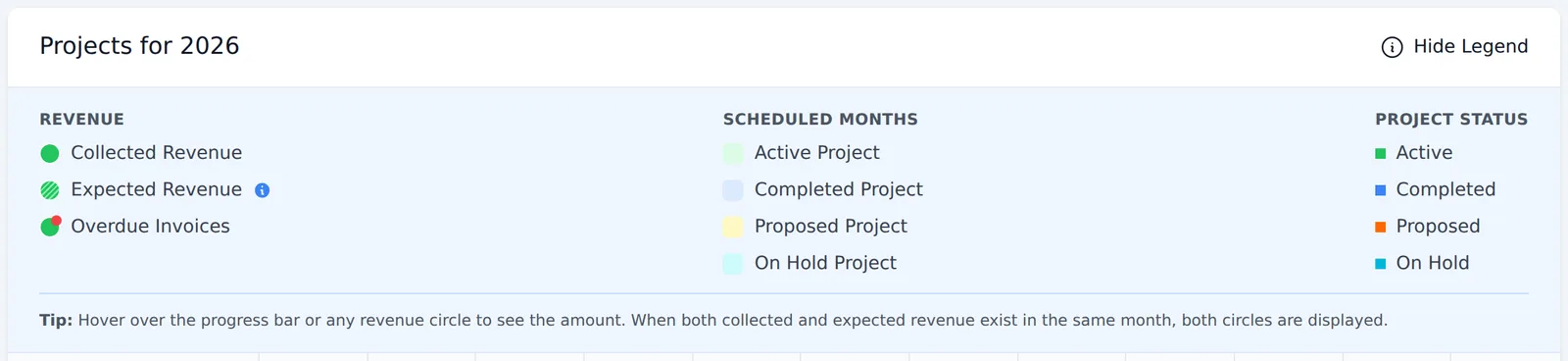
- Orange: Proposed
- Green: Active
- Light blue: On Hold
- Blue: Completed
- Light gray: Canceled
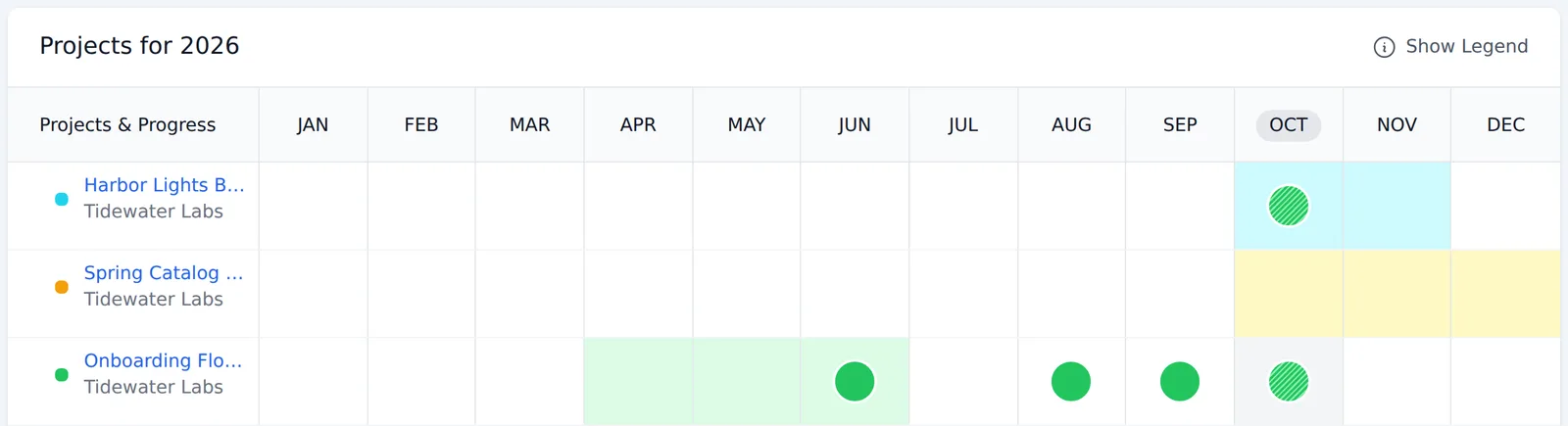
The months a project is scheduled for (from its Start Date to its End Date) are shaded in a lighter version of the same color. Archived projects are hidden from the Schedule unless you choose to show them with the Project Status filter.
Click Show Legend above the month headings for a quick reminder of the colors.
To change a project's status, open the project, click Edit Project, choose a new Status, and click Update.
To learn more about projects, see the Projects articles.
To the left of the name of each project on your Schedule you’ll find a colored square. These colors correspond to the current status of each project.
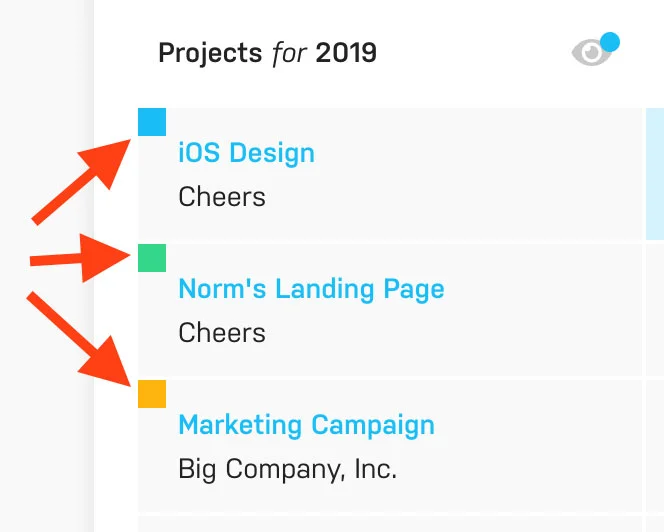
Orange = Proposed
Green = Active
Teal = On Hold
Blue = Completed
Gray = Canceled
These colors will also be displayed on the Schedule in the form of "blocked out" months for the project based on the project's Start Date and End Date.
You can manually select the appropriate status of a project when creating or editing the project.
To learn more about projects view the Projects support articles.