
How do I create a project?
Not sure which one you're using? The new interface has a dark sidebar and /app/ in the web address; the classic interface has a bright blue sidebar. You can switch at any time: in the new interface, click your name (top right) and choose Switch back to classic; in the classic interface, hover your avatar (bottom left) and choose Try the new Harpoon.
A project in Harpoon groups together a client's tracked time, invoices, estimates, expenses and notes for a single piece of work. A web designer might create a project for a client's Website Redesign, a photographer for a Wedding Shoot, a marketer for an Advertising Campaign. There are no strict rules. Projects are simply a convenient way to keep related work together.
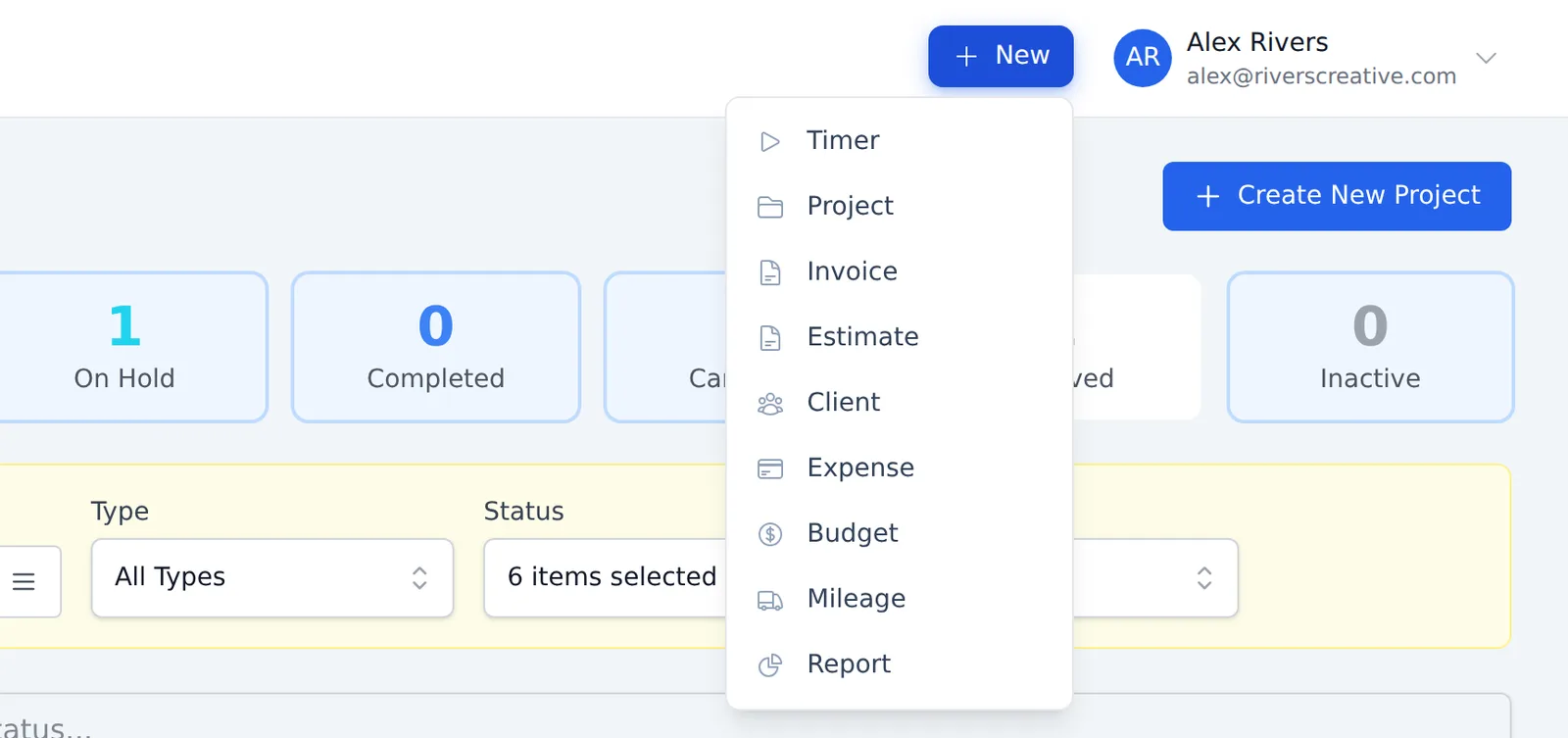
To create a project, click + New at the top of any page and choose Project. You can also click Create New Project on your Projects page or your Schedule.
Here's what each part of the form does:
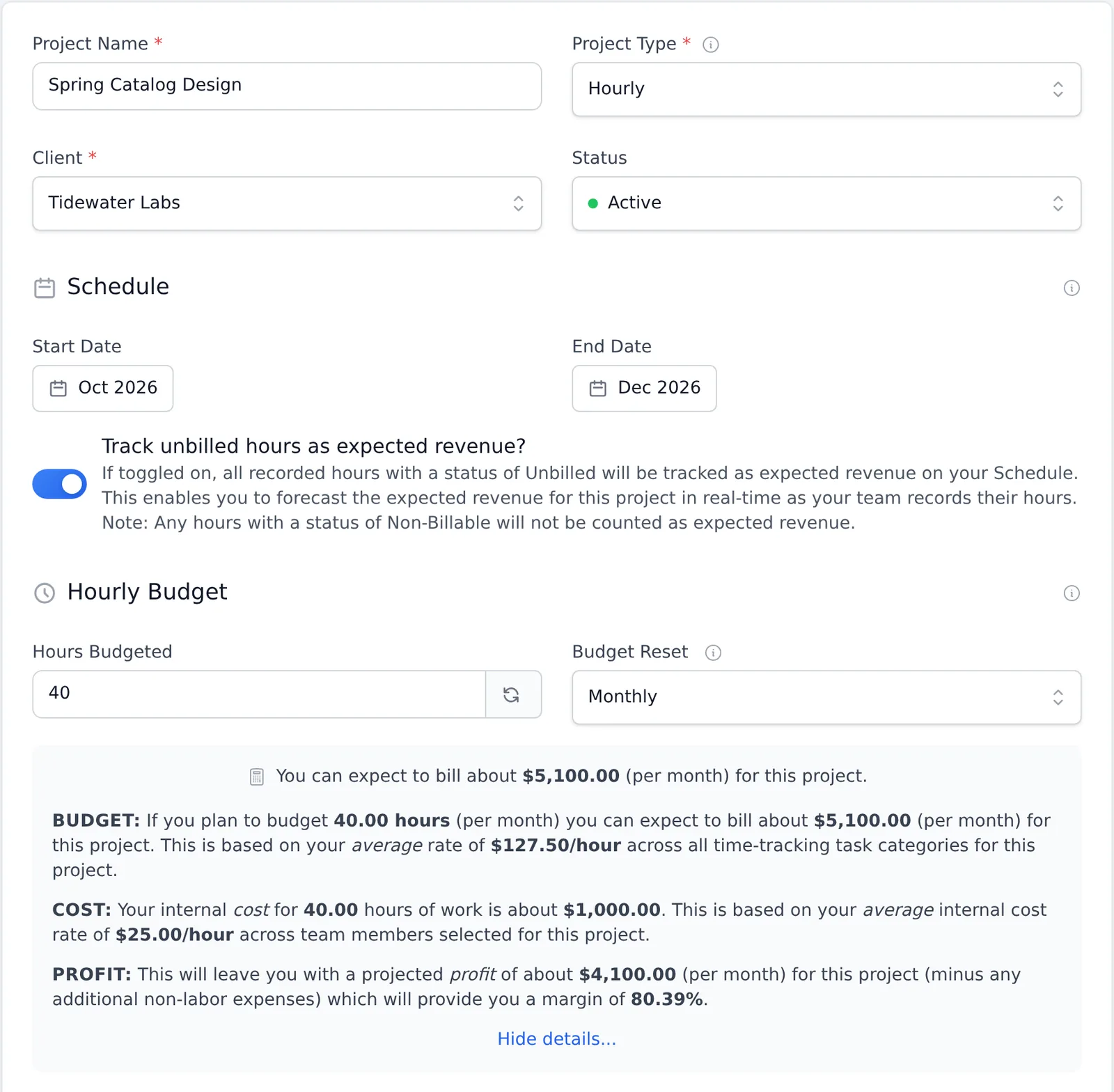
Basic details
- Project Name: a name for the project.
- Project Type: how you plan to bill for it.
- Hourly: bill for time and materials, by the hour.
- Fixed Fee: bill a set, flat amount.
- Non-Billable: nothing is billed. Use it for internal projects or client work you won't charge for.
- Client: who the work is for. Pick an existing client, or click Create New Client at the bottom of the list to add one on the spot.
- Status: where the project stands. The status sets the project's color on your Schedule and affects time tracking:
- Proposed: not yet approved by the client. Proposed projects only appear in your timers' project list when you check Show proposed projects on the Timers page.
- Active: approved and in progress.
- On Hold: approved, but work is paused for now.
- Completed: the work is done. Completed projects are removed from your timers' project list, but you can still add hours with Add Hours Manually on the project's page.
- Canceled: the project was canceled but you want to keep its history. It's a good alternative to deleting a project. Canceled projects are removed from your timers' project list.
- Archived: hides the project from your Projects list, your Schedule and your timers. See How do I archive a project?
Schedule
- Start Date and End Date: the months the project is blocked out on your Schedule. For an ongoing project with no end, such as a retainer, leave End Date empty. To keep a project off the Schedule entirely, leave both empty.
- Track unbilled hours as expected revenue? (Hourly projects) When this is on, all recorded hours with a status of Unbilled count as expected revenue on your Schedule, so you can forecast the project's revenue as your team records time. Non-Billable hours are never counted.
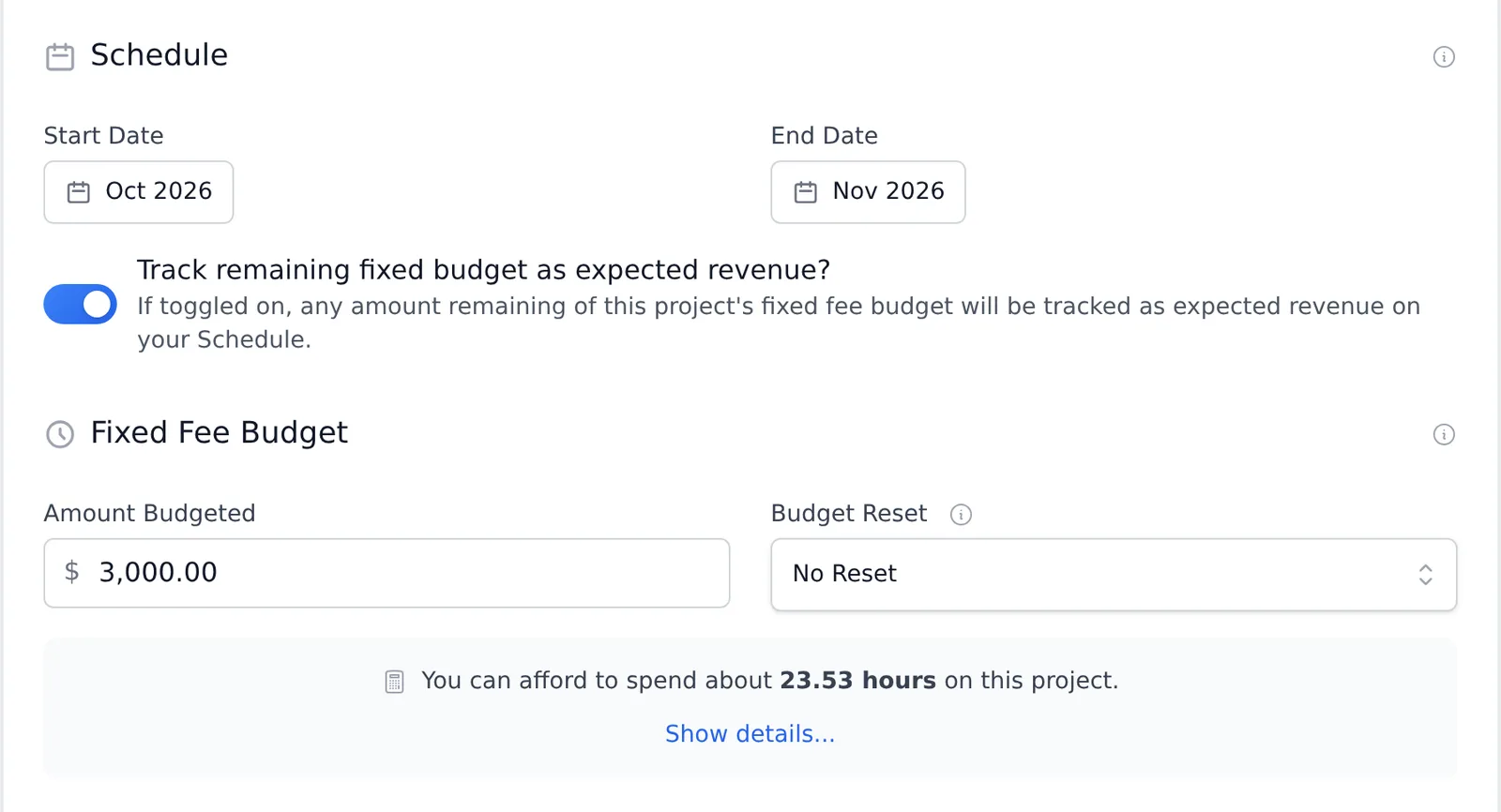
- Track remaining fixed budget as expected revenue? (Fixed Fee projects) When this is on, whatever is left of the project's fixed fee budget counts as expected revenue on your Schedule.
Budget
The budget section follows the project type:
- Hourly Budget (Hourly and Non-Billable projects): enter Hours Budgeted, the number of hours you plan to spend on the project.
- Fixed Fee Budget (Fixed Fee projects): enter Amount Budgeted, the amount you plan to bill for the project.
- Budget Reset: choose Daily, Weekly or Monthly to have Harpoon start the budget fresh on that schedule, which is handy for retainers. Choose No Reset for a one-time budget.
Budget calculator
Once you've picked a client, a budget calculator appears under the budget fields (not for Non-Billable projects):
- Hourly projects: how much you can expect to bill for the hours you've budgeted.
- Fixed Fee projects: how many hours you can afford to spend for the amount you've budgeted.
Click Show details... to see the Budget, Cost and Profit breakdown, including the projected profit and margin. The figures are based on the project's task rates and the cost rates of the team members you've selected.
Team Members
Check the team members who will work on the project. Checked team members can track time for it. All team members are checked for a new project. You can also set each person's Cost Rate for this project. A change here only applies to this project. If you leave a rate as it is, the project uses that team member's own cost rate. Owners and Admins always have access to every project.
Custom Task Rates
Once you've picked a client, you can set this project's hourly rate for each time-tracking task. These rates are used to value the hours recorded on the project. This section isn't shown for Non-Billable projects.
Click Save. You'll go back to your Projects list, where you can click the project's name to open its page and manage its hours, invoices, estimates, expenses and notes.
To learn more about projects and related topics like retainers, see the Projects articles.
A project in Harpoon is a way for you to group together a client's tracked time, invoices, estimates, expenses, and notes for a single piece of work. For example, a web designer might create a project for their client’s Website Redesign. A photographer might create a project for their client’s Wedding Shoot. A marketer might create a project for their client’s Advertising Campaign. There are no strict rules for when to create projects. They’re simply a convenient way to group and organize your tracked time, invoices, estimates, expenses, and notes.
To create a project click on the green Create (+) menu in the top left of your screen and select Project:

You’ll then be presented with the New Project form:

The New Project form is broken up into different sections that can be open & closed depending on the need. Let's start at the top of the New Project form and work our way down:
General Info:
- Project Name: Decide on a name for your project.
- Project Type: Pick a "type" that represents how you plan to bill for the project.
- Hourly: Bill for time and materials. Use this type when you plan to bill your client by the hour.
- Fixed Fee: Bill a set, flat rate. Use this type when you already have a fixed cost in mind for the project.
- Non-Billable: Nothing is billed for the project. Use this type for internal projects, or client work that won't be billed.
- Client: The client is the person/company for whom you're providing services. You can either select an existing client, or create a new client on the fly.
- Status: Pick an appropriate status for the current state of the project. These statuses affect the color coding of the project on your Schedule, as well as affect time-tracking behavior for the project:
- Proposed: The project is still in the proposal phase and has not yet been officially approved by the client.
- Active: The project has been approved and has not yet been completed.
- On Hold: The project has been approved, but work on the project has been temporarily suspended.
- Completed: Work on the project has been completed. Note: Projects with this status will be removed from the "Project" menu on your Timers to help keep that menu manageable. But hours can still be manually added to a Completed project via the project's Project Details screen.
- Canceled: The project has been canceled, but you'd still like to retain all the historical data of the project and have the project readily accessible from your main Projects screen. The Canceled status is a good alternative to permanently deleting a project. Note: Canceled projects will be removed from the "Project" menu on your Timers to help keep that menu manageable.
- Archived: This status removes the project from your main list of projects, and removes the project from many of the "Project" menus throughout your Harpoon account. Archived projects can be accessed via the "Archived Projects" link at the bottom of your main Projects screen. Note: Setting a project's status to Archived does not affect your overall financial metrics in Harpoon. It simply "hides" the project from multiple views to help keep your account more manageable.
Schedule:
- Start & End Dates: These dates determine when the project will be blocked out on your Schedule. Tip: If the project is ongoing with no end date (e.g. a repeating retainer) feel free to leave the End Date empty. Or if you'd rather a project not be blocked out on your Schedule at all you can leave both date fields empty.
- Track Expected Revenue: When this is turned on Harpoon will automatically track expected revenue for this project on your Schedule in one of two ways:
- For Hourly projects: All recorded hours with a status of "Unbilled" will be tracked as expected revenue on your Schedule. This enables you to forecast the expected revenue for the project in real-time as your team records their hours.
- For Fixed Fee projects: Any amount remaining of the project's fixed fee budget will be tracked as expected revenue on your Schedule.
Hourly or Fixed Fee Budget:
- Hourly or Non-Billable: If the Project Type is set to "Hourly" or "Non-Billable":
- Hours Budgeted: How many hours would you like to budget for this project?
- Budget Reset: Harpoon will automatically "reset" your hourly budget on a repeating daily, weekly, or monthly basis. Handy for retainers and ongoing projects.
- Fixed Fee: If the Project Type is set to "Fixed Fee":
- Amount Budgeted: How much do you plan to bill for this project?
- Budget Reset: Harpoon will automatically "reset" your fixed fee budget on a repeating daily, weekly, or monthly basis. Handy for retainers and ongoing projects.
Budget Calculator:
- Hourly: If the Project Type is set to "Hourly":
- Budget: Based on the number of hours budgeted in your Hourly Budget, Harpoon calculates how much you can expect to bill for this project.
- Cost: Based on the number of hours budgeted in your Hourly Budget, Harpoon calculates what the internal cost of the project will be.
- Profit: Based on the expected amount to bill combined with the expected internal cost, Harpoon calculates the project's expected profit (or loss) and profit margin.
- Fixed Fee: If the Project Type is set to "Fixed Fee":
- Budget: Based on the fixed fee amount budgeted in your Fixed Fee Budget, Harpoon calculates how many hours you can afford to spend on the project.
- Cost: Based on the fixed fee amount budgeted in your Fixed Fee Budget, Harpoon calculates what the internal cost of the project will be.
- Profit: Based on the projected number of hours combined with the expected internal cost, Harpoon calculates the project's expected profit (or loss) and profit margin.
- Non-Billable: The Budget Calculator is not available for Non-Billable projects.
Team Members:
- Here you can select which team members are working on the project. Selected team members will have the ability to track time for the project. Team members with the roles of Manager, Admin, and Owner will also have access to view the financial and other details of the project. You can also set the project's internal hourly cost rate for each team member.
Custom Task Rates:
- Here you can set the project's hourly rates for each time-tracking task category. For Hourly projects these rates are used when billing your client for hours worked on the project. For Fixed Fee projects these rates are used to help calculate the value of the hours worked on the project compared to the actual fixed fee the client is being billed for.
Save your new project and you’ll be presented with the Project Details screen for the project. This screen is where you’ll manage your team's tracked time, invoices, estimates, expenses, and notes for the project.
To learn more about Projects and other related topics (e.g. Retainers) view the Projects support articles.