
How do I add a project’s recorded hours to an invoice?
Not sure which one you're using? The new interface has a dark sidebar and /app/ in the web address; the classic interface has a bright blue sidebar. You can switch at any time: in the new interface, click your name (top right) and choose Switch back to classic; in the classic interface, hover your avatar (bottom left) and choose Try the new Harpoon.
If you've recorded hours for an Hourly project, you can add them to an invoice. While creating the invoice, select the project and click Add Recorded Hours below the line items.
The Add Recorded Hours window lists the project's unbilled hours. Check the entries you want (or use Select all), then choose how to show them on the invoice under How would you like to display these hours?:
- Separate line items: One line item per time entry.
- Group by task, Group by date or Group by team member: Combines the selected hours into one line item per task, date or team member.
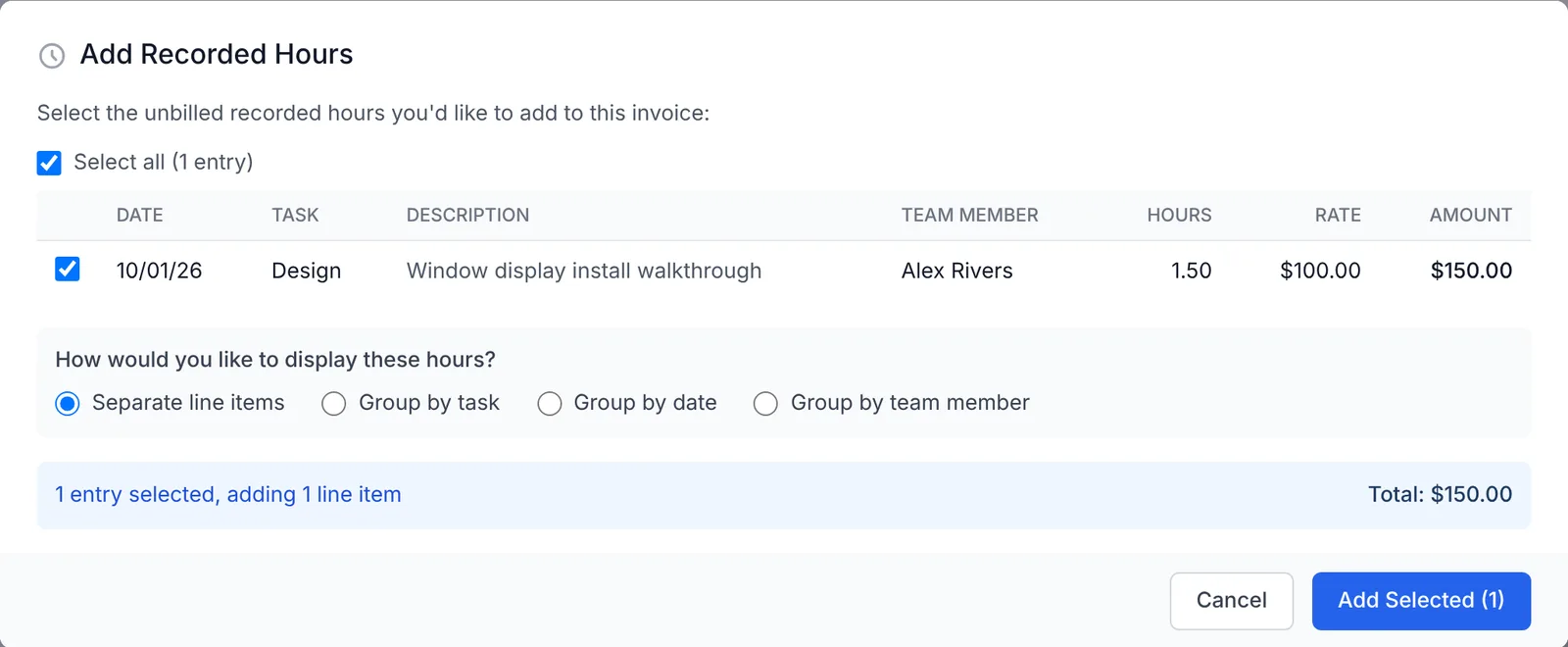
Click Add Selected and the hours are added to the invoice as line items. (If the invoice still has its empty starter line, the hours replace it.)
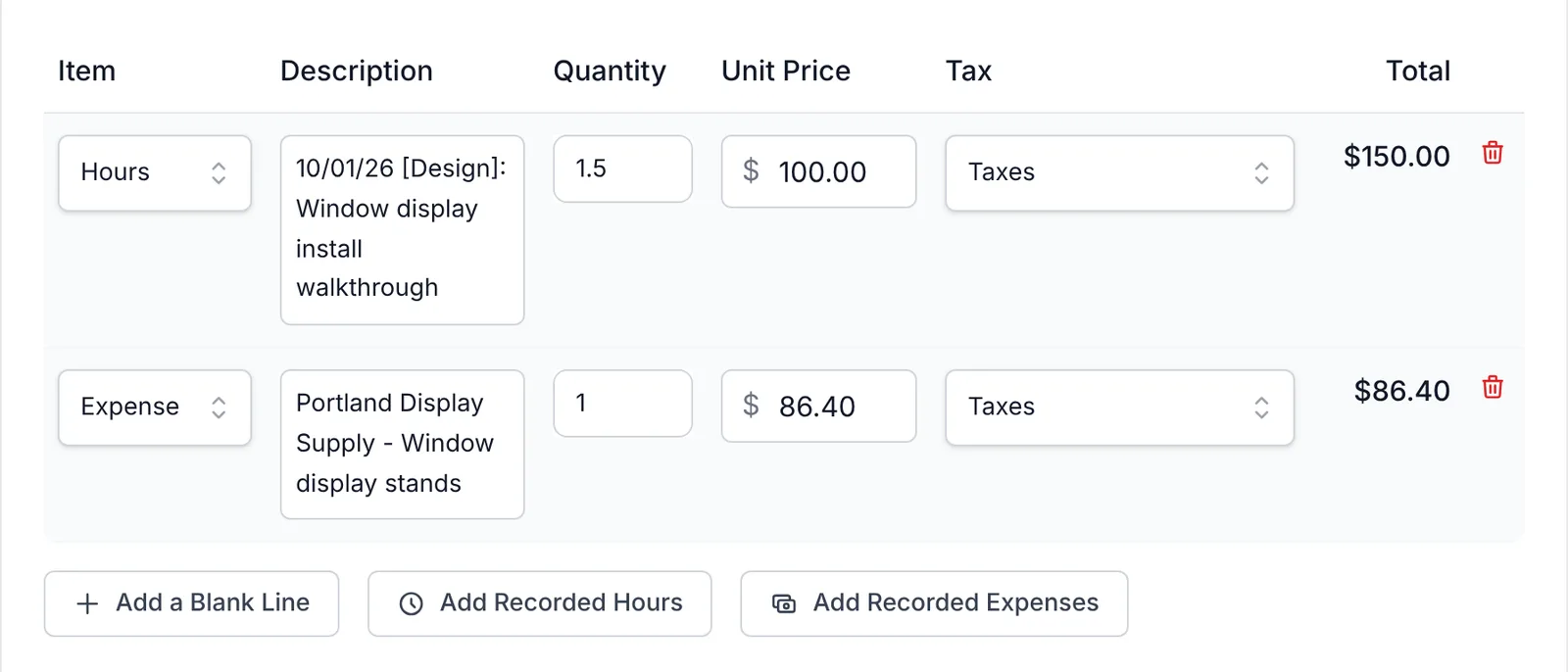
When you save the invoice, Harpoon changes the status of those hours from Unbilled to Billed. It's an easy way to see which hours you've already billed for and which are still unbilled.
To learn more, view the Time Tracking support articles.
If you have recorded hours for an Hourly project and you’d like to add those hours to an invoice, you can simply click the "Add Recorded Hours" button when creating an invoice for the project. You'll find this button under the line items on the invoice.
This will allow you to select any unbilled recorded hours from the project and add them as line items on the invoice.
Note: Harpoon automatically tracks which recorded hours have been added to invoices by changing the status of those hours from "Unbilled" to “Billed." It’s an easy way to see at a glance which hours you’ve already billed for vs. which hours remain unbilled.
To learn more about the details of expenses view the Time Tracking articles.