
How do I add Harpoon to my iPhone home screen?
Not sure which one you're using? The new interface has a dark sidebar and /app/ in the web address; the classic interface has a bright blue sidebar. You can switch at any time: in the new interface, click your name (top right) and choose Switch back to classic; in the classic interface, hover your avatar (bottom left) and choose Try the new Harpoon.
Harpoon’s new interface works in your phone’s web browser, and adjusts to fit smaller screens. This article explains how to add a Harpoon icon to your iPhone’s home screen for easy, one-tap access to your account.
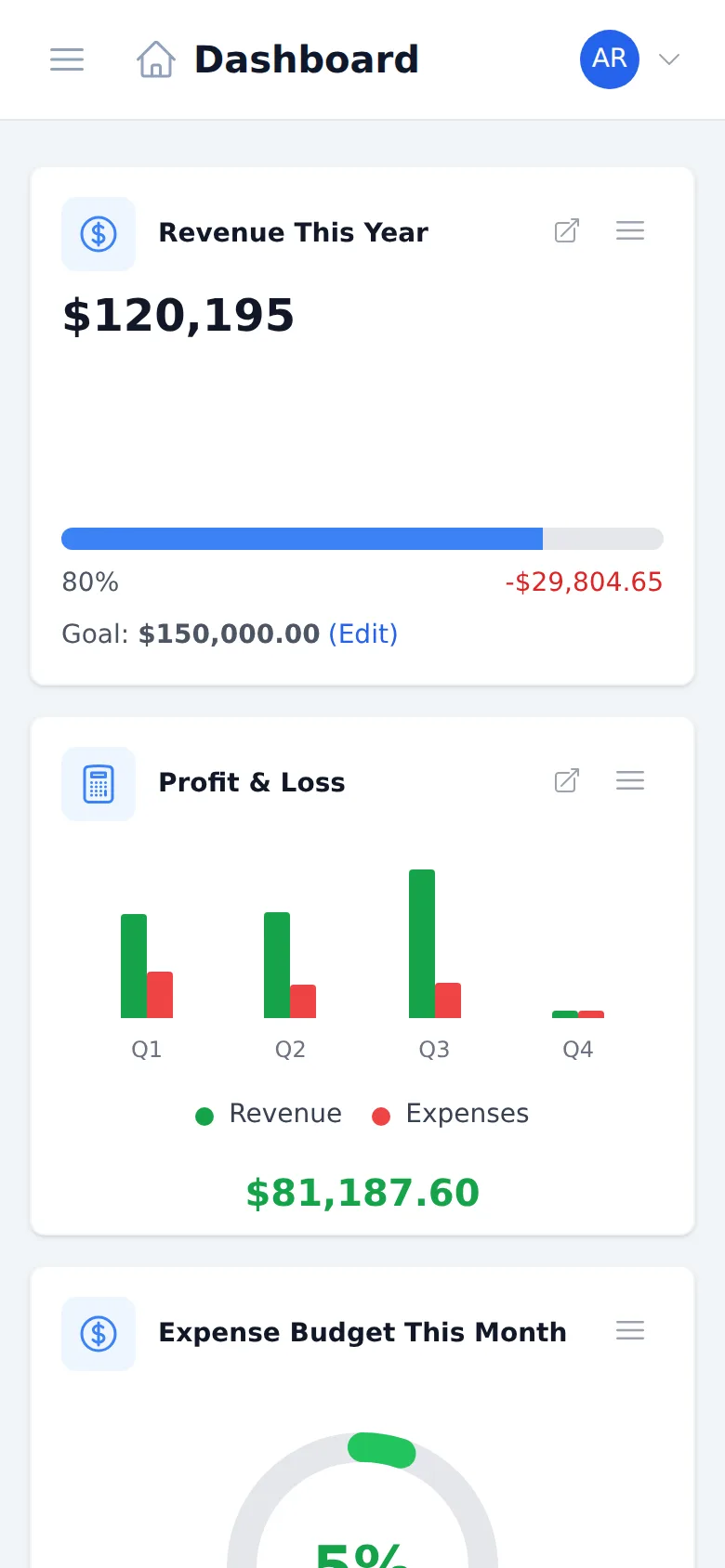
- Open the Safari web browser on your iPhone and go to your Dashboard in the new interface (you might be asked to log in first).
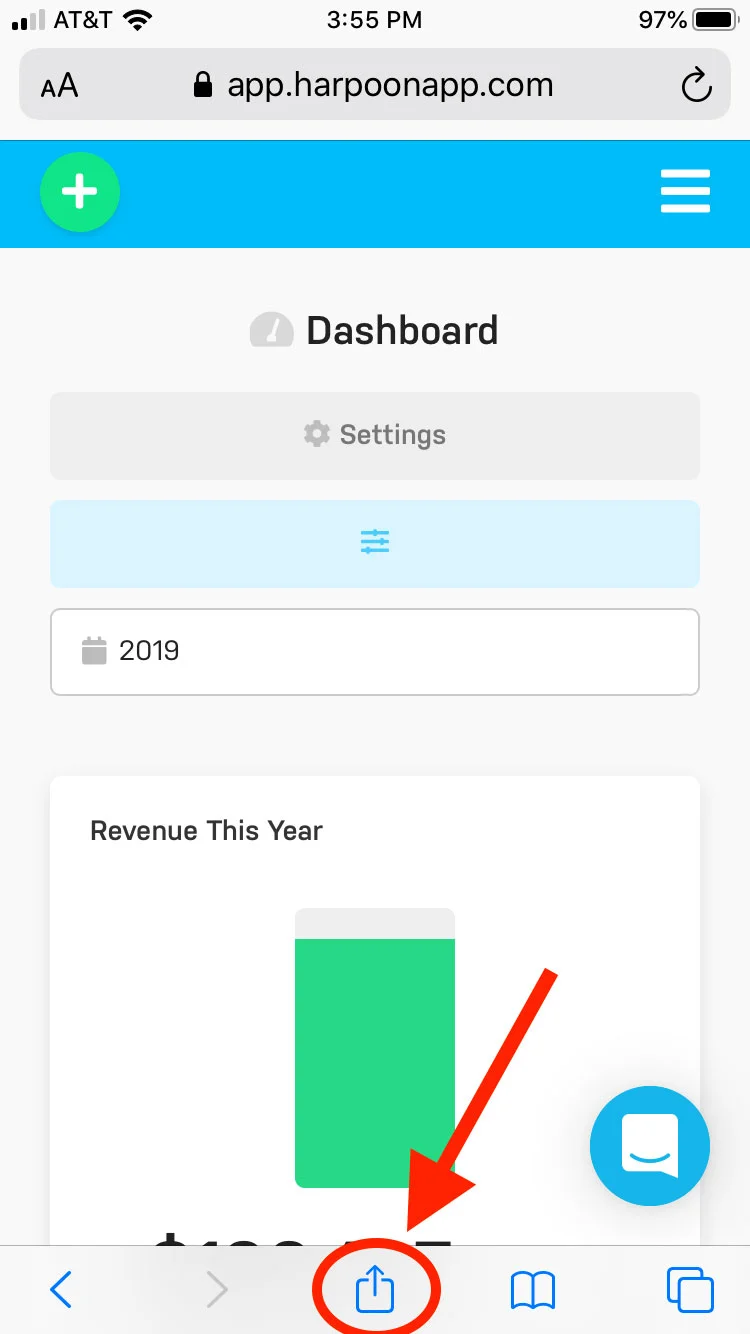
- Tap the Share icon in Safari.
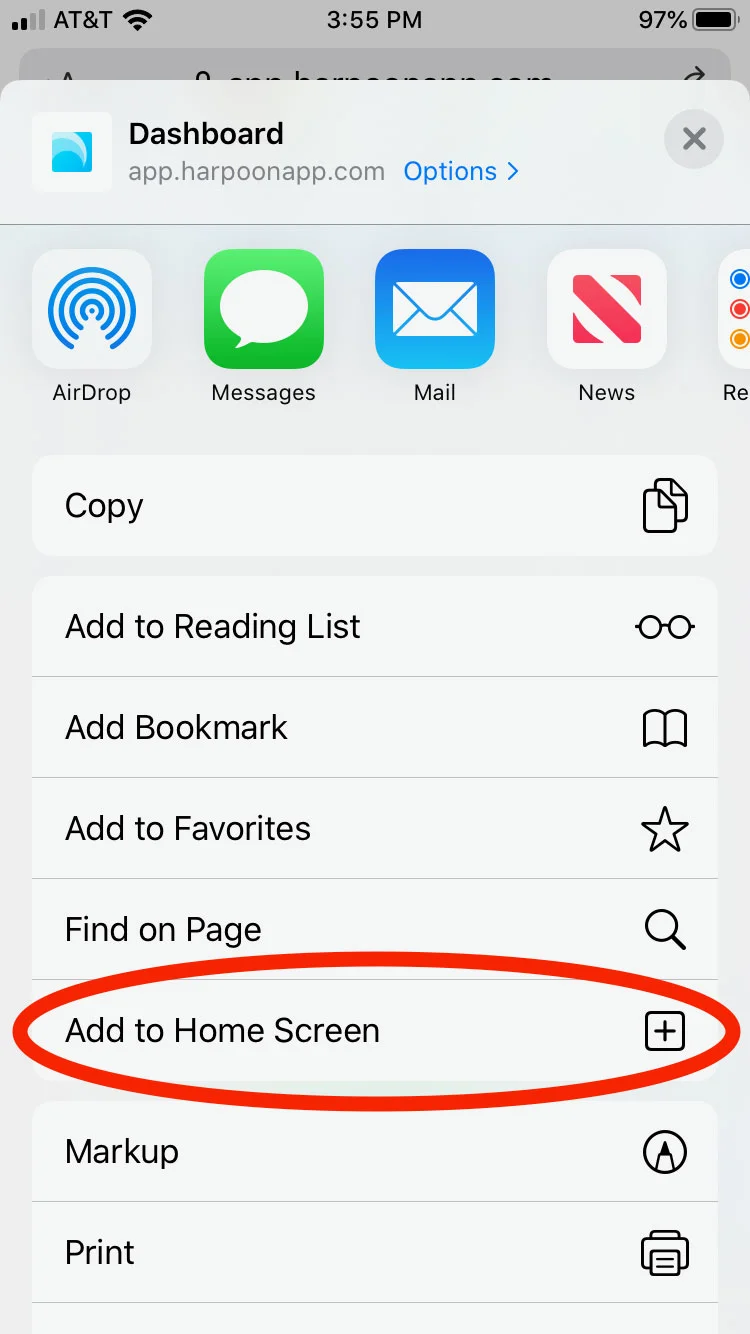
- In the Share Sheet, find and tap Add to Home Screen. Depending on your version of iOS it may be an icon in a horizontal row or an option in a vertical list.
- Give the home screen icon a name (e.g. “Harpoon”) and tap Add.
A Harpoon app icon will now appear on your home screen, giving you quick access to your account.
The icon opens the exact page you added. Because you added a page from the new interface (its web address contains /app/), the icon opens the new interface.
Tip: You can add several shortcuts like this, each leading to a different screen in your Harpoon account. For example, in addition to your Dashboard you might want one-tap access to your Timers for easy time tracking on the go.
Harpoon’s interface is a fully responsive design, and is optimized for viewing on your mobile devices. This article explains how to add Harpoon’s icon to your iPhone’s home screen for easy, one-tap access to your Harpoon account.
Start by opening up the Safari web browser on your iPhone and visiting your Harpoon account (you might be prompted to log in to your Harpoon account first).
Now tap the “Sharing” icon at the bottom of the screen:
This will bring up the Share Sheet. Look for the “Add to Home Screen” option and tap that option (depending on what version of iOS you’re running this option could be shown as a large icon in a horizontal row, or an option in a vertical list):
After tapping the “Add to Home Screen” option you’ll be given the opportunity to give this home screen icon a name (e.g. “Harpoon”):
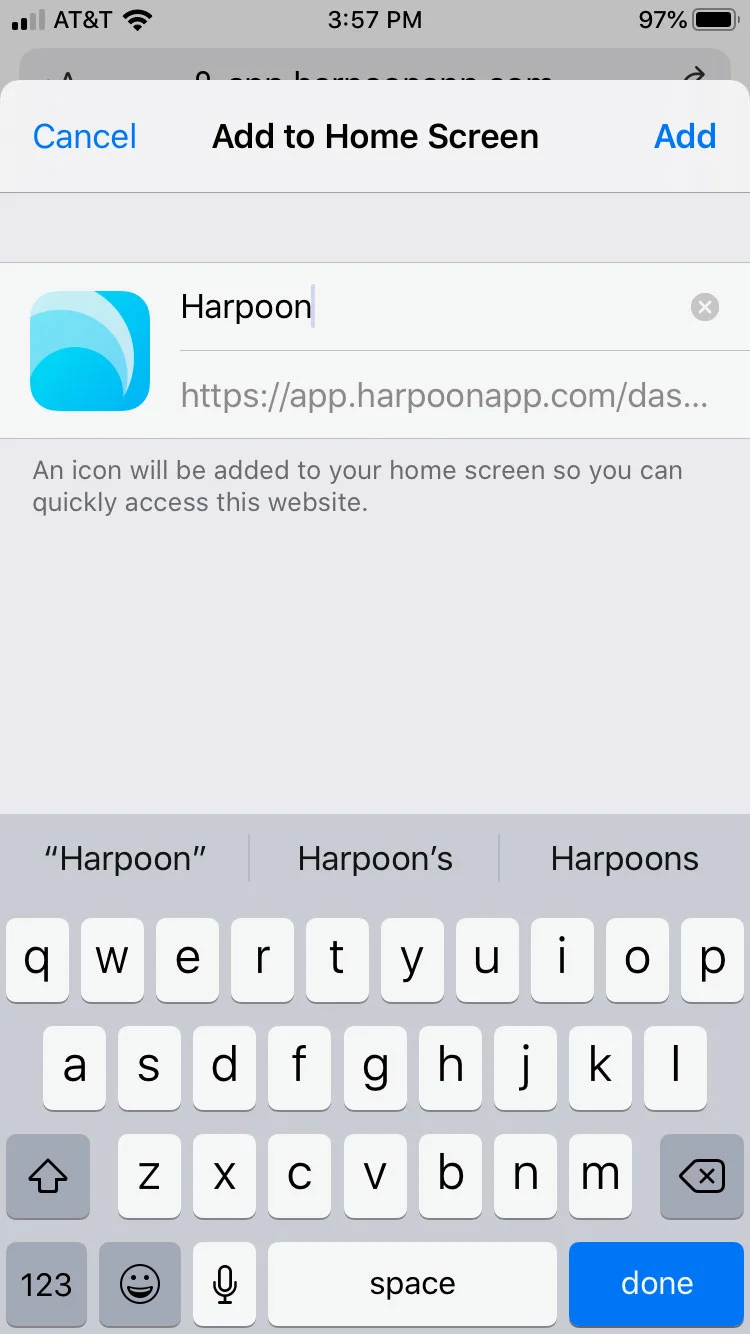
Click “Add” and a new app icon for Harpoon will appear on your home screen:
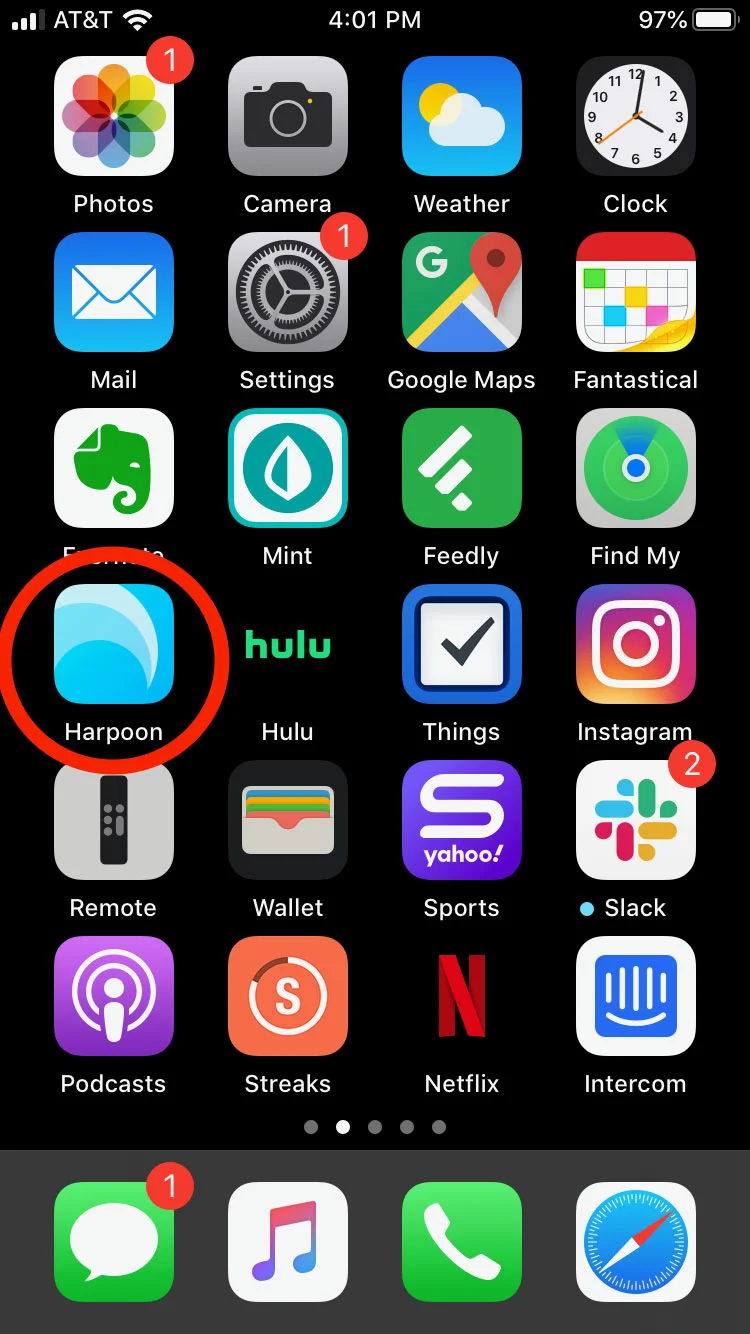
You now have quick access to your Harpoon account directly from your iPhone’s home screen.
Tip: You can add multiple shortcuts like this to your home screen, each leading to a different screen in your Harpoon account. For example, in addition to adding the Dashboard to your home screen you might also want one-tap access to Harpoon’s Timers for easy time-tracking on the go.