
How do I collect online payments from my clients?
Not sure which one you're using? The new interface has a dark sidebar and /app/ in the web address; the classic interface has a bright blue sidebar. You can switch at any time: in the new interface, click your name (top right) and choose Switch back to classic; in the classic interface, hover your avatar (bottom left) and choose Try the new Harpoon.
You can collect online payments from your clients by connecting a Stripe account to Harpoon. Stripe is a secure payment processor that lets you accept credit and debit cards, Apple Pay, Google Pay, Link and Cash App Pay (and ACH bank transfers for US-based businesses) online. Stripe transfers the money you collect to your bank account.
If you don't have a Stripe account yet, you can create one for free during the connection process.
Go to Settings → Integrations. Under Payment Processing, turn on the switch on the Stripe card, then click Connect to Stripe.
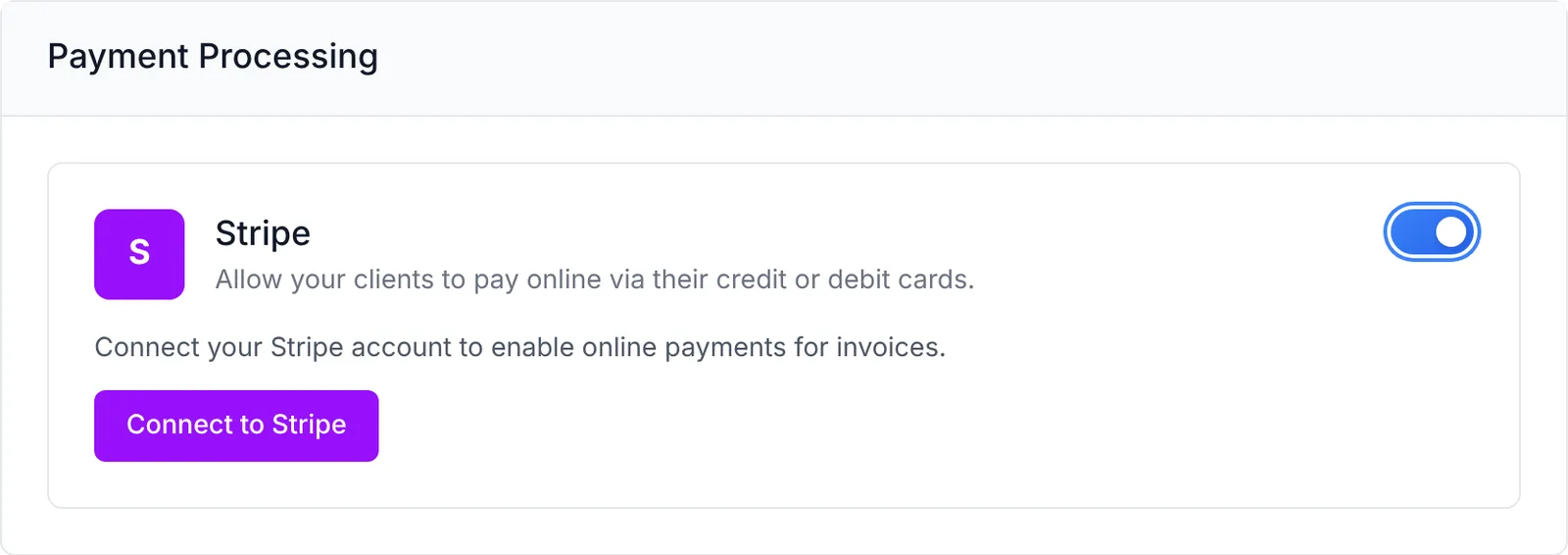
You'll be taken to Stripe. Sign in to your existing Stripe account, or fill out Stripe's form to create a new one, and authorize the connection. Stripe then sends you back to Harpoon with a message letting you know whether the connection worked. Once it's connected, the Stripe card shows Connected to Stripe.
When you connect Stripe, card payments are turned on for new invoices automatically, and Harpoon uses your Stripe account's country and currency. You can check this, and turn ACH bank transfers on or off (US-based Stripe accounts only), in the Payments & Misc. section of Settings → Invoices & Payments, under Online Payments:.
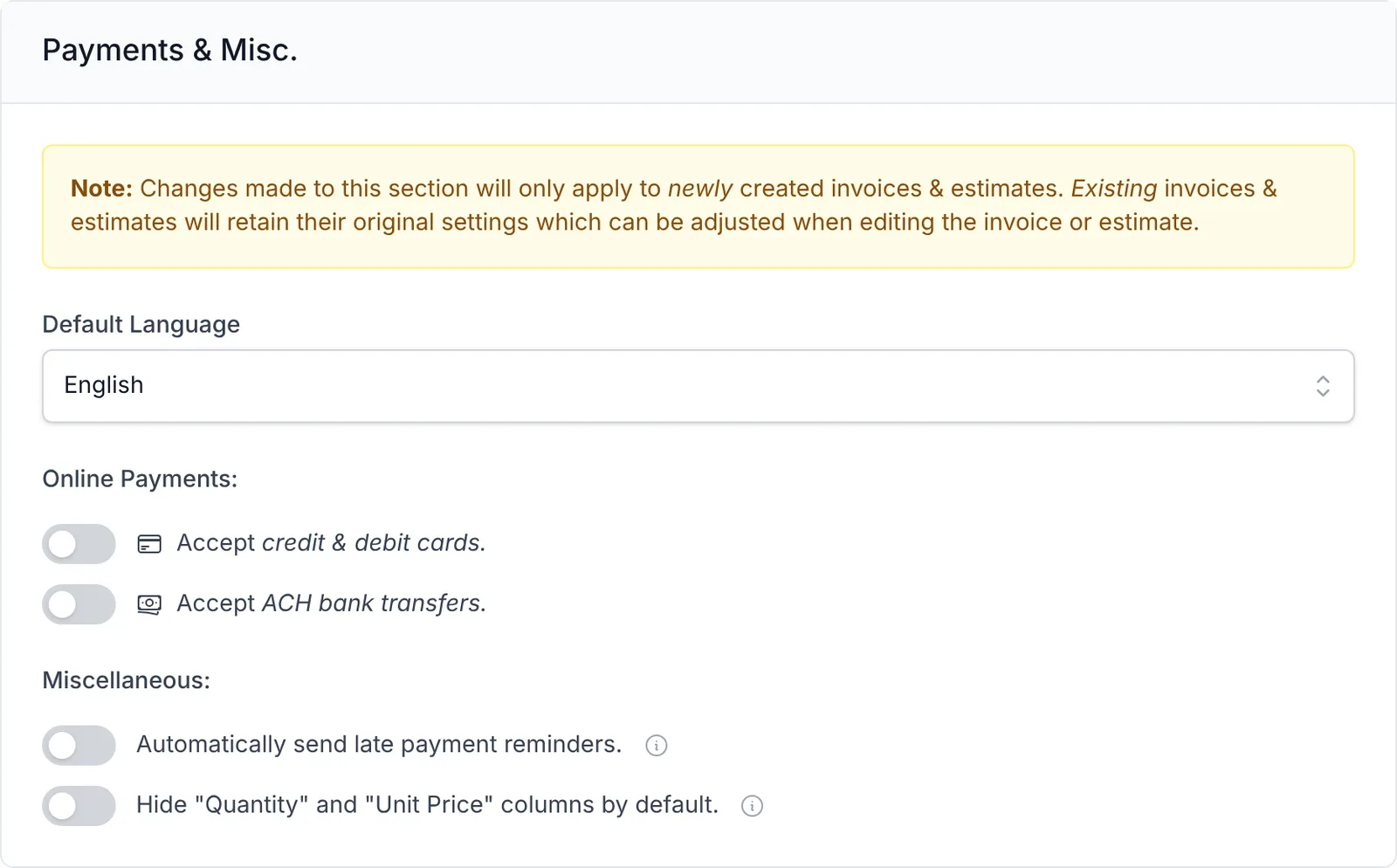
Until Stripe is connected, this section (and the Customize window on each invoice) shows a Connect to Stripe… link instead of these switches.
With these options on, new invoices accept online payments. When your client views one of your invoices online, they'll see a payment button. Clicking it opens a payment form where they can pay by credit or debit card (or ACH bank transfer, if you've turned it on).
Online payments are recorded in Harpoon automatically.
Note: Changes to these settings only apply to newly created invoices. For invoices created earlier, edit the invoice, click Customize, and check Accept credit & debit cards. and/or Accept ACH bank transfers. This is also how you turn off online payments for a single invoice.
To learn more, view the Online Payments support articles.
You can collect online payments from your clients by connecting a Stripe account to your Harpoon account. Stripe is a secure payments processing system that allows you to safely and securely accept credit and debit cards, Apple Pay, Google Pay, Link and Cash App Pay (and ACH bank transfers for US-based customers) from your clients online. Stripe connects to your bank account and transfers the money you’ve collected from your clients to your bank account.
If you don’t have a Stripe account it’s easy (and free) to set one up. Follow these instructions to create and connect a new (or existing) Stripe account to Harpoon.
First visit your Integrations screen in your Harpoon account and click the Stripe card to start the connection process with Stripe.
You’ll now be presented with the Stripe Connect screen.
Fill out the form on this screen to create a new Stripe account. You’ll be asked for some personal, business, and bank details. After the form is filled out click the Authorize button.
Note: If you already have an existing Stripe account you can skip filling out the form above by clicking on the Sign in link at the top of the screen instead. This allows you to connect your existing Stripe account to your Harpoon account. And if you were already signed in to your Stripe account Stripe will have you skip this screen altogether.
After authorizing your new Stripe account you’ll be redirected back to your Harpoon account with a message letting you know the connection was successful.
Now you’re ready to start accepting credit and debit card payments online from your clients. You’ll want to make sure you have online payments turned on for your invoices by visiting your Invoice Settings screen and checking the option(s) to allow online payments within the Payments & Misc section of the screen.
With that option(s) checked all new invoices you create will automatically accept online payments. When your client views one of your invoices they’ll see a large payment button next to their invoice.
Clicking that button will present a payment form to your client where they can pay the invoice via credit or debit card (or ACH bank transfer).
Any online payments received from your clients will automatically be recorded in your Harpoon account.
Note: For invoices you created before connecting to Stripe you’ll need to manually turn on online payments for each invoice. You can do so by editing the invoice, clicking on the "Customize" button, and making sure the option(s) to allow online payments is checked. This is also how you can turn off online payments on a per invoice basis.
To learn more about online payments view the Online Payments support articles.