
What currencies does Harpoon support?
Not sure which one you're using? The new interface has a dark sidebar and /app/ in the web address; the classic interface has a bright blue sidebar. You can switch at any time: in the new interface, click your name (top right) and choose Switch back to classic; in the classic interface, hover your avatar (bottom left) and choose Try the new Harpoon.
Harpoon uses one currency for your whole account. It controls the currency symbol shown throughout your account, and it’s the currency your clients are charged in when they pay an invoice online through Stripe. If you haven’t connected Stripe, you choose it yourself in your settings. If you have, it follows your Stripe account.
Setting your currency
Go to your General Settings screen (Settings → General) and find the Currency & Formatting section. Choose your currency from the Currency drop down and click Save Changes. (If Stripe is connected, this drop down is locked. See below.) In the same section you can also set your Number Format, Date Format and Timezone.
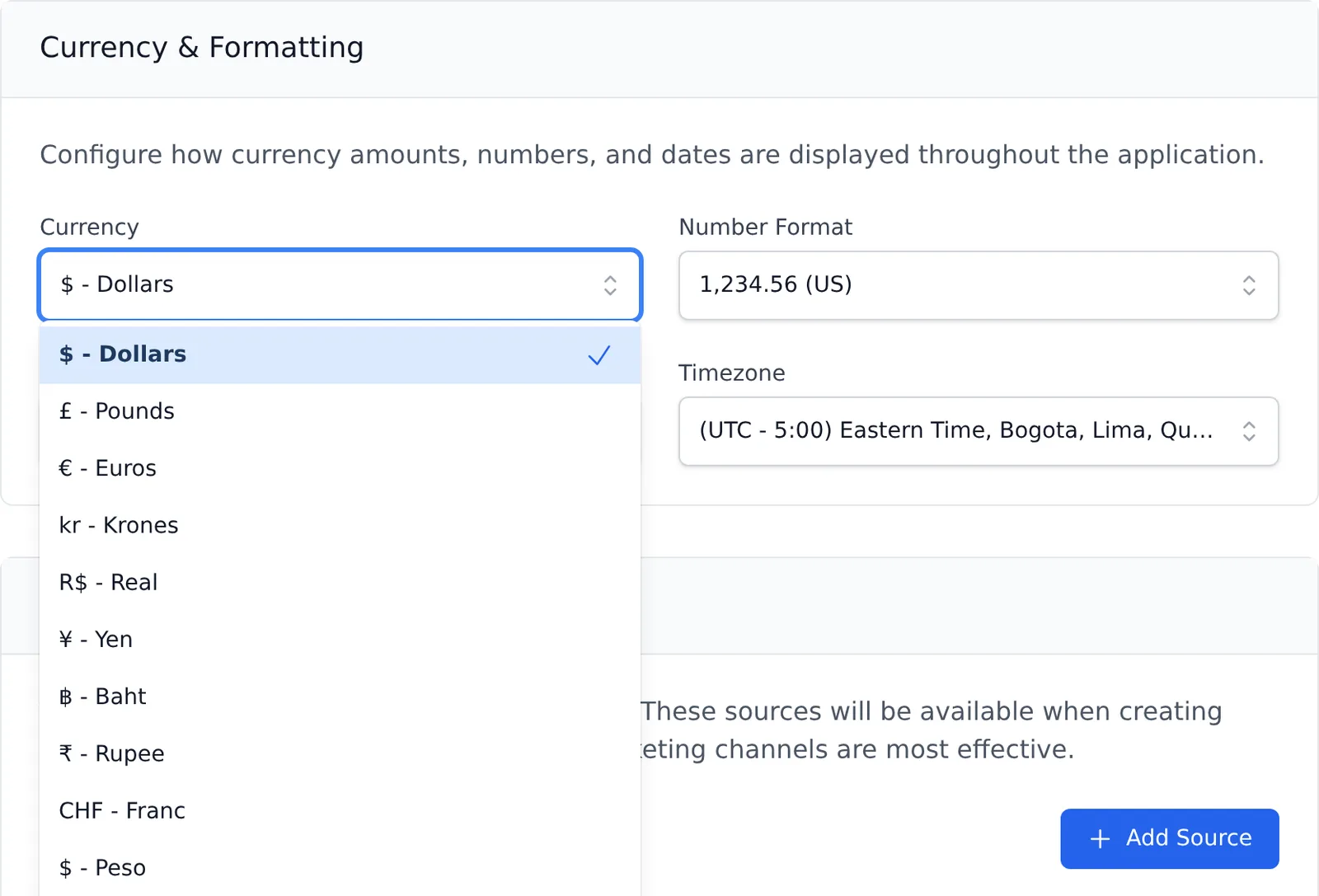
Supported currencies
You can choose from the following currencies:
- US Dollar ($)
- British Pound (£)
- Euro (€)
- Swedish Krona (kr)
- Brazilian Real (R$)
- Japanese Yen (¥)
- Thai Baht (฿)
- Indian Rupee (₹)
- Swiss Franc (CHF)
- Mexican Peso ($)
- South African Rand (R)
- Hong Kong Dollar (HK$)
- Malaysian Ringgit (RM)
- Polish Złoty (zł)
- Czech Koruna (Kč)
- Bulgarian Lev (лв)
- Romanian Leu (lei)
- Hungarian Forint (Ft)
- Philippine Peso (₱)
- Mauritian Rupee (₨)
- Ugandan Shilling (/=)
Online payments and Stripe
Harpoon uses Stripe for accepting invoice payments online, and online payments are charged in your account’s currency. When you connect your Stripe account (Settings → Integrations), Harpoon reads the currency you declared in Stripe and sets your account currency to match it.
While Stripe is connected, the Currency drop down in your General Settings is locked, with the note “Set by your connected Stripe account. Disconnect Stripe to change it.” This keeps your Harpoon and Stripe currencies from conflicting. To change your currency, disconnect Stripe first. To learn more about Stripe’s currency support view this article.
To learn more about currency support view the Online Payments support articles.
There are two aspects to supporting currencies in Harpoon. One aspect is in regards to the currency symbol that is displayed throughout your Harpoon account. The other aspect is in regards to the currency you bill when collecting online invoice payments. These two aspects are connected.
Online Billing Currency
Harpoon uses Stripe for accepting invoice payments online, and therefore can support any online payment currency that Stripe supports. When you create a Stripe account you declare your currency. When you connect your Harpoon account to Stripe, Harpoon will recognize your declared currency and display the proper currency symbol throughout your Harpoon account.
To learn more about Stripe’s currency support view this article.
Your Currency Symbol in Harpoon
As stated above, the currency symbol that you’ve declared in your Stripe account will automatically be recognized and matched by your Harpoon account. But if you have no desire to connect a Stripe account to Harpoon (i.e. you don't want to collect online payments) you don’t have to. In that case you can manually set your displayed currency symbol in Harpoon by visiting your General Settings screen. Here you’ll find a Currency field.
You can select your desired currency symbol from the drop down menu. Ultimately the list of currency symbols are still limited to those supported by Stripe, even if you’re not using Stripe.
Note: If you’ve connected your Stripe account to your Harpoon account the Currency drop down in your General Settings will be disabled and pre-selected in order to avoid conflicts between your Stripe and Harpoon currencies. The two must match.
To learn more about currency support view the Online Payments support articles.