
How do I set my hourly rate?
Not sure which one you're using? The new interface has a dark sidebar and /app/ in the web address; the classic interface has a bright blue sidebar. You can switch at any time: in the new interface, click your name (top right) and choose Switch back to classic; in the classic interface, hover your avatar (bottom left) and choose Try the new Harpoon.
Your hourly rate can be customized on three different levels: Global, Client, and Project.
- Global level: Set your account’s Default Hourly Rate and the rate for each of your time-tracking task categories on your Time Tracking Settings screen (Settings → Time Tracking). These are the default rates used for all new clients. Click Save Changes when you’re done.
- Client level: When creating or editing a client, use the Custom Task Rates section of the client form to customize the hourly rates for just that client. Rates set at the client level become the default rates for any new projects created for that client.
- Project level: When creating or editing a project, use the Custom Task Rates section of the project form to customize the hourly rates for just that project. (This section appears once you’ve selected a client, and isn’t shown for non-billable projects.)
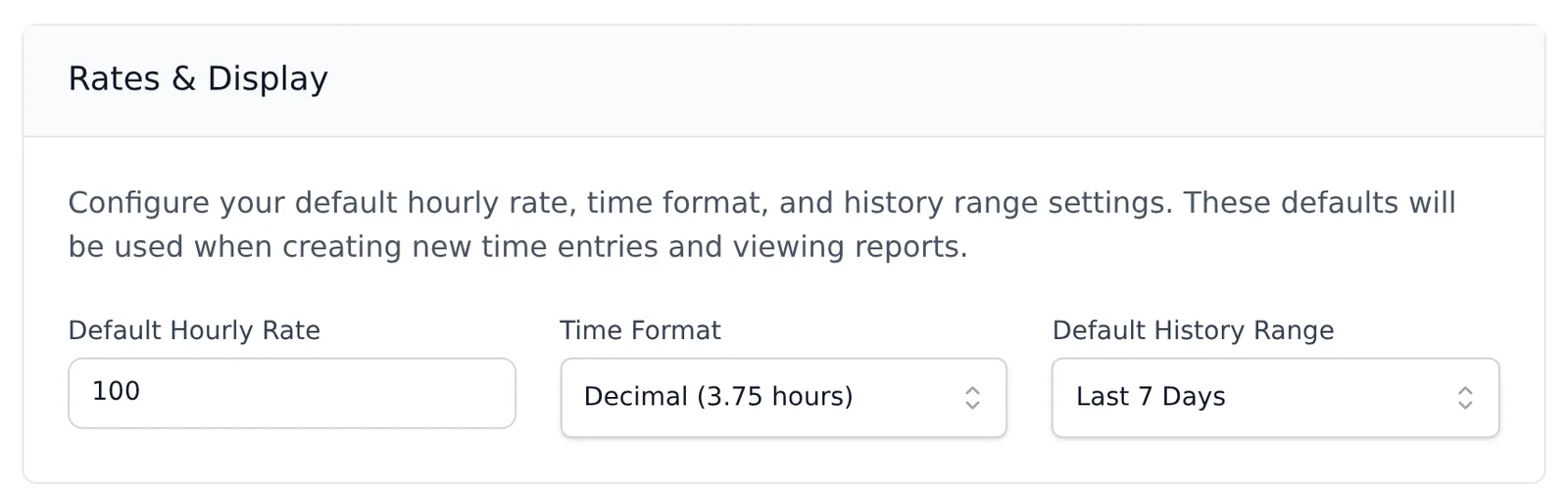
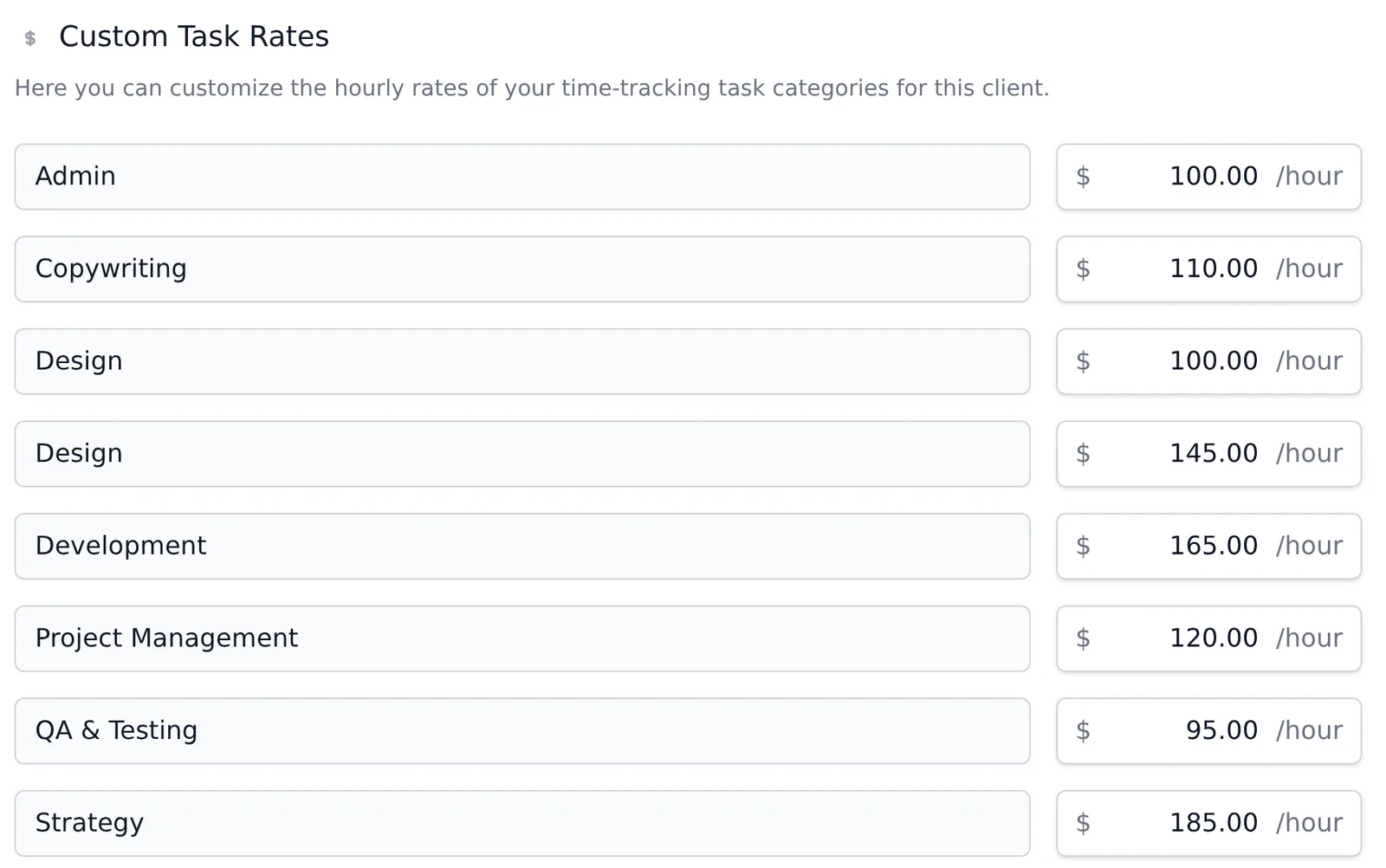
When you change a global rate and save, Harpoon asks whether to apply the new rate to your existing clients and projects. Learn more in How do I customize my hourly rate?
For more information about time tracking in Harpoon view our Time Tracking support articles.
Your hourly rate can be customized on three different levels: Global, Client, and Project levels.
Global Level: You can set the global default hourly rates for each of your time-tracking task categories via your main Time Tracking Settings screen. These will be the default rates used for all new clients.
Client Level: When creating or editing a client you have the opportunity to further customize the hourly rates used for just that client. Rates customized at the client level become the default rates for any new projects created for that client.
Project Level: When creating or editing a project you have the opportunity to further customize the hourly rates used for just that project.
For more information about time tracking in Harpoon view our Time Tracking support articles.