
How do I duplicate a project?
Not sure which one you're using? The new interface has a dark sidebar and /app/ in the web address; the classic interface has a bright blue sidebar. You can switch at any time: in the new interface, click your name (top right) and choose Switch back to classic; in the classic interface, hover your avatar (bottom left) and choose Try the new Harpoon.
You can duplicate a project from two places:
- Your Projects page: on Projects, click the ⋮ menu at the end of the project's row and choose Duplicate...
- The project's page: click the ⋮ menu at the top right and choose Duplicate.
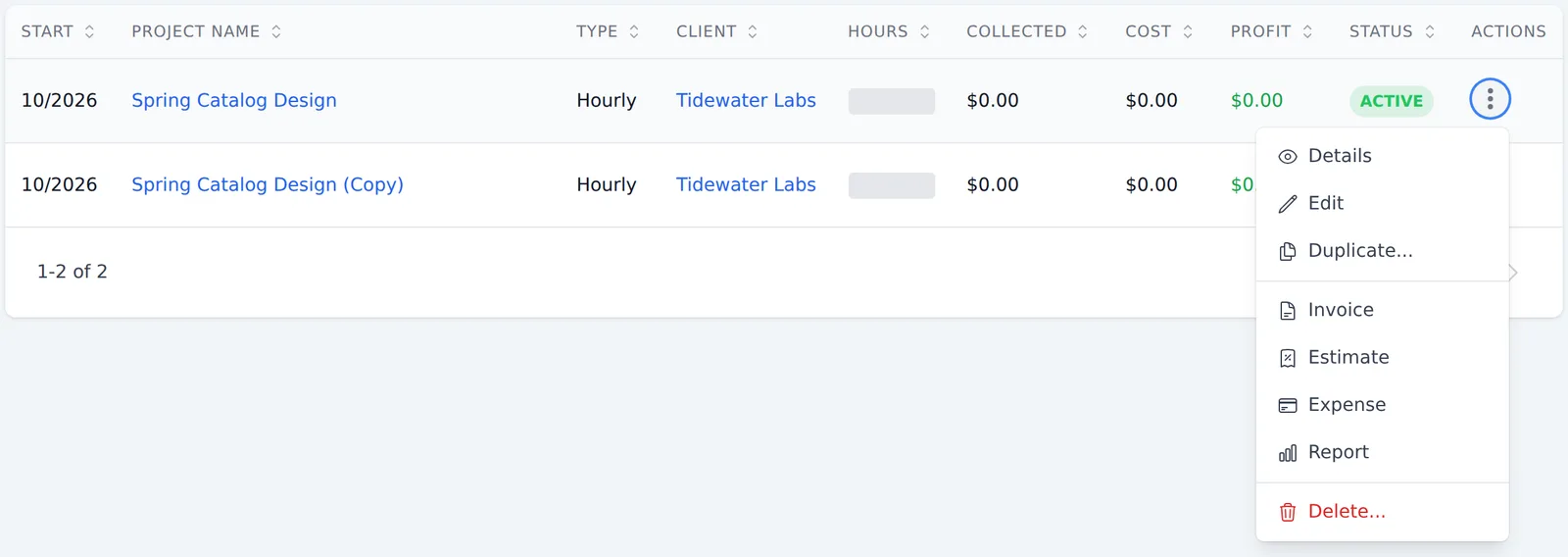

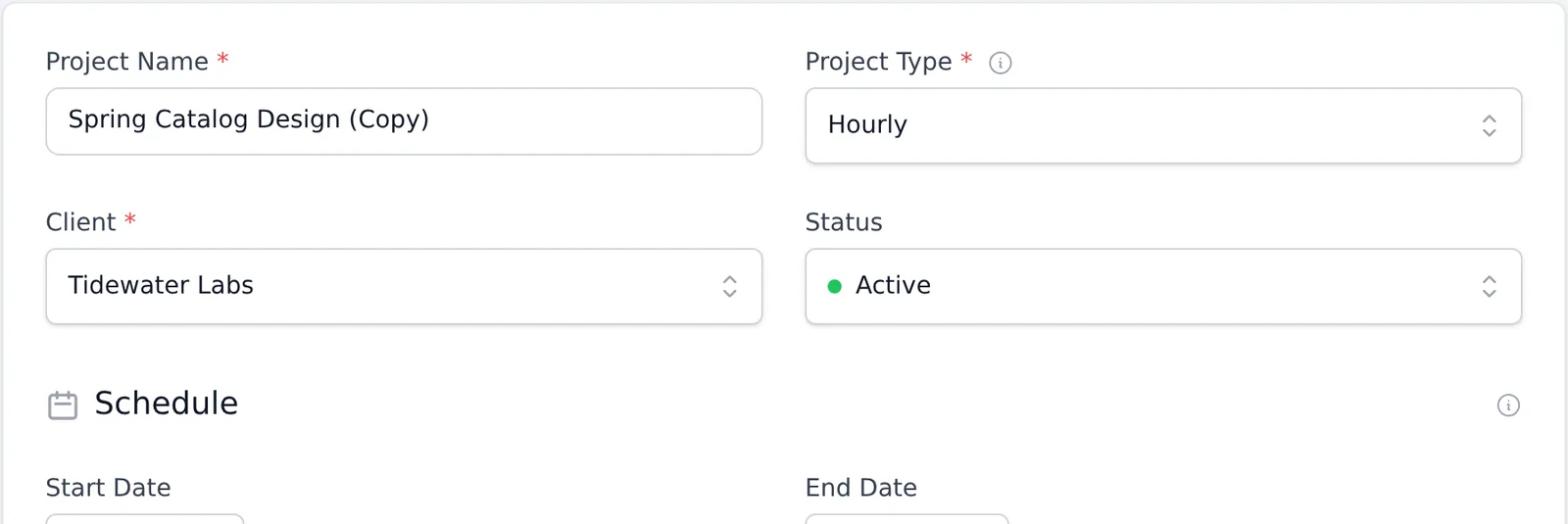
A project form opens, filled in with the original project's details, including its dates, budget, team members and task rates. The name ends in "(Copy)" and the status is set to Active. Make any changes you need and click Save.
To learn more, see the Projects articles.
To duplicate a project simply select the "Duplicate" action from the Action menu of any project. The Action menus can be found on the main Projects screen next to each project in the list, or on each project's Project Details screen.
After clicking the "Duplicate" action you’ll be taken to a Duplicate Project form with the details of the new project already pre-filled to match the originating project you’re duplicating. From here you can choose to make further edits, or just click the Save button to save the duplicated project.
To learn more about Projects view the Projects support articles.