
How do I record notes for my projects?
Not sure which one you're using? The new interface has a dark sidebar and /app/ in the web address; the classic interface has a bright blue sidebar. You can switch at any time: in the new interface, click your name (top right) and choose Switch back to classic; in the classic interface, hover your avatar (bottom left) and choose Try the new Harpoon.
Every project has a place to jot down notes, like details from a client call or a pricing decision, right next to its time and billing.
- Open the project from your Projects page.
- Click the Notes tab.
- Type your note in the Add a note... box and click Add Note.
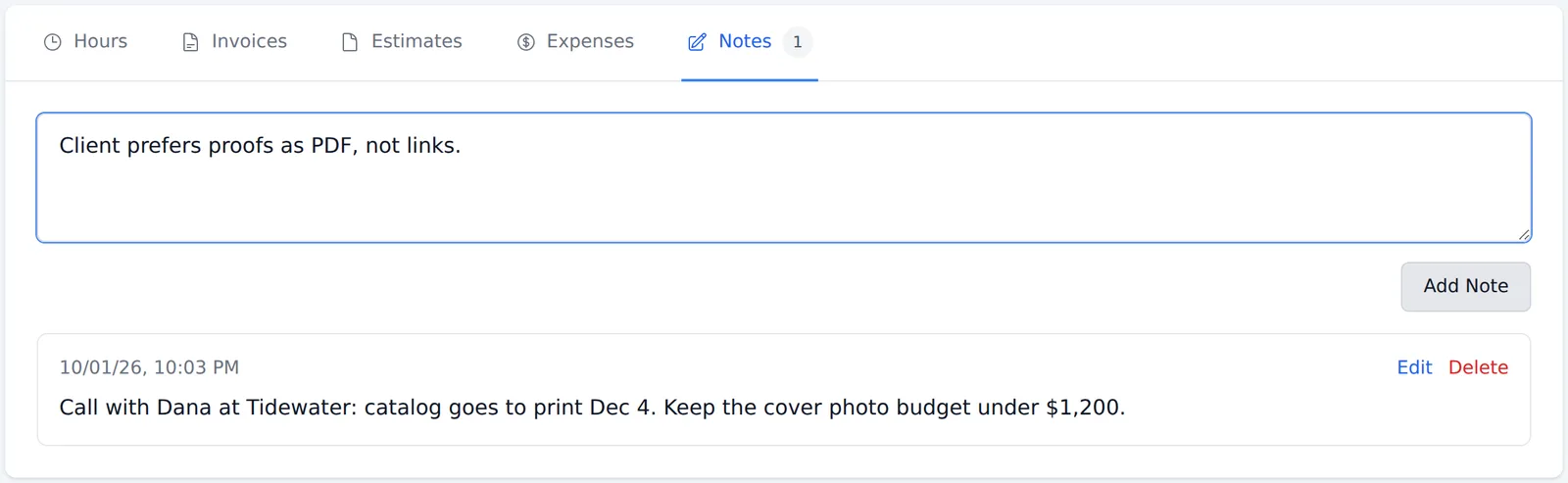
Your notes are listed below the box, newest first, with the date and time they were added. The Notes tab shows how many notes the project has.
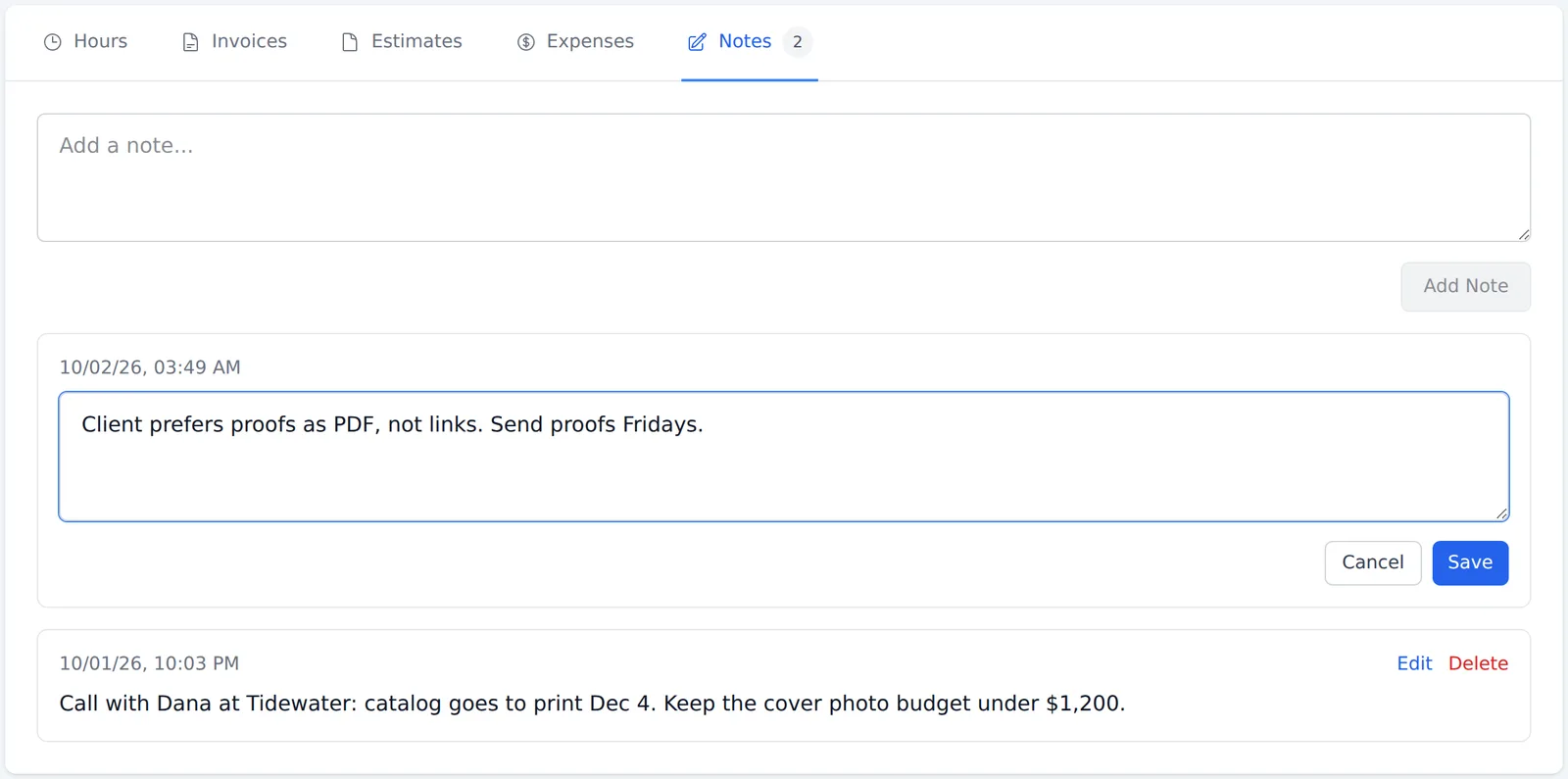
To change a note, click Edit, make your changes, and click Save. To remove one, click Delete.
A few things work differently from the Classic interface:
- Notes are plain text. There's no bold, italics or links.
- There's no option to email your team about a new note.
- There's no "unread" marker on the Notes tab for notes your teammates added.
If you need any of these, switch to the Classic interface (your name in the top right, then Switch back to classic).
Each of your projects has a designated location for recording notes, including the ability to share those notes with other team members.
And there’s a reason we call this feature Project Notes and not Project Conversations. They’re designed for jotting down quick snippets of information you and your team want to keep track of (e.g. client phone calls, project pricing decisions, etc.). Harpoon’s Project Notes aren’t intended to replace robust team communication systems like Basecamp. But when you’re in the time-tracking and billing “zone” it’s super convenient to have a place right within Harpoon to capture project information you don’t want to forget.
Here's how it works:
Notes Tab: Project notes can be managed by visiting the Project Details screen for any project and clicking on the "Notes" tab.

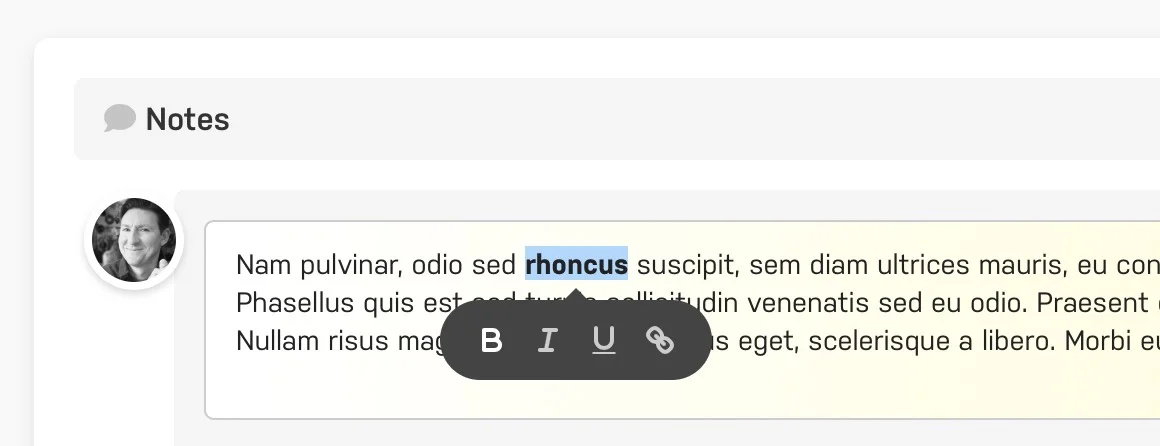
Rich Text Editing: When recording a note you'll be able to use bold, italics, line breaks, links, etc. Some notes are simple. But others require a bit more style and structure to properly capture your thoughts.
Team Notifications: When you save a new note you have the option of notifying your team members. When this option is checked all other team members on the project will receive an email notification regarding your brilliant thoughts so they stay in the loop. Not an idea worth sharing? Leave this option unchecked and no one will be bothered by your new note.

Edit Existing Notes: Click the edit icon for any existing note, make your edits, and save your changes. Pretty simple.
Unread Beacons: If you’re viewing a Project Details screen and another team member has left a note you haven’t read yet, you’ll see a “beacon” on the Project Notes tab, a subtle way of grabbing your attention. These beacons appear whether or not your teammate decided to notify others of the new note.
