
How do I set the default date range for my time-tracking history?
Not sure which one you're using? The new interface has a dark sidebar and /app/ in the web address; the classic interface has a bright blue sidebar. You can switch at any time: in the new interface, click your name (top right) and choose Switch back to classic; in the classic interface, hover your avatar (bottom left) and choose Try the new Harpoon.
Your Time Tracking Settings have a Default History Range field. To get there, click Settings in the left sidebar and then Time Tracking, or click Settings at the top of your Timers page.
In the Rates & Display section, choose This Week or Last 7 Days for Default History Range, then click Save Changes.
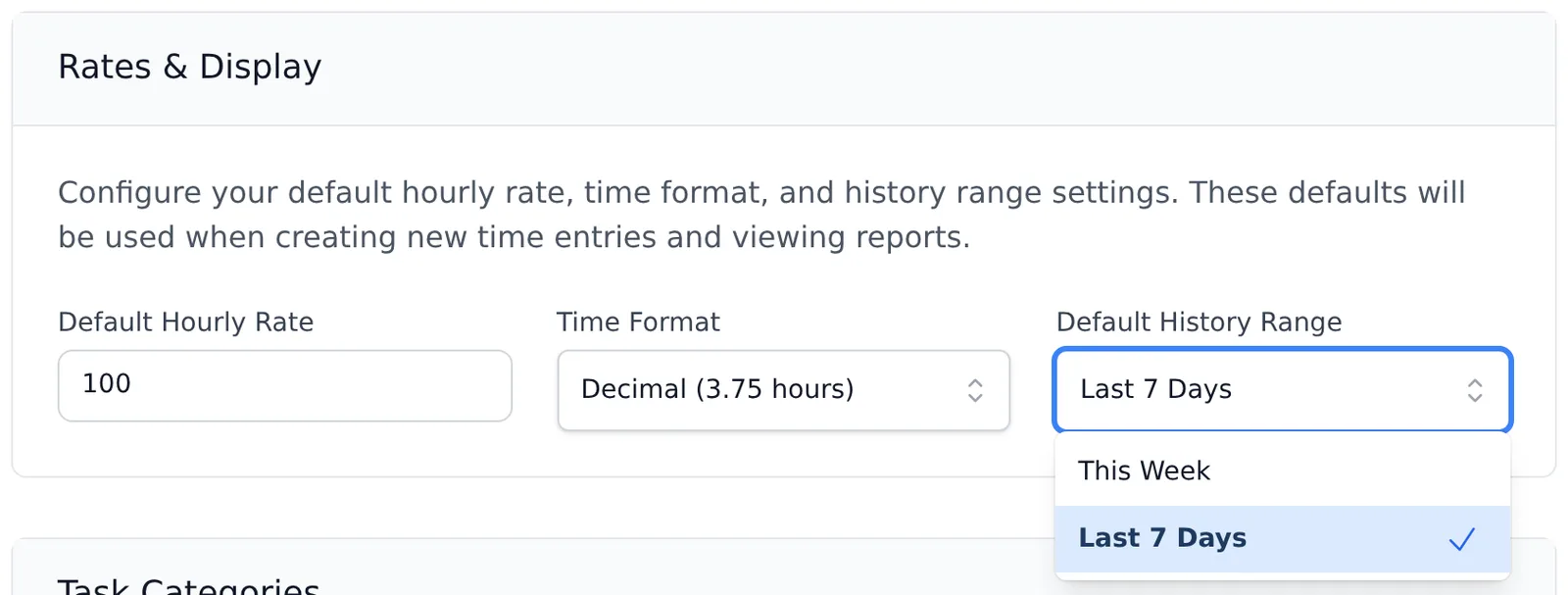
Last 7 Days is the default. Whichever you choose is used when you open your Time-Tracking History page and the Hours tab on every project's page. You can still change the dates on either page with the date range fields at the top.
You can pick between two default date range options for the initial loading of your Time-Tracking History screen. First, hop on over to your Time-Tracking Settings screen and you'll find a "Default History Range" field.
This field allows you to select between "Last 7 Days" and "This Week." Harpoon uses "Last 7 Days" by default. But you have the option to set the current week as the default. This default setting applies to both your Time-Tracking History screen, and the Project Details > Hours tab for every project.