
How do I customize my hourly rate?
Not sure which one you're using? The new interface has a dark sidebar and /app/ in the web address; the classic interface has a bright blue sidebar. You can switch at any time: in the new interface, click your name (top right) and choose Switch back to classic; in the classic interface, hover your avatar (bottom left) and choose Try the new Harpoon.
There are different places in Harpoon where you can customize your hourly rate(s). Here’s a description of each and how they relate to each other:
- Default Hourly Rate: Your account’s default rate, found in the Rates & Display section of your Time Tracking Settings screen. Any task category without its own rate uses this rate.
- Task category rates: The hourly rate for each of your task categories, found in the Task Categories section of the same screen. Click Add Category to add one. These rates are used when creating new clients. Leave a category’s rate blank to have it follow your Default Hourly Rate.
- Client task category rates: The hourly rates for each client, found in the Custom Task Rates section when creating or editing a client. These rates are used when creating new projects for the client.
- Project task category rates: The hourly rates for each project, found in the Custom Task Rates section when creating or editing a project.
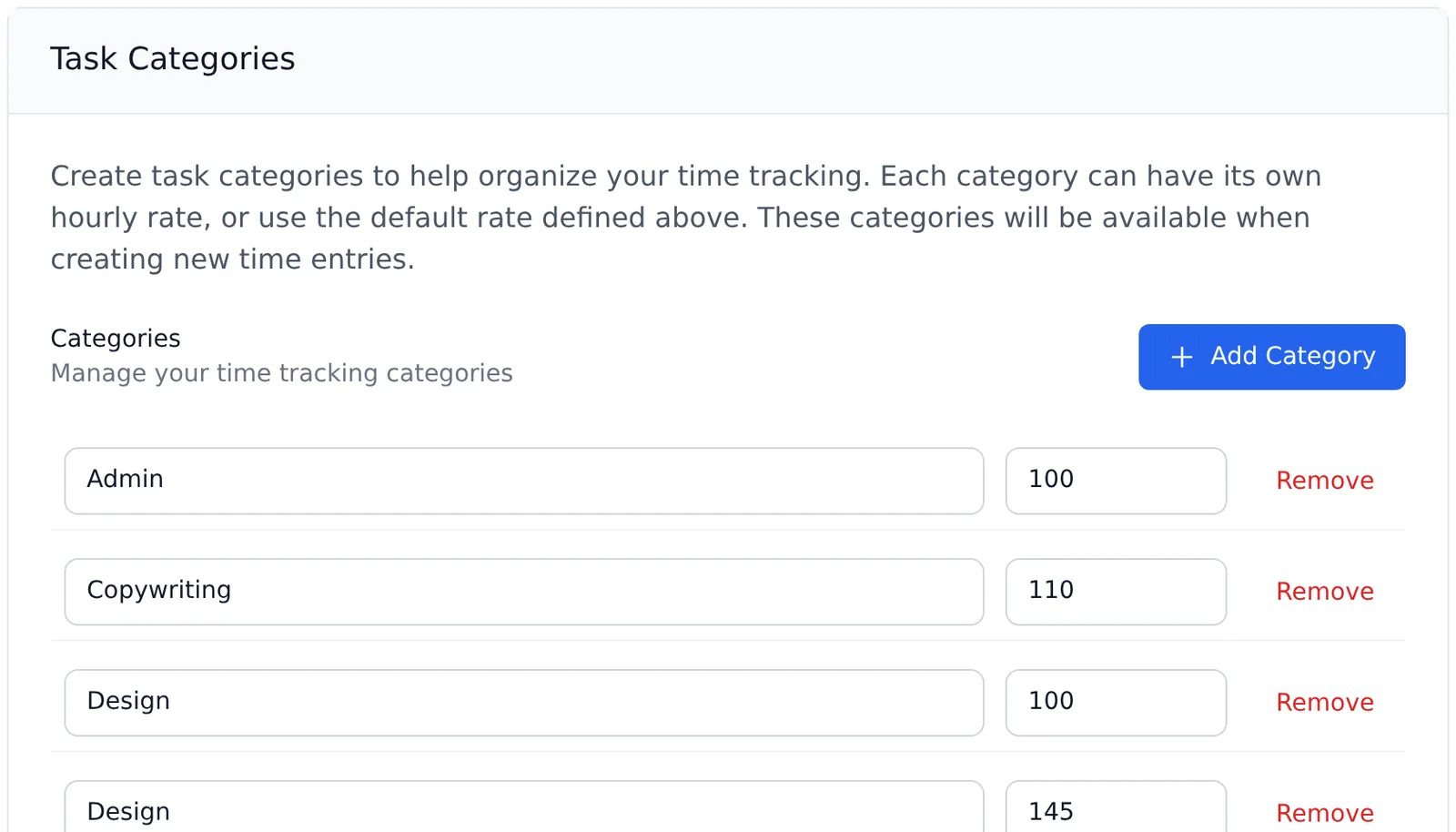
Each client and project keeps its own copy of these rates. So when you change your Default Hourly Rate or a task category rate and click Save Changes, Harpoon asks how to handle your existing clients and projects:
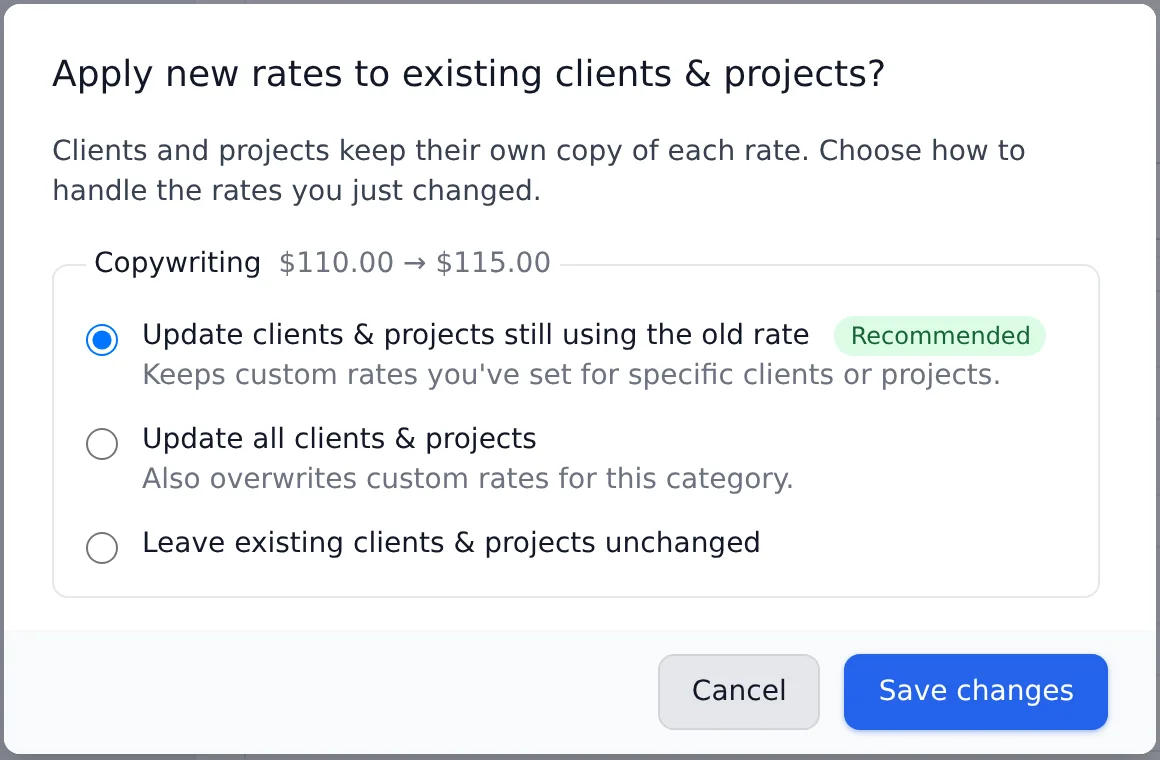
- Update clients & projects still using the old rate (recommended): Clients and projects that still have the old rate get the new one. Any custom rates you’ve set for specific clients or projects are kept.
- Update all clients & projects: Every client and project gets the new rate, including ones with a custom rate for this category.
- Leave existing clients & projects unchanged: Only new clients (and their new projects) use the new rate.
Pick an option for each changed rate and click Save changes, or click Cancel to go back without saving.
These multiple levels of hourly rate customization give you the maximum flexibility for your clients and projects.
There are different places in Harpoon where you can customize your hourly rate(s). Here's a description of each and how they relate to each other:
- Default Hourly Rate: This is your account's default rate found on your Time-Tracking Settings screen. This is the rate used when creating new time-tracking Task Categories.
- Task Category Rates: These are the hourly rates for each of your account's Task Categories found on your Time-Tracking Settings screen. These rates are used when creating new clients. Note: Once a task category rate is customized and changed from the original Default Hourly Rate that task category's rate is no longer "connected" to the Default Hourly Rate.
- Client Task Category Rates: These are the hourly rates for each client found in the Custom Task Rates section when creating/editing a client. These rates are used when creating new projects for the client. Note: After a client has been created and its Custom Task Rates set, those rates are no longer "connected" to your Task Category Rates on your Time-Tracking Settings screen.
- Project Task Category Rates: These are the hourly rates for each project found in the Custom Task Rates section when creating/editing a project. Note: After a project has been created and its Custom Task Rates set, those rates are no longer "connected" to the Client Task Category Rates of the project's client.
These multiple levels of hourly rate customization are intended to provide the maximum flexibility for your clients and projects.