
How do I customize the design of my invoices?
Not sure which one you're using? The new interface has a dark sidebar and /app/ in the web address; the classic interface has a bright blue sidebar. You can switch at any time: in the new interface, click your name (top right) and choose Switch back to classic; in the classic interface, hover your avatar (bottom left) and choose Try the new Harpoon.
Harpoon gives you a handful of options for customizing how your invoices and estimates look. You'll find them in the Design section of Settings → Invoices & Payments. Design changes apply to all new and existing invoices and estimates.
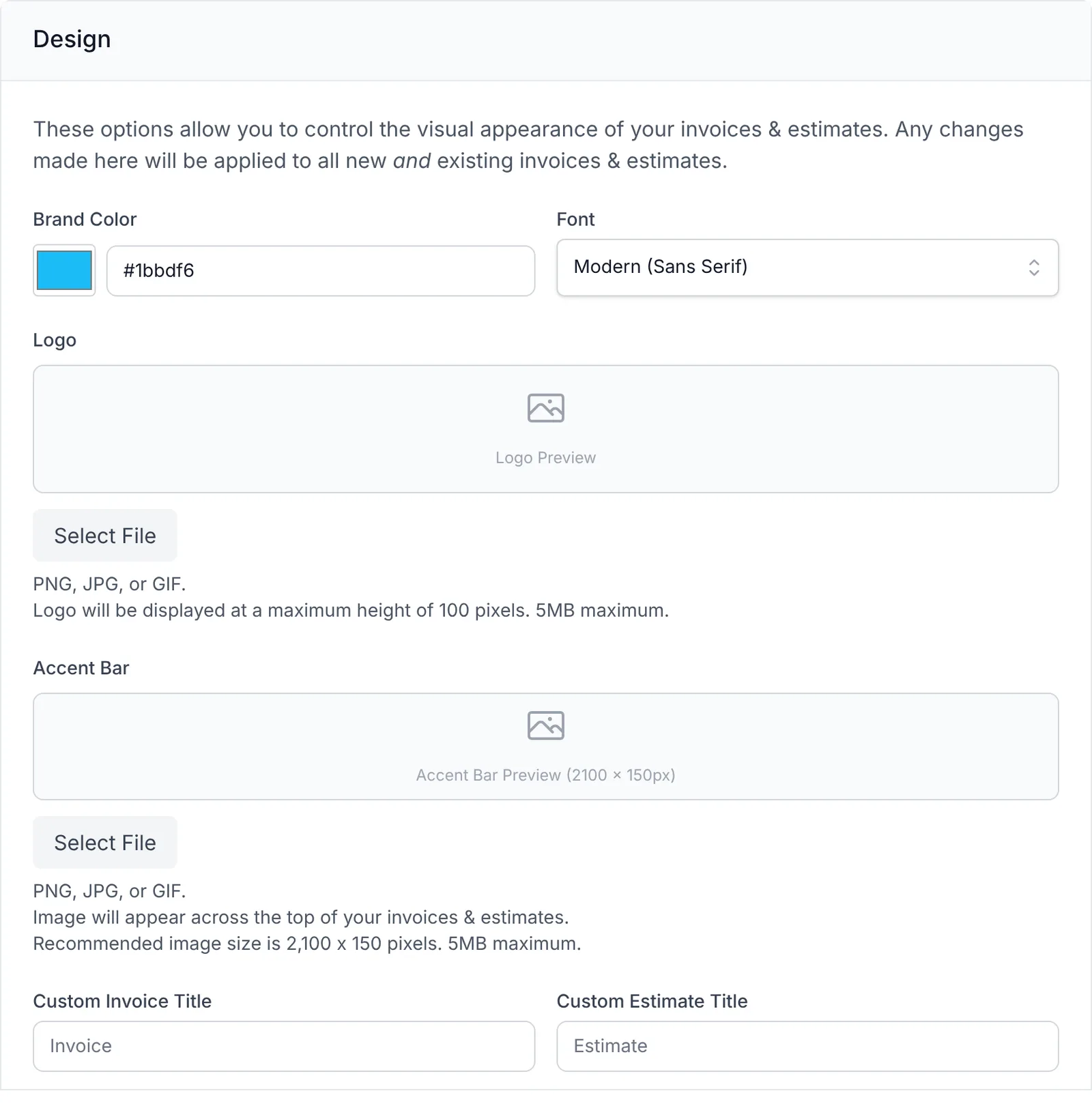
- Brand Color: Your company's main brand color. It's used for the divider lines in the invoice layout, for example between the header and the line items, and between the line items and the totals. Ideally it complements your accent bar.
- Font: Choose Modern (Sans Serif) or Traditional (Serif).
- Logo: Upload a PNG, JPG or GIF (5MB maximum). Logos display at a maximum height of 100 pixels, so upload your logo at least 200 pixels tall for a sharp result on high-resolution (retina) screens.
- Accent Bar: An image displayed across the top of your invoices and estimates. It's meant as an accent for your brand, not a large header image: a simple pattern, a solid color, or a photo. The recommended size is 2,100 x 150 pixels (5MB maximum).
- Custom Invoice Title and Custom Estimate Title: Replace the words "Invoice" and "Estimate" at the top of your documents with your own titles. Handy if the law where you work requires specific wording.
Click Save Changes at the bottom of the screen to save your changes.
Note: In the Classic interface, the line item Description fields and the Notes field have a formatting toolbar (bold, italics, links and so on). The new interface doesn't have that toolbar yet. Formatting you've already added is kept. To add new formatting, edit the invoice in the Classic interface (click your name at the top right, then Switch back to classic).
Harpoon provides a handful of options for customizing the visual design of your invoices and estimates. Most of these customization options are available on your Invoice & Estimate Settings screen:
The Accent Bar - This provides the opportunity to display a custom image across the top of your invoices. We’re using the word “accent” on purpose. It’s not intended to be a large “hero” image that takes over the header of your invoice. Instead it’s designed to be an accent for your brand. For your company that might be a simple pattern, a solid color, or even a photographic image. And if you use the recommended image size (stated in your settings) we’ll make sure your Accent Bar displays razor sharp to your clients even on retina (HD) displays.
Brand Color - You can set your company’s dominant brand color in your Harpoon settings and see that color applied to your invoices. Your brand color will be used for any line dividers in the invoice’s layout (e.g. dividing the invoice header from the line items, dividing the line items from the totals, etc.). Ideally your brand color will complement your accent bar.
Company Logo - Harpoon provides retina (HD) support for the display of your company logo. Logos on Harpoon’s invoices display at a maximum height of 100 pixels, so simply upload your logo (via your settings) at a height of at least 200 pixels in order to achieve a sharp display on retina (HD) devices.
Font Customization - You can choose between a Modern (sans serif) or Traditional (serif) font display on your invoices.
Custom Titles - If you don’t prefer the words “Invoice” or “Estimate” you can edit the titles that appear at the top of your invoices and estimates. Especially handy for some of our international customers whose government laws dictate specific wording required for invoicing.
Rich Text Editing - We’ve added rich text editing to both the line item Description fields and the Notes field on your invoices and estimates. That means being able to use bold, italics, line breaks, links, etc.