
How do I track the weekly hours capacity of my team members?
Not sure which one you're using? The new interface has a dark sidebar and /app/ in the web address; the classic interface has a bright blue sidebar. You can switch at any time: in the new interface, click your name (top right) and choose Switch back to classic; in the classic interface, hover your avatar (bottom left) and choose Try the new Harpoon.
Weekly Hours Capacity lets you set an average maximum number of working hours for each team member from week to week. Harpoon keeps track of each team member’s recorded hours and can email you when a team member is getting close to maxing out their capacity for the week.
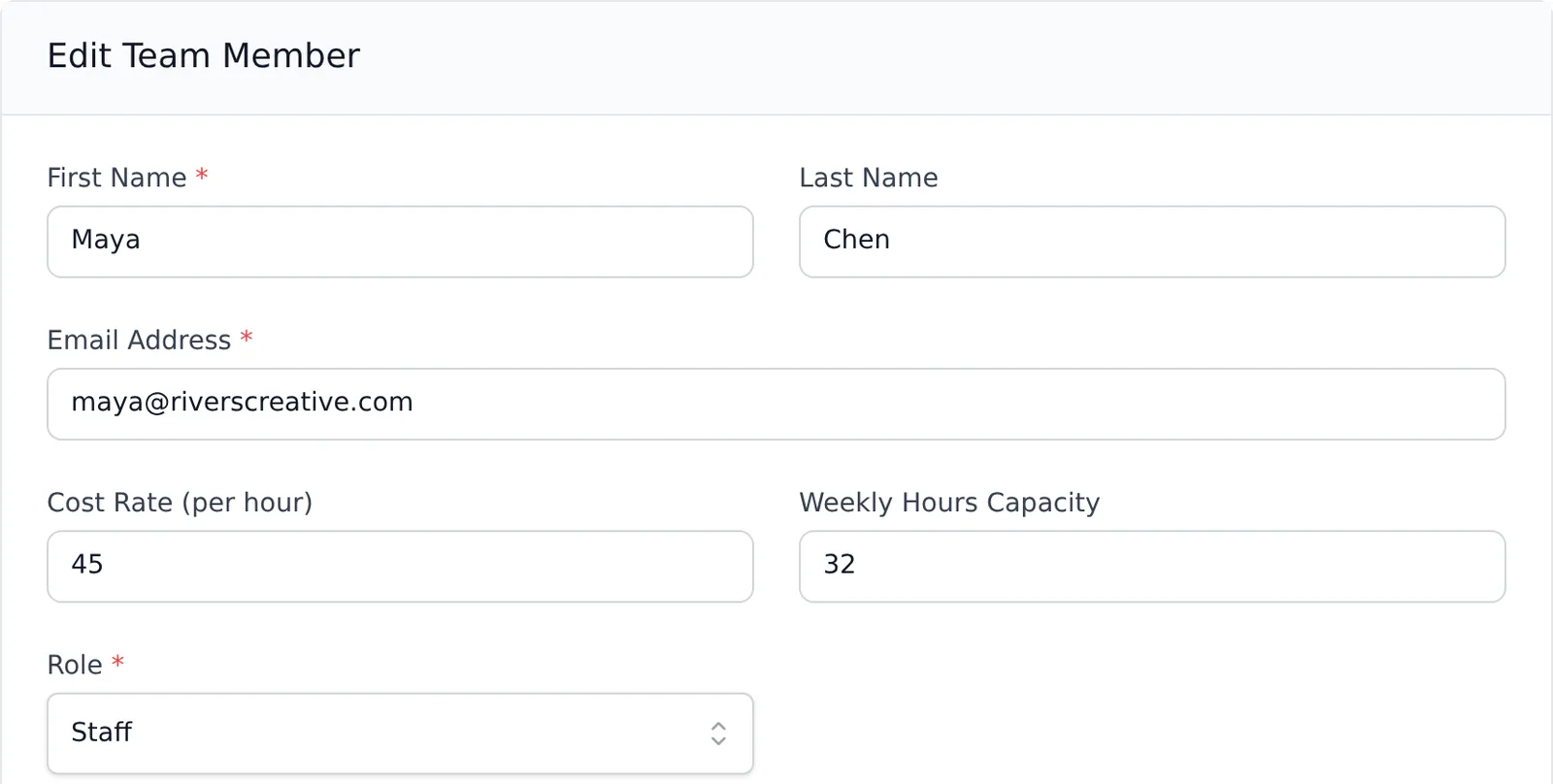
You set each team member’s weekly hours capacity on your Team screen (your name in the top right → Account → Team). If you’re the account Owner, click the menu (three dots) on a team member’s card, choose Edit Details, enter their Weekly Hours Capacity, and click Update Member. You can also set it when you first invite someone. Each team member’s card shows their Weekly Capacity.
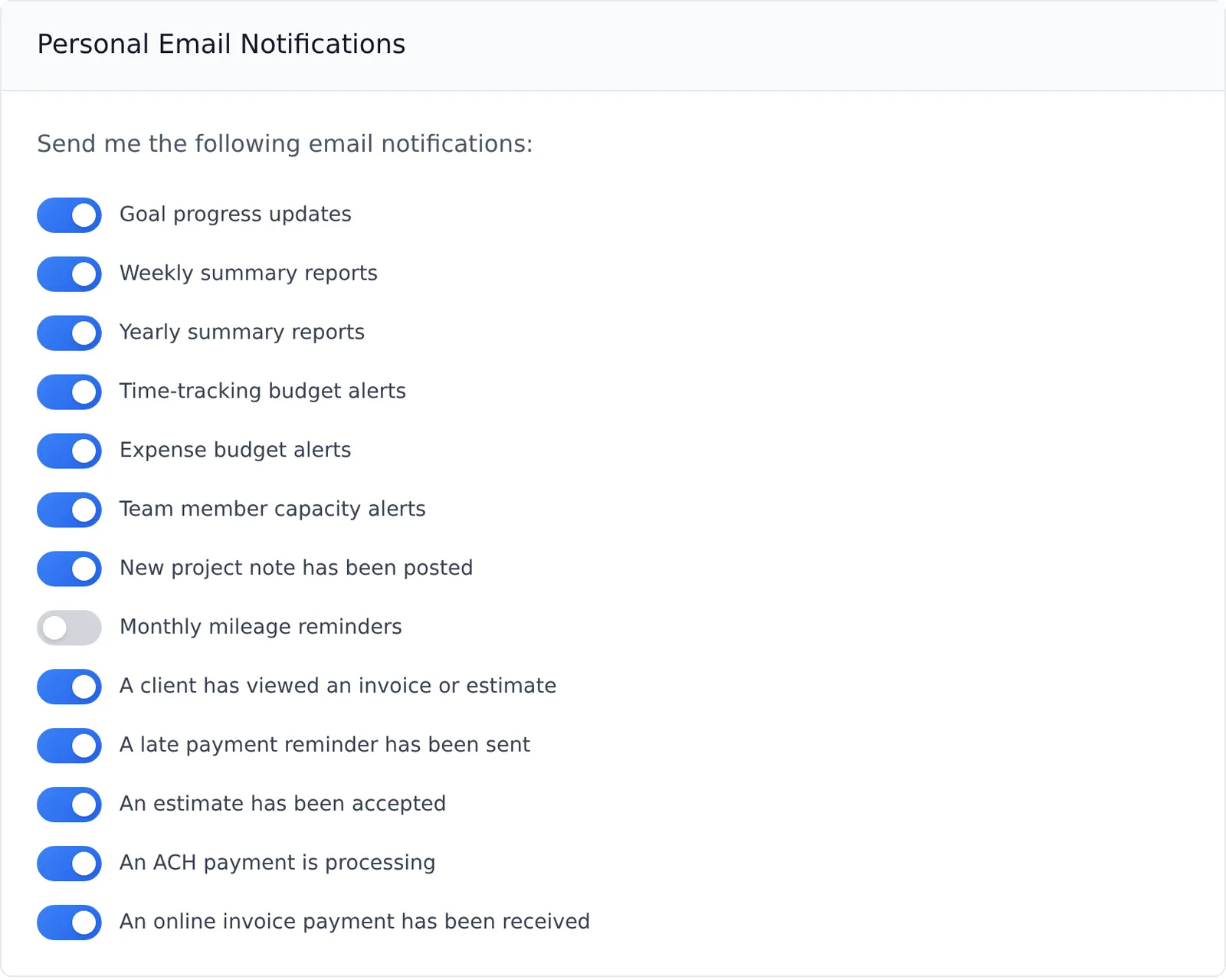
When a team member is getting close to maxing out their hours capacity for the week, Harpoon sends you an email notification. Just make sure Team member capacity alerts is turned on in your Email Settings (Settings → Email, under Personal Email Notifications).
Note: The capacity progress bar on team member cards, and the capacity warnings next to team members’ names on the project form, aren’t available in the new interface yet. To see them, switch to the Classic interface (click your name in the top right → Switch back to classic).
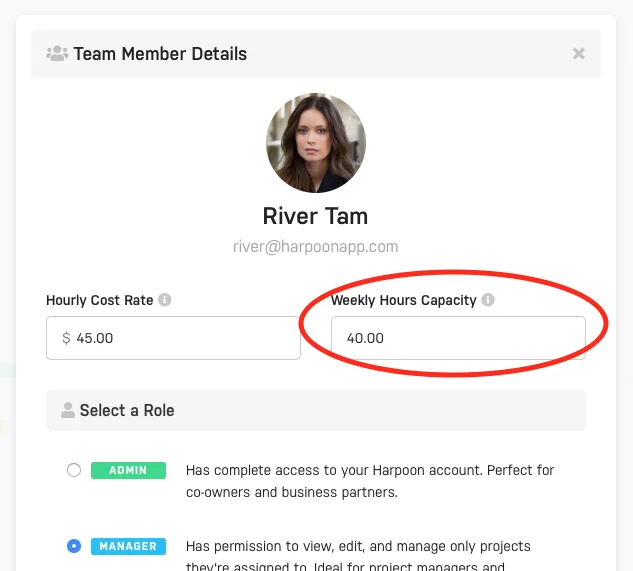
The Weekly Hours Capacity feature allows you to set an average maximum number of working hours for each team member from week to week. Harpoon will then keep track of each team member's recorded hours and warn you when a team member is getting close to maxing out their hours capacity for the week.
You can customize each team member’s weekly hours capacity by editing a team member on your main Team screen:
Harpoon will then show you the status of each team member’s capacity via a progress bar along the bottom of each team member card:
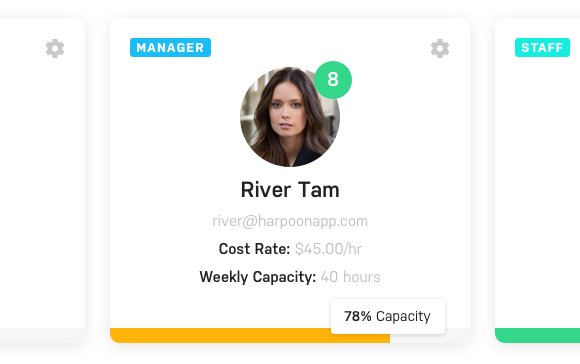
Tip: Clicking the progress bar on a team member card will send you to your Time-Tracking History screen with that team member’s hours for the week pre-filtered and displayed on the screen.
When a team member is getting close to maxing out their hours capacity Harpoon will send you an email notification. (Just make sure you have the “Team member capacity alerts” notification turned on in your Emails and Notifications Settings.)
When creating or editing a project Harpoon will also display an alert next to a team member’s name (when needed) warning you about the status of that team member’s hours capacity for the current week.
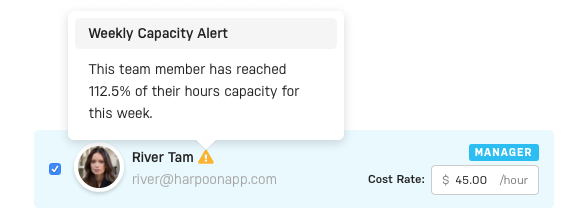
This can come in handy when deciding which of your team members have the capacity to be assigned to a new project.