
How do I auto-send an invoice on a future date?
Not sure which one you're using? The new interface has a dark sidebar and /app/ in the web address; the classic interface has a bright blue sidebar. You can switch at any time: in the new interface, click your name (top right) and choose Switch back to classic; in the classic interface, hover your avatar (bottom left) and choose Try the new Harpoon.
Sometimes you create an invoice before you're ready to send it. Scheduled auto-sending makes sure it goes out on time without you having to remember.
When you send an invoice, the Send Invoice screen asks When would you like to send this invoice email? Choose Auto-Send Later, pick a future date, and click Schedule Send.
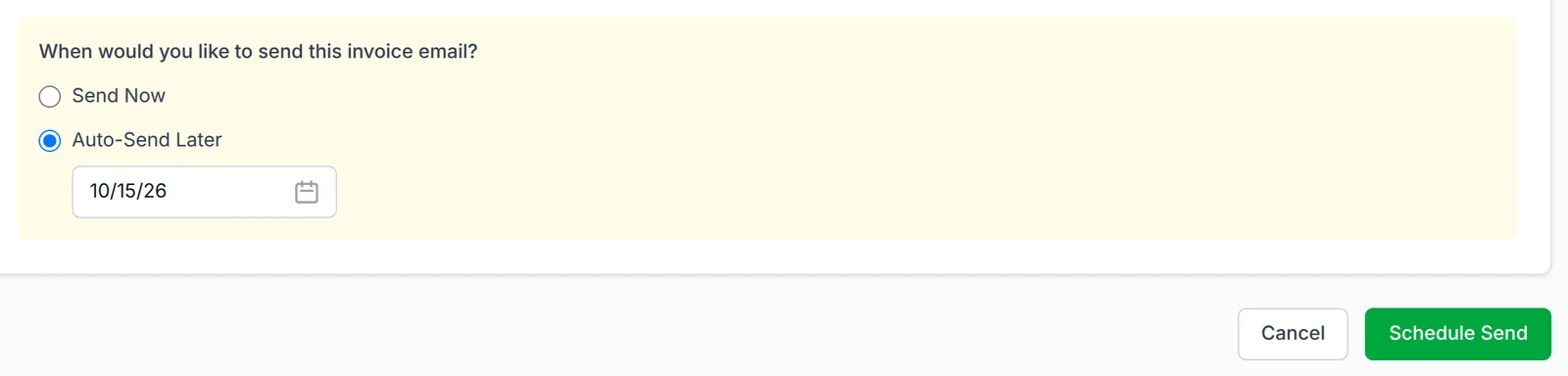
Harpoon will send the invoice to your client automatically on that date. Until then, the scheduled date is shown as Auto-Send at the top of the invoice's details screen:

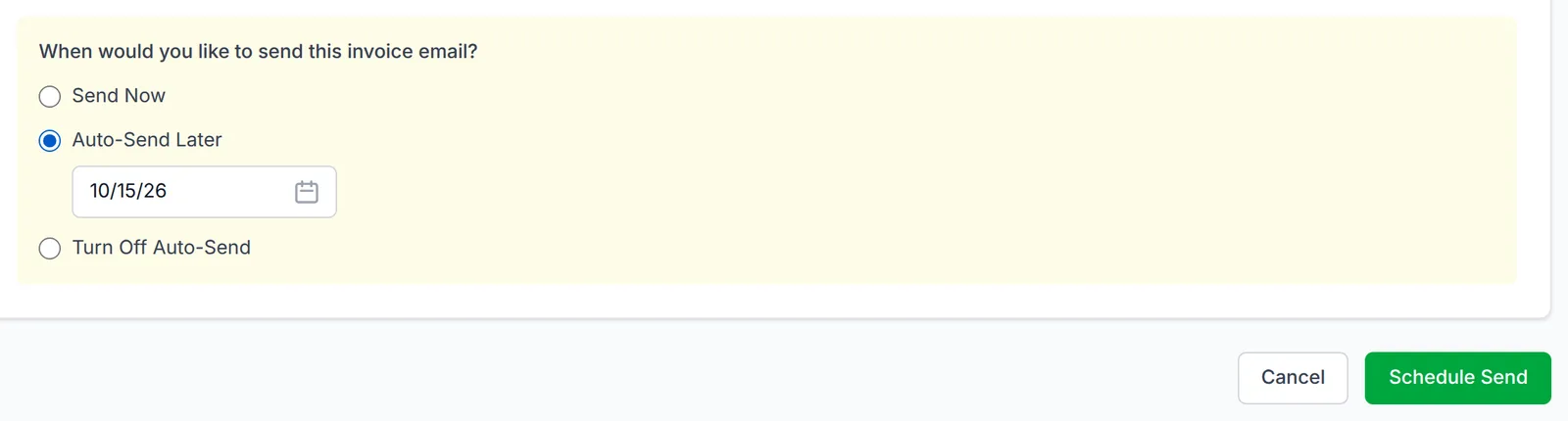
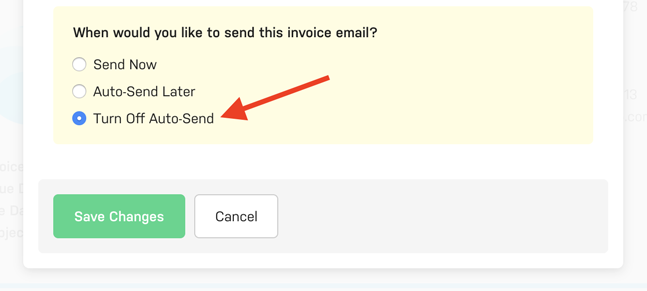
To change the date or stop the scheduled send, click the Auto-Send date. This opens the Send Invoice screen with your scheduled date filled in. Pick a new date and click Schedule Send, or choose Turn Off Auto-Send and click Turn Off Auto-Send.
Recurring invoices can also be sent to your clients automatically. Scheduled auto-sending brings the same convenience to your one-off invoices. Learn more about recurring invoices.
Many times we’ll create an invoice for a project, but for a variety of reasons we’re not ready to send the invoice to the client just yet. But how do we make sure we remember to send the invoice in the future so it doesn’t get missed?
With scheduled auto-sending that’s no longer an issue. Here’s how it works...
When sending an invoice to your client you’ll see an option asking you when you’d like the invoice to be sent. You can of course choose to send the invoice now, OR you can choose the option to auto-send the invoice later:
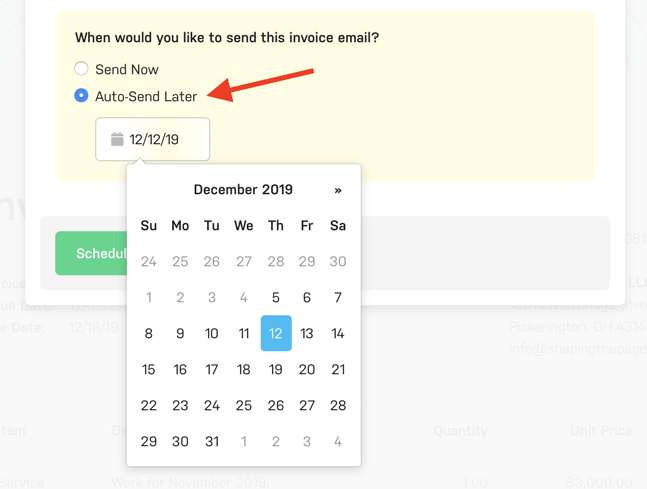
Auto-sending later allows you to select a future date. Harpoon will then automatically send the invoice for you on that date. In the mean time you’ll see the auto-send date displayed on the Invoice Details screen of the invoice like so:
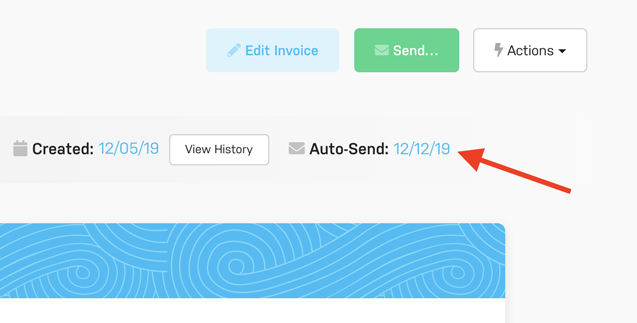
If you change your mind and want to turn off auto-sending for the invoice simply click the auto-sending date, choose the “Turn Off Auto-Send” option, and save your changes.
Note: Just so there’s no confusion, Harpoon’s recurring invoices also have the ability to be automatically sent to your clients. But this scheduled auto-sending feature brings that capability to all of your one-off invoices as well.