
What kind of revenue gets tracked on my Schedule?
Not sure which one you're using? The new interface has a dark sidebar and /app/ in the web address; the classic interface has a bright blue sidebar. You can switch at any time: in the new interface, click your name (top right) and choose Switch back to classic; in the classic interface, hover your avatar (bottom left) and choose Try the new Harpoon.
Your Schedule shows two kinds of revenue: collected and expected.
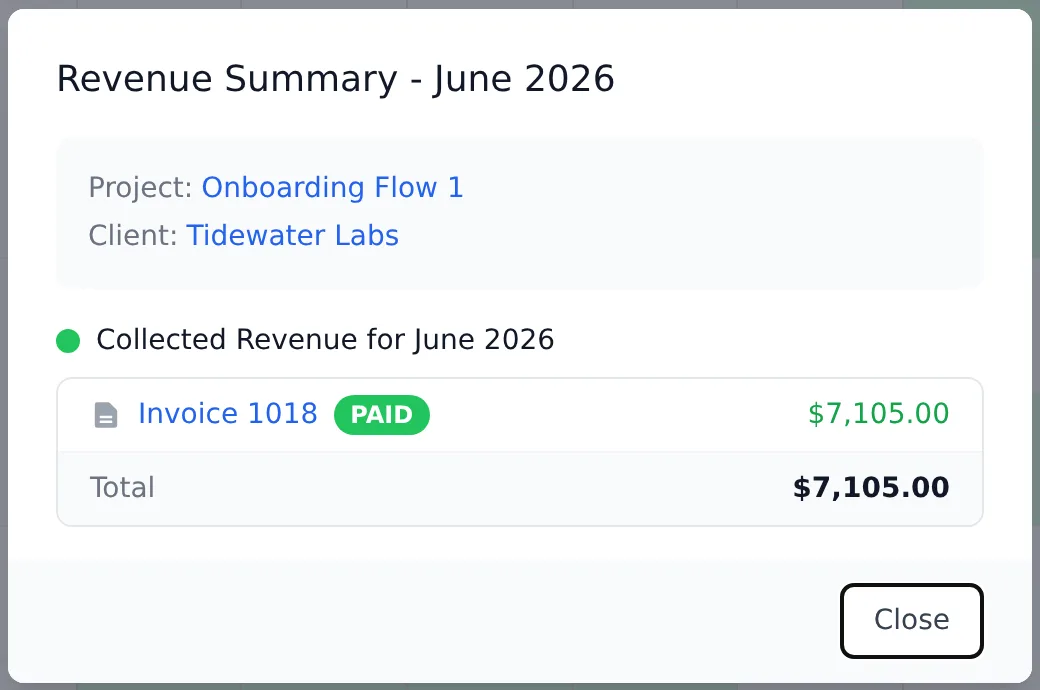
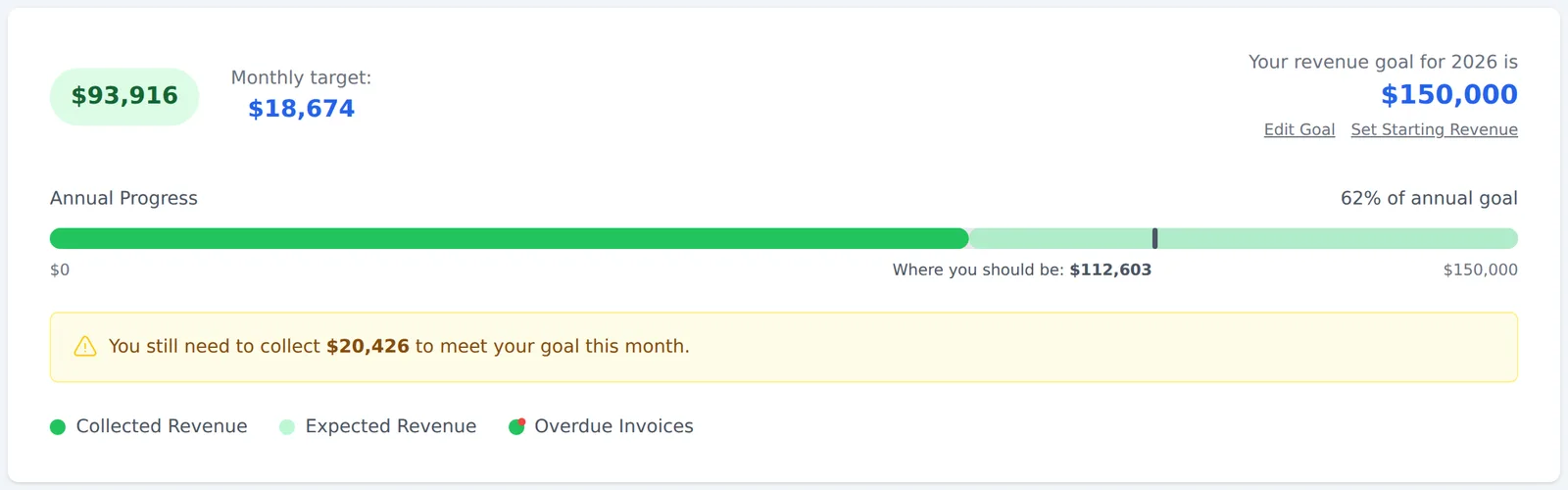
Collected Revenue is the money you've actually received from your clients. It's shown as solid green circles in each project's row and as the solid green part of the Annual Progress bar at the top.
Expected Revenue is money you expect to receive but haven't yet. It can come from unbilled hours, unpaid invoices, future recurring invoices, fixed fee project budgets, or amounts you've added with Add Expected Revenue. (Learn more about these sources.) It's shown as striped green circles and as the lighter green part of the progress bar.
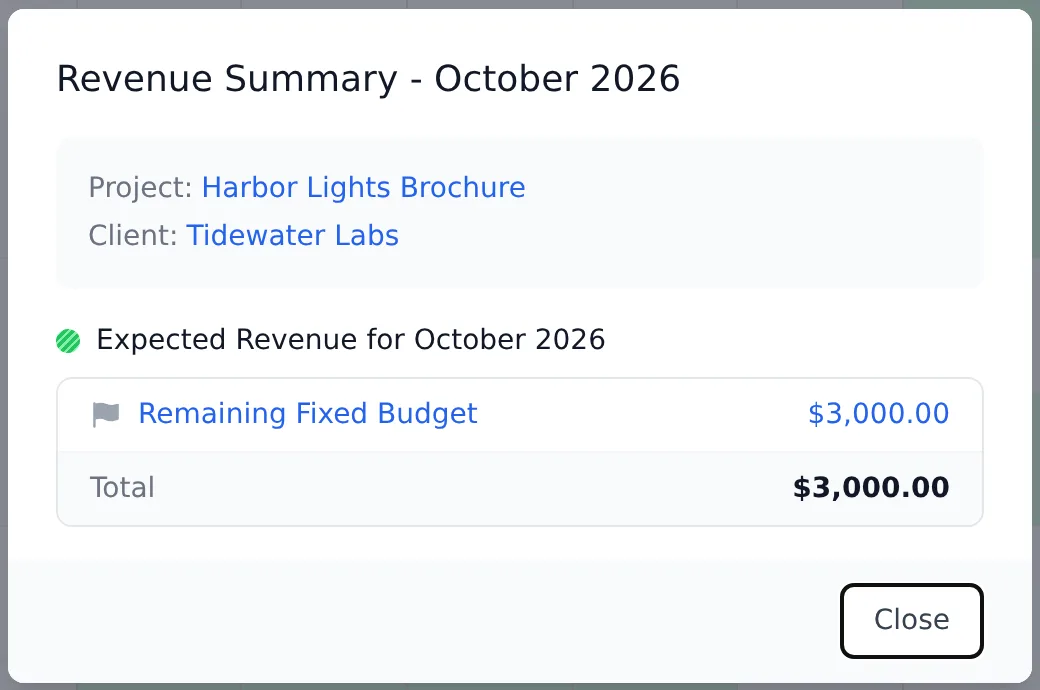
Hover over any circle to see its amount, or click it to see the details.
To learn more about using the Schedule, see the Schedule articles.
There are two types of tracked revenue you’ll see displayed on your Schedule: Collected Revenue and Expected Revenue.
Collected Revenue: This represents all of the actual income you’ve received from your clients. Collected Revenue is represented by the solid green progress bar at the top of your Schedule (more about the progress bar in just a minute), and by the solid green circles within your Schedule’s calendar:

Expected Revenue: This represents all of the revenue you expect to receive, but haven’t received yet, which could include unbilled hours, unpaid invoices, future recurring invoices, fixed project budgets, or any expected revenue you've added manually using the "Add Expected Revenue" action at the top of your Schedule. (Refer to this article to learn more about these sources of expected revenue and how they work.) Expected revenue is represented by the striped green progress bar at the top of your Schedule, and by the striped green circles within your Schedule’s calendar:

To learn more about using the Schedule refer to these support articles.