
How do I track expected revenue on my Schedule?
Not sure which one you're using? The new interface has a dark sidebar and /app/ in the web address; the classic interface has a bright blue sidebar. You can switch at any time: in the new interface, click your name (top right) and choose Switch back to classic; in the classic interface, hover your avatar (bottom left) and choose Try the new Harpoon.
Your Schedule is a revenue forecasting tool. It looks ahead at the revenue you expect from your projects and shows how that affects your monthly and yearly goals.
Harpoon tracks expected revenue for you automatically and shows it as striped green circles and the lighter green part of the progress bar. It comes from these sources:
Fixed fee project budgets
When a Fixed Fee project has a budget, Harpoon shows the part you haven't invoiced yet as expected revenue, even before you create an invoice. For example, a $1,000 budget shows $1,000 of expected revenue. Once you invoice and get paid, it moves from expected to collected.
You can turn this off for a project with the Track remaining fixed budget as expected revenue? switch on the project form.
Unbilled hours
For Hourly projects, Harpoon adds up the value of all hours with a status of Unbilled and shows it as expected revenue. For example, 10 hours at $100/hour shows $1,000 expected. Once those hours are invoiced and paid, the amount moves to collected. You can turn this off for a project with the Track unbilled hours as expected revenue? switch on the project form.
Unpaid invoices
Every unpaid invoice shows as expected revenue until it's paid, and then it moves to collected. Harpoon doesn't count the same money twice: if you invoice $1,000 against a $1,000 fixed fee budget, you'll still see $1,000 expected, not $2,000.
Future recurring invoices
Recurring invoices show their future amounts as expected revenue in the months they're due. A $1,000 monthly recurring invoice that ends in 6 months shows $1,000 expected in each of those months.
Manual entries
For anything else, or to test how an amount would affect your goals, add it yourself:
- Click Add Expected Revenue at the top of your Schedule.

- Fill in the Date, Project and Amount, and add a Note if you like.
- Click Save.
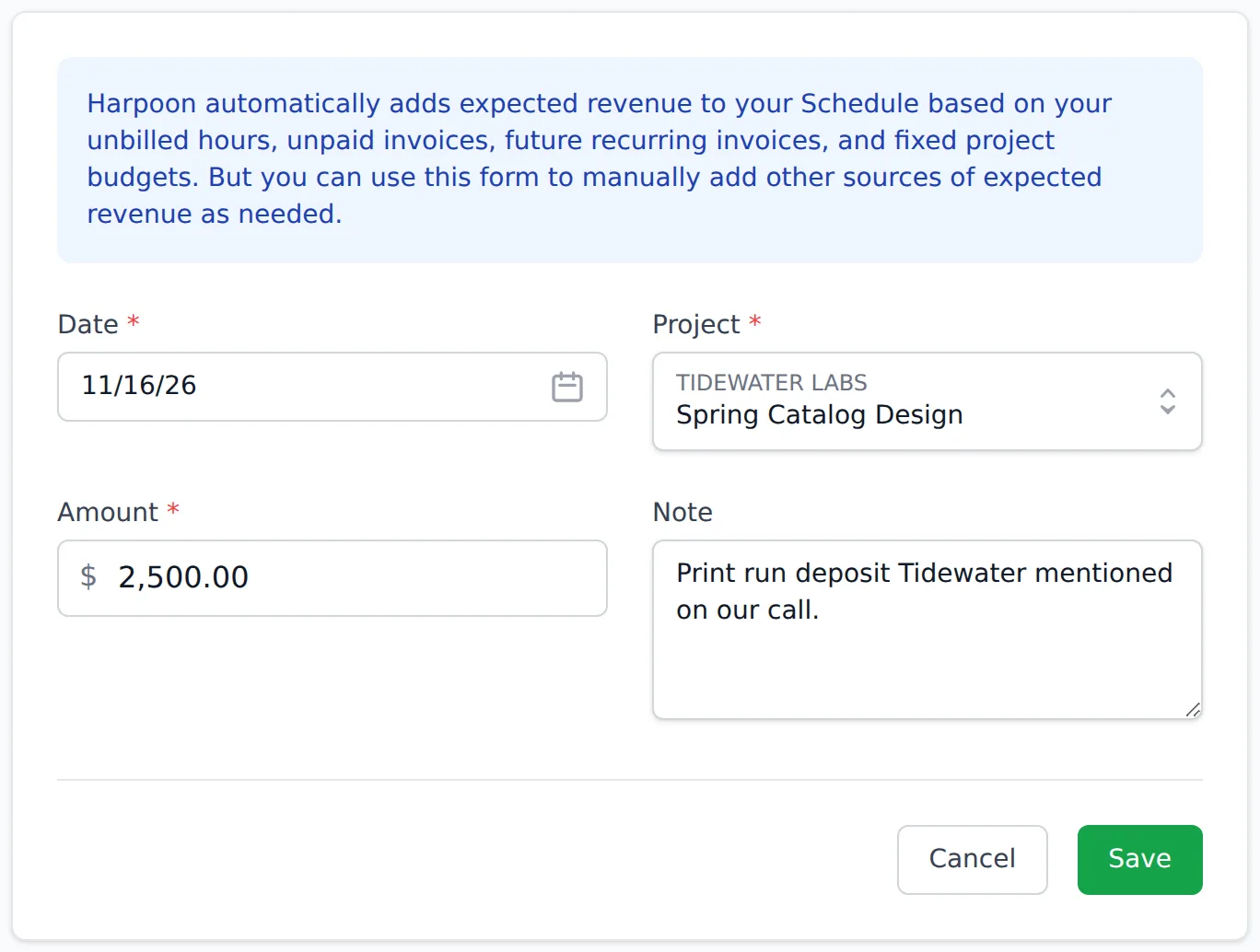
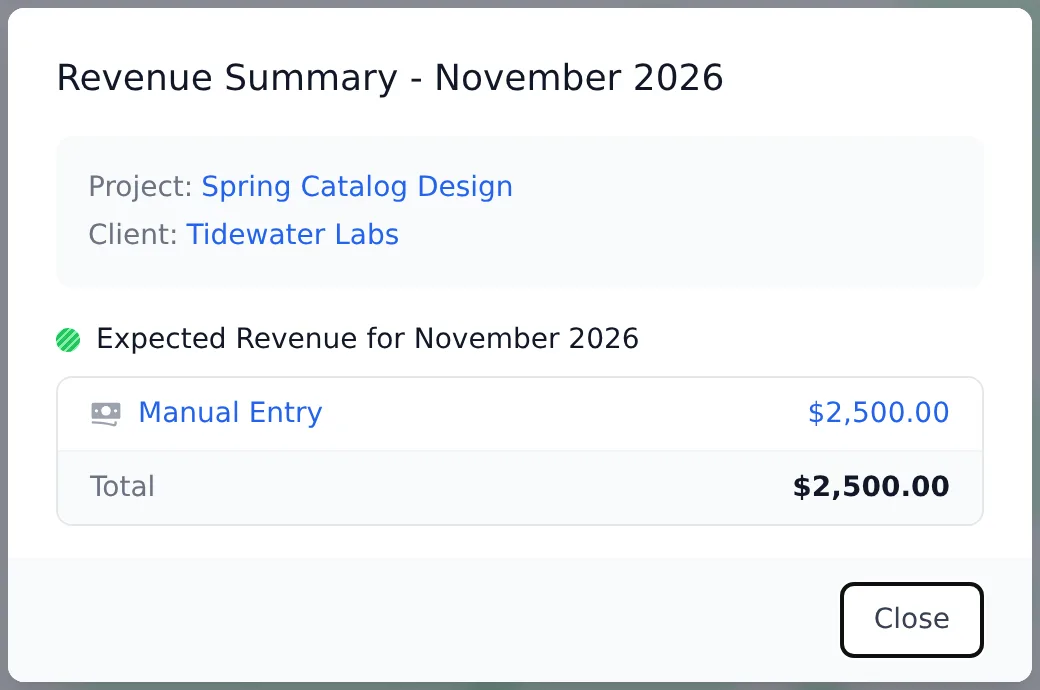
Manual entries stay on your Schedule until you delete them. To change or delete one, click its striped circle on the Schedule, then click Manual Entry in the Revenue Summary. On the form that opens, click Update to save changes or Delete Expected Revenue to remove it.
Expected revenue rolls forward
Expected revenue never stays in a month that's already over. If a $1,000 unpaid invoice is expected in June and isn't paid by the end of June, it moves into July, because July is now the earliest month you can expect to collect it.
Monthly and yearly totals
Hover over a month in the Monthly Progress row at the bottom of the Schedule to see that month's goal, what you've collected, and (for the current and future months) the total you're expecting. The Annual Progress bar at the top shows collected revenue in solid green, expected revenue in lighter green after it, and a Where you should be marker for where you need to be by now to reach your yearly goal.
Tip: click any revenue circle, striped or solid, to see exactly where that amount comes from.
Harpoon’s Schedule is designed to be a powerful revenue forecasting tool, enabling you to look ahead in the calendar, predicting the amount of revenue you’re expecting to receive from your projects, and seeing how that expected revenue affects your monthly and yearly revenue goals.
Harpoon automatically tracks and displays this expected revenue on your Schedule (you’ll see it in the form of "green striped" circles and progress bars). Expected revenue comes from a variety of sources: Fixed Fee Project Budgets, Unbilled Hours, Unpaid Invoices, Future Recurring Invoices, and Manual Entries.
Fixed Fee Project Budgets
When you create a Fixed Fee project in Harpoon you’re given the opportunity to include a “Fixed Fee Budget” for the project. The Fixed Fee Budget is the amount you plan to bill the client for the project. Harpoon will take this fixed fee budget amount and display it on your Schedule as expected revenue. For example, if you’ve given the project a Fixed Fee Budget of $1,000 then you’ll automatically see $1,000 show up on your Schedule as expected revenue for that project, even before you ever create an invoice for the project. After your client is invoiced and pays you $1,000 for the project, Harpoon will automatically convert the $1,000 from expected revenue to collected revenue on your Schedule. (Note: This source of expected revenue tracking can be turned on/off on a per project basis when creating/editing a project.)
Unbilled Hours
As your team tracks their time for an Hourly project, Harpoon will automatically calculate the value of all Unbilled hours for the project and display that value on your Schedule as expected revenue. For example, if your team records 10 hours for the Hourly project, and you have your hourly rate set at $100/hour for the project, then you’ll automatically see $1,000 show up on your Schedule as expected revenue for that project, even before you ever create an invoice for the project. After your client is invoiced for those hours and pays you $1,000, Harpoon will automatically convert the $1,000 from expected revenue to collected revenue on your Schedule. (Note: This source of expected revenue tracking can be turned on/off on a per project basis when creating/editing a project.)
Unpaid Invoices
All unpaid invoices that exist in your Harpoon account will be displayed on your Schedule as expected revenue. After an invoice has been paid Harpoon will automatically convert the amount of the invoice from expected revenue to collected revenue. And Harpoon is smart enough to never artificially inflate your expected revenue amounts. For example, let’s say a Fixed Fee project has a Fixed Fee Budget of $1,000. You then create an invoice for the project in the amount of $1,000. Harpoon will not display $2,000 in expected revenue on your Schedule because it knows the invoice you’ve created “eats into” the Fixed Fee Budget amount you’ve set for the project and $1,000 will continue to be displayed as expected revenue.
Future Recurring Invoices
When you create a recurring invoice you’ll see the recurring amount displayed on your Schedule as expected revenue. For example, if you’ve created a monthly recurring invoice in the amount of $1,000/month and it has an end date 6 months from now, then you’ll see $1,000 in expected revenue appear on your Schedule every month for the next 6 months into the future. After each of those invoices is paid by your client Harpoon will automatically convert the amount of each invoice from expected revenue to collected revenue.
Manual Entries
There might be times when you have expected revenue that’s outside of the automated sources mentioned above. Or maybe you just want to experiment with how certain amounts of expected revenue will affect the monthly and yearly goals on your Schedule. For those situations you can use the blue “Add Expected Revenue” button at the top of your Schedule to manually add your own sources of expected revenue to the Schedule. These manual entries will remain on your Schedule until you manually delete them.
Expected Revenue Rollovers
One thing you’ll notice with expected revenue is that despite what month an expected revenue amount first appears on your Schedule, NO expected revenue amounts are allowed to appear in the past. Instead expected revenue amounts are automatically “rolled over” from past months into the present. For example, if a $1,000 unpaid invoice is showing up as expected revenue in the month of June, and the invoice never gets paid during June, as soon as June is over and July begins that $1,000 of expected revenue will “rollover” and be displayed in the month of July. This is because it’s impossible to “expect” the $1,000 to be collected in the month of June because June is now in the past. The earliest that revenue can now be expected is the month of July.
Monthly Expected Revenue Totals
At the bottom of your Schedule you’ll see a “Monthly Progress” row. When you hover over each month in that row you’ll see a popup with details regarding that month’s revenue goal, how much revenue has been collected, and (for current and future months) how much you’re expecting to collect in total that month. For example, your revenue goal for the current month might be $10,000. And you’ve only collected $6,000 so far. But no worries because Harpoon looks into the future and shows you that you’re actually expecting a total of $11,000 in revenue for the month.
Yearly Expected Revenue Total
At the top of your Schedule is a progress bar that spans the full width of the screen. This displays your current progress towards accomplishing your yearly revenue goal. The solid green progress bar represents your actual collected revenue. If you have additional expected revenue it will be represented by a striped green progress bar that extends past the solid green collected revenue bar. There’s also an indicator of “Where you should be.” This is the amount of revenue Harpoon calculates you should have already collected at this point in the year in order to stay on track to accomplishing your yearly revenue goal.
Expected Revenue Tip: Click on any expected revenue circle (green striped circles) on your Schedule to see more details on where that expected revenue amount is coming from. This works for collected revenue circles (solid green circles) as well.