
How do I invite a team member to my account?
Not sure which one you're using? The new interface has a dark sidebar and /app/ in the web address; the classic interface has a bright blue sidebar. You can switch at any time: in the new interface, click your name (top right) and choose Switch back to classic; in the classic interface, hover your avatar (bottom left) and choose Try the new Harpoon.
You can invite other team members to your Harpoon account and collaborate on your projects. For example, you might want to let a staff member or contractor track time for a project. Or you might want to give your project manager access to manage the details of a project.
To invite a team member, click your name in the top right corner and choose Account, then click Team to open your Team screen. Click the Invite Team Member button. (Note: In the new interface only the Owner of the account can invite team members.)

You’ll be presented with the Invite Team Member form:
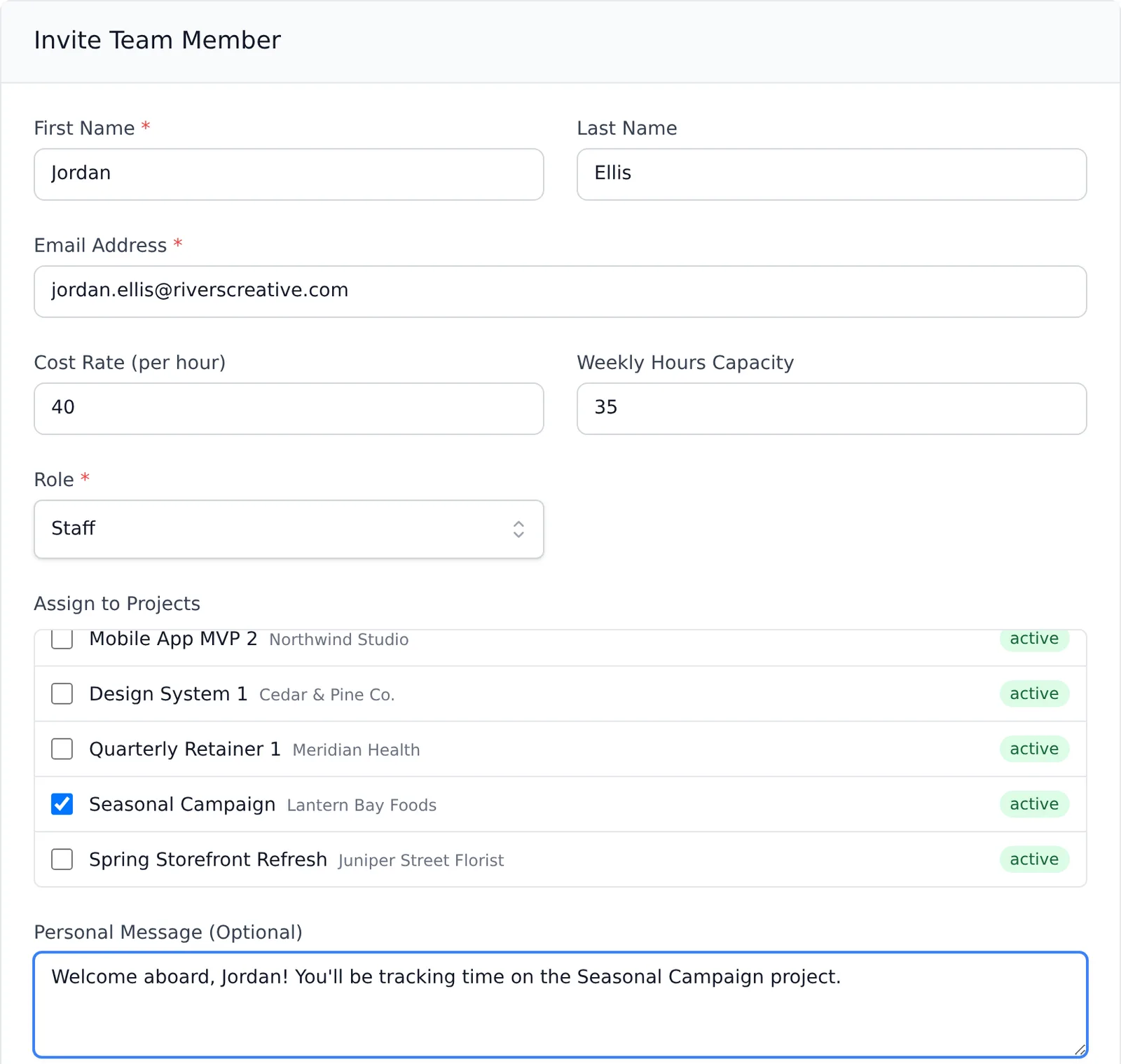
- First Name, Last Name and Email Address: Who you’re inviting. The invitation is sent to this email address.
- Cost Rate (per hour): The internal hourly cost this team member incurs for your business. Learn more in How do I track the internal hourly cost rates for my team members?
- Weekly Hours Capacity: The average maximum number of hours this team member works each week. Learn more in How do I track the weekly hours capacity of my team members?
- Role: Each team member is assigned a role, which determines what they can access in your account:
- Admin: Access to your whole account, except the Subscription and Billing screens. Only the Owner can manage the account’s subscription, and there’s only one Owner per account. Admin is a good fit for co-owners and business partners.
- Manager: Can view and manage the projects they’ve been assigned to, and track time. Manager is a good fit for project managers and coordinators.
- Staff: Time tracking only, and only for the projects they’ve been assigned to. Staff is a good fit for employees and contractors.
- Assign to Projects: If you choose Manager or Staff, check the projects you’d like to give your team member access to right away. Each project is listed with its client’s name. You won’t see this option for Admins, since they have access to all projects.
- Personal Message (Optional): A message to include in the invitation email.
Click Send Invitation and your team member will receive an email invite to join your team. Until they accept, their card on the Team screen shows a Pending status and when the invitation was sent.
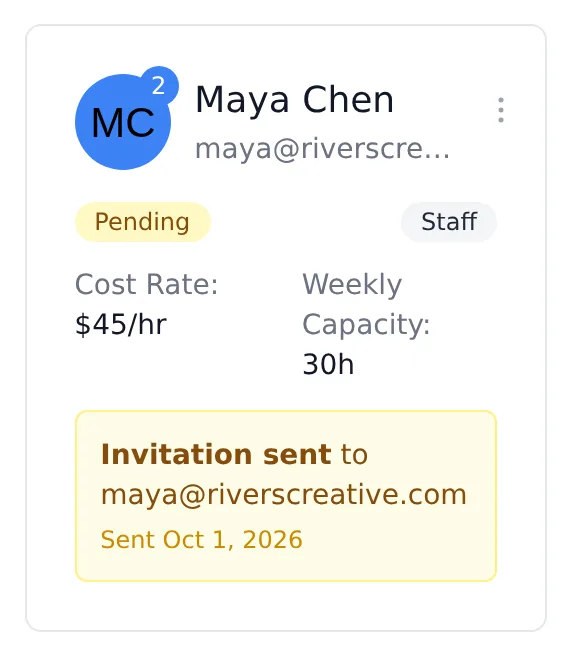
After your team member accepts the invitation, their status changes to Active.
Need to resend an invitation? There’s no resend option in the new interface yet. Switch to the Classic interface (click your name in the top right → Switch back to classic) and use the Resend Invite action in the team member’s menu there.
To learn more about teams view our Teams support articles.
You can invite other team members to your Harpoon account and collaborate on your projects. For example, you might want to allow a staff member or a contractor to track time for a project. Or you might want to give your project manager access to manage the details of a project.
To invite a team member start by visiting your Team screen. On this screen click the “Invite Team Member” button. (Note: Only the Owner of an account or Admin team members have the ability to invite other team members.)
You’ll be presented with the “Invite Team Member” form.
This form is divided into three parts:
General Information: Besides providing your team member's name and email, the following information is also requested:
- Hourly Cost Rate: This is the internal hourly cost this team member incurs on your business.
- Weekly Hours Capacity: This is the average maximum number of hours this team member works from week to week.
- Optional Message: Include an optional message to accompany the invitation email your team member will receive.
Select a Role: Each team member you invite is assigned a role. The roles determine the level of account permissions a team member is given. The available roles are:
- Admin: This role gives the team member complete access to your Harpoon account. The only thing an Admin can’t do is access your account’s subscription screen. Only the Owner of the account can manage the account’s subscription, and there’s only one Owner per account. The role of Admin is perfect for co-owners and business partners.
- Manager: Managers have permission to view, edit, and manage projects, but only projects they’ve been assigned to. Managers can view the Project Details screen for their assigned projects, as well as create invoices and estimates for those projects. But they cannot send invoices or estimates to your clients. Only Admins and the Owner can do that. The role of Manager is ideal for project managers and coordinators.
- Staff: Time tracking is the only feature that Staff have access to in your account. And they can only track time for projects they’ve been assigned to. Staff cannot view Project Details screens, only the Time screens for time tracking purposes. The role of Staff is great for employees and contractors.
Assign to Projects: If you’ve selected either Manager or Staff for your team member’s role you’ll be given the option to select any projects you’d like to give your team member immediate access to. If you selected the role of Admin you won’t see this option since Admins already have access to all projects by default.
Now you can click the “Send Invite” button and your team member will receive an email invite to join your team. While you’re waiting for your team member to accept the invitation they’ll be given a status of “Pending."
By the way, if it’s taking longer than expected for your team member to accept the invite you always have the option of resending the invitation by clicking the “Resend” action in the team member’s utility menu.
After your team member accepts the invitation and joins your account their Pending status will be replaced by their role label.
That’s all there is to it!
To learn more about teams view our Teams support articles.